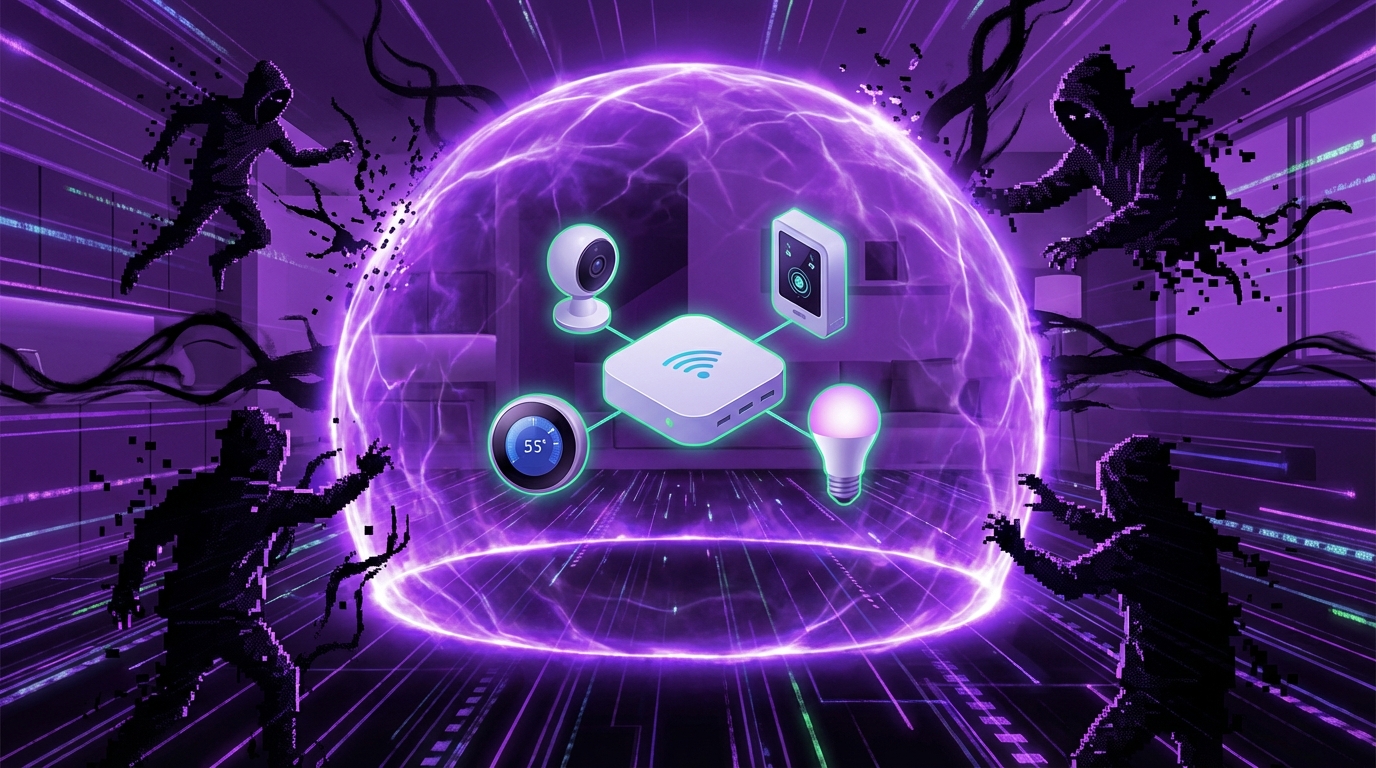
I used to think my WiFi password was the main thing keeping my home safe. Then I watched my “smart” light bulbs start flickering randomly during a call, and I realized something was very wrong.
If you want to secure your IoT devices from hackers, you have to treat each gadget like a small computer on your network: change default passwords, keep firmware updated, isolate them on a separate WiFi network, turn off features you do not use, and monitor what is connected. The more you limit what each device can do, where it can connect, and who can talk to it, the safer you are.
What makes IoT devices so easy to hack
Most people trust IoT devices way more than they should. A smart camera “feels” harmless. It just sits on a shelf. But on a network level, it behaves like a tiny server that can send and receive data nonstop.
Here is the rough truth about many smart gadgets:
- They ship with weak or public default passwords.
- Some have firmware that hardly ever gets patched.
- Manufacturers sometimes stop supporting products very early.
- Devices talk to cloud servers you do not control.
- Most users never log in to tweak security settings.
If your IoT device is easy for you to set up in 2 minutes, there is a good chance it is easy for attackers to scan and attack at scale.
Let us break down the main risks:
| Risk | What it looks like | Why it matters |
|---|---|---|
| Default credentials | “admin/admin” logins, printed on the box | Attackers use automated tools to log in remotely |
| Weak firmware security | Old software, known bugs, no update process | Gives hackers a stable, known way in over time |
| Always-online devices | Cameras, doorbells, plugs talking to servers 24/7 | Increases the exposed “surface” on the internet |
| Poor network segregation | Everything on one WiFi network | One weak device can expose laptops and phones |
| Long device lifetimes | Gadgets used for 5-10 years | Security support often ends long before that |
Hackers do not “target” your toaster because it is special. They target it because it is cheap, common, and often wide open.
I want to focus on steps that normal users can actually follow, without needing a cybersecurity certification. Some of these are simple. Some are annoying. But the boring ones usually give you the biggest gains.
Step 1: Start by fixing the basics on every device
When I audit a home or office setup, I always start with the low-hanging fruit. Most attacks do not rely on Hollywood-level exploits. They use passwords and settings that the manufacturer shipped by default.
1. Change default usernames and passwords
If you skip everything else, do not skip this.
- Log in to each device’s app or web interface.
- Change the default username if that is allowed.
- Set a strong, unique password for every device.
Good device passwords:
- At least 14 characters.
- Use a mix of letters, numbers, and symbols.
- Are unique per device. Never reuse your email or bank passwords.
Use a password manager. Manually tracking 15 different passwords for cameras, plugs, and thermostats does not scale.
Public default passwords are like publishing your front door key on a billboard. Attackers know them better than you do.
If a product does not let you change its password at all, that is a red flag. For cheap gadgets that behave like this, I would consider unplugging them permanently.
2. Turn off remote access you do not really need
Many IoT devices try to be helpful by enabling remote access by default. That can mean:
- Port forwarding in your router that exposes the device to the internet.
- UPnP (Universal Plug and Play) rules created silently.
- Cloud access that is always on, even if you never use it.
Ask yourself: “Do I really need to control this device while I am away from home or office?”
If the answer is no, go into the app or web interface and:
- Disable “remote access” or “cloud access” settings.
- Turn off UPnP on your router (more on routers later).
- Lock down port forwarding rules that you did not create yourself.
Some people push back here and say remote access is the whole point of their smart camera or door lock. Fair. In that case, focus harder on the rest of the steps, because your exposure is higher.
3. Register and update your devices
The software inside your device (firmware) is not static. Or at least, it should not be.
Steps:
- Create an account with the manufacturer if that is required for updates.
- Connect the device only long enough to register and update, if you are cautious.
- Enable automatic updates if the product offers it.
- Check manually a few times a year for firmware updates.
A device running old firmware is like a parked car with a known recall you never fixed. The risk grows over time, not overnight.
If a device has had no firmware updates for several years and it connects to the internet, you should treat it as higher risk. For critical categories like cameras or locks, I would seriously think about replacing it with a more actively maintained product.
Step 2: Lock down your WiFi and router
Your router is the gatekeeper. You cannot talk about IoT security without talking about WiFi security. This is where a lot of people take shortcuts, usually because the router setup page feels confusing.
1. Use strong WiFi security settings
At minimum, your WiFi should follow this pattern:
- Use WPA2 or WPA3 security (not WEP, not “open”).
- Turn off WPS (WiFi Protected Setup) if possible.
- Use a long WiFi password that is not used anywhere else.
Recommended WiFi password:
- At least 16 characters.
- Something like: “oak-river-yellow-harvest-92” (password manager can create this).
Change the router’s admin password as well. Many people forget that the WiFi password and the router login password are separate. Both need to be strong.
2. Create a separate network for IoT devices
This is one of those tips that sounds “advanced” but is actually quite simple on most modern routers.
The goal: put phones, laptops, and work devices on one network, and all IoT stuff (TVs, speakers, cameras, light bulbs) on another network. That way, if a camera gets hacked, it is harder for attackers to reach your laptop.
You can do this in a few ways:
- Use a “Guest” WiFi network for IoT devices.
- Use VLANs if your router supports them and you are comfortable with that.
- Use a second router for IoT devices only, sitting behind your main router.
Simple approach:
- Enable Guest WiFi on your router.
- Name it clearly, like “Home-IoT”.
- Give it a strong password.
- Enable “client isolation” for the guest network if there is such a setting. This prevents devices on that network from talking to each other directly.
- Connect all smart TVs, speakers, plugs, and other gadgets to this network.
Network separation turns one big target into several smaller targets that do not easily talk to each other.
If you run a small office, take this step even more seriously. Keep workstations and servers away from cheap, unsupported hardware as much as possible.
3. Disable UPnP unless you truly need it
UPnP is a feature that lets devices open ports on your router automatically. It makes setup easy. It also makes exposure easy.
I do not like leaving UPnP on if there are many IoT devices.
Steps:
- Log in to your router admin panel.
- Find the UPnP settings (often under “Advanced”).
- Turn it off.
- If something stops working, you can add manual port forwarding rules for that specific product.
This is slightly less convenient, but it gives you far more control.
Step 3: Limit data collection and unnecessary features
Some IoT devices collect far more data than they actually need. This is not only a privacy question, it is also a security question. Data that is never collected cannot be stolen.
1. Review privacy and permissions
I know, no one wants to read another privacy policy. But at least skim the key settings.
Look for:
- Voice recordings storage (for smart speakers).
- Video retention and cloud storage duration (for cameras).
- Diagnostic or analytics sharing options.
- Any “improve product experience” toggles.
Turn off:
- Data sharing you do not see clear value from.
- Long-term storage of audio or video, if local storage works for you.
- Extra “labs” or experimental features you never use.
Every extra feature is another potential entry point. If you do not use it, shutting it off simplifies your security problem.
2. Disable microphones and cameras when not needed
For some devices this is possible through software. For others, hardware is more trustworthy.
Options:
- Use hardware shutters on cameras when you are home.
- Turn off always-listening microphones where possible.
- Unplug non-critical devices during long trips if they are not required for safety.
If you have a smart TV with a camera and you never use video calls, you can often disable the camera entirely in settings or cover it physically.
3. Limit third-party integrations
The temptation is to connect everything to everything. Alexa, Google Home, SmartThings, IFTTT, Home Assistant, and more.
Integration chains can look like this:
Smart lock → Hub → Cloud service → Voice assistant → Phone app
Each link is another system that has permissions. Each one can be abused.
Try this approach:
- Pick one primary smart home platform, not three.
- Connect devices only where it provides real value.
- Review what each integration can control, especially for locks, cameras, and alarms.
If an integration does not work well or you barely use it, remove it. Fewer moving parts, fewer things that can go wrong.
Step 4: Keep an inventory and monitor activity
This part feels boring. It is also where people gain the most control over their setup.
1. Maintain a simple device inventory
You do not need a fancy asset system. A small spreadsheet or note is enough.
Track:
- Device name and model.
- MAC address and/or IP (helpful but optional).
- Where it is installed.
- Which WiFi network it uses.
- Purchase date and last known firmware update.
If you cannot list your devices, you probably have no idea which one becomes the weak link two years from now.
This also helps when something behaves oddly. If your router shows an unknown device, you can check your list instead of blindly guessing.
2. Check your router for unknown devices
Every few months, log in to your router admin page and look at the “connected devices” list.
Things to look for:
- Device names you do not recognize.
- Devices connected to the wrong network (like a TV on your main network instead of IoT network).
- Old hardware you thought you unplugged.
If you see something unknown:
- Block it from the router interface if there is an option.
- Change your WiFi password and reconnect only known devices.
- Check that no one nearby has your WiFi password who should not.
3. Monitor unusual behavior from IoT devices
You do not need advanced tools to spot some issues. Common warning signs:
- Device becomes slower or unresponsive for no clear reason.
- LEDs blink or behave oddly at times when no one is using it.
- Your internet feels slower than usual, especially upload speed.
- Data usage spikes when nothing has changed in your own habits.
If your router supports it, look at per-device data usage. If a light bulb is uploading gigabytes of data, something is off.
Step 5: Harden specific high-risk device categories
Not all IoT devices carry the same risk. A hacked smart plug is annoying. A hacked camera or door lock is serious.
1. Smart cameras and baby monitors
These are among the top targets. Stories of strangers talking through baby monitors are sadly not rare.
For cameras:
- Use strong, unique passwords. No exceptions.
- Disable viewing from the open internet if you can use VPN instead.
- Prefer vendors that support 2FA (two-factor authentication) on accounts.
- Limit cloud access and prefer local video storage where practical.
- Check access logs if the vendor provides them to see logins from odd locations.
If a product lets you watch video without any account or password (some very cheap models do), I would treat that as unsafe for sensitive areas.
2. Smart locks and alarms
Physical security linked to the network raises the stakes.
Practical steps:
- Pick reputable brands with a clear security track record and published update history.
- Enable 2FA on the lock or alarm account.
- Avoid sharing digital keys widely; give guest codes with time limits where possible.
- Keep a mechanical backup (physical key) and know how to override the smart features if needed.
- Do not expose their control endpoints directly to the internet.
Again, if remote access is not crucial, disable it. If it is essential (for rentals, for example), make sure account security is strong and review access regularly.
3. Smart TVs and streaming devices
Smart TVs gather data, run third-party apps, and often stay on your network for many years.
For TVs:
- Disable voice recognition if you do not use it.
- Turn off “automatic content recognition” or similar tracking features.
- Use a separate HDMI streaming stick if your TV manufacturer is slow with updates.
- Keep them on the IoT network, not the main one.
Streaming sticks (like Roku, Fire TV, Chromecast) often get more frequent updates than built-in TV software. Offloading “smartness” to these can be slightly safer.
4. Smart speakers and voice assistants
These devices are microphones in your home or office, always listening for wake words.
Key steps:
- Review and clear stored voice recordings regularly.
- Disable features you do not use, such as voice purchasing.
- Place them in rooms where sensitive conversations are less likely, if that is possible.
- Use physical mute buttons when privacy is critical.
Convenience and privacy sit on a sliding scale. Smart speakers lean toward convenience by default; you need to pull them back.
Step 6: Choose better devices going forward
Some of the risk can be reduced only at purchase time. Once you own a device that is insecure by design, your options are limited.
1. Look for clear security practices from vendors
When you are shopping, scan for clues that the company takes security seriously.
Good signs:
- A security page describing how they handle vulnerabilities.
- Regular firmware updates visible in the product changelog.
- Support lifetime listed or explained.
- 2FA support on accounts.
Red flags:
- No mention of firmware updates anywhere.
- Very old apps that have not been updated for years.
- Zero contact information for security researchers.
- Device requires wide-open ports to the internet to function at all.
Sometimes paying a bit more for a reputable brand is cheaper than dealing with a breach or replacement later.
2. Favor local control where possible
I will admit I am slightly biased here. I prefer devices that can work mainly on local networks rather than relying only on a cloud service.
Benefits of local-first devices:
- Less dependence on external servers staying secure and online.
- Better control over data and network visibility.
- Less exposure if the vendor is bought, shut down, or changes policies.
Examples:
- Smart bulbs that support local protocols (like Zigbee or Matter) through a local hub.
- Cameras that can record to local storage and do not require constant cloud streaming.
It is not perfect, and sometimes local setups are more complex. But each device that does not send your data across the internet reduces the total risk surface a bit.
3. Plan for lifespan and end-of-life
IoT devices age in two ways:
- Hardware aging: sensors, batteries, and components wear out.
- Software aging: security updates stop, APIs change, apps break.
When buying, ask:
- “How long has this existed already?” A very old model might be near end-of-life.
- “How often has it received security updates in the past?”
- “What happens if the vendor shuts down the cloud?”
If a vendor has a public schedule for support windows, that is ideal. If they do not, you can infer by looking at previous models and how long they were supported.
Step 7: Add an extra security layer where you can
For some homes and especially for offices, it can make sense to add one more line of defense between IoT gear and the open internet.
1. Use a VPN instead of exposing devices directly
Instead of letting a camera or NAS storage box be reached from the internet, you can:
- Set up a VPN server on your router or a dedicated box.
- Connect to your home/office via VPN when you are away.
- Access devices as if you were inside the network, without exposing ports.
This takes a bit of setup, but it means:
- Fewer open ports on your router.
- Less scanning attack traffic reaching your IoT devices.
2. Use DNS filtering for IoT networks
Some routers and services can filter which domains your devices can contact.
Benefits:
- Block known malicious domains.
- See which domains devices talk to, which can be revealing.
- Restrict devices so they only talk to vendor servers and not random destinations.
Examples include DNS-based filters that you configure on the router. Even free levels of some services can improve safety slightly.
If a cheap light switch starts talking to twenty unknown domains, DNS logs may be the only early sign something is not right.
3. Consider basic firewall rules
On more advanced routers, you can set firewall rules per network or per device.
Sample simple rules:
- Block IoT network from initiating connections to your main network.
- Allow only outbound connections to web ports (80/443) for IoT.
- Block traffic from foreign countries if your devices only need local services.
You do not need to go overboard here. Even a couple of rules can make wide attacks harder.
Step 8: What to do if you think a device is hacked
No setup is perfect. If you suspect one device is compromised, act quickly and methodically.
1. Signs of compromise
Some possible signs (none of these prove it alone, but they are signals):
- Device settings change by themselves.
- Strange logins or access times in the vendor app.
- Unknown voices or sounds from cameras or speakers.
- Router shows large or unexpected data traffic from that device.
2. Immediate steps to contain the risk
- Unplug the device or disconnect it from WiFi.
- Change your WiFi password and reconnect only trusted devices.
- Change the account password tied to that device.
- Enable 2FA on the account if it was not enabled before.
3. Rebuild the device securely
If you still want to use it:
- Factory reset the device fully.
- Update it to the latest firmware before reconnecting it to your regular network.
- Place it on the IoT network only, not the main network.
- Review all its settings from scratch, disabling remote access where possible.
If weird behavior continues, the device might be faulty or too insecure by design. At that point, retiring it is often safer than fighting with it.
Bringing it all together in a practical way
Let me pull this into an example setup that balances safety with convenience. Not every household or office needs the same level of control, but this gives you a template.
Example of a safer home IoT setup
- Main WiFi:
- Phones, laptops, work PCs.
- Strong password, WPA2 or WPA3.
- Router admin password changed from default.
- IoT WiFi (guest network):
- All smart TVs, speakers, cameras, plugs, thermostats.
- Client isolation enabled.
- UPnP disabled on router globally.
- Device hygiene:
- Default passwords changed on every device.
- Automatic firmware updates enabled where available.
- Inventory list kept in a shared note.
- Privacy:
- Camera access restricted; some use local storage.
- Smart speakers muted in sensitive rooms when needed.
- Voice and video history cleaned out periodically.
- Remote access:
- VPN set up for remote viewing of key devices.
- No direct port forwarding to random devices.
You do not need perfect security. You need to be less exposed than the easy targets attackers scan for.
The reality is that IoT can bring real convenience. Energy savings, monitoring elderly parents, simple automation, all of that is real value. But that value does not come free. You pay for it either with attention to security now, or with incidents later.
If you start by locking down your router, creating a separate IoT network, changing every default password, and being picky with new devices you buy, you cover a large part of the practical risk. The rest is maintenance: checking updates, watching for unknown devices, and being willing to unplug gadgets that do not respect basic security hygiene.


