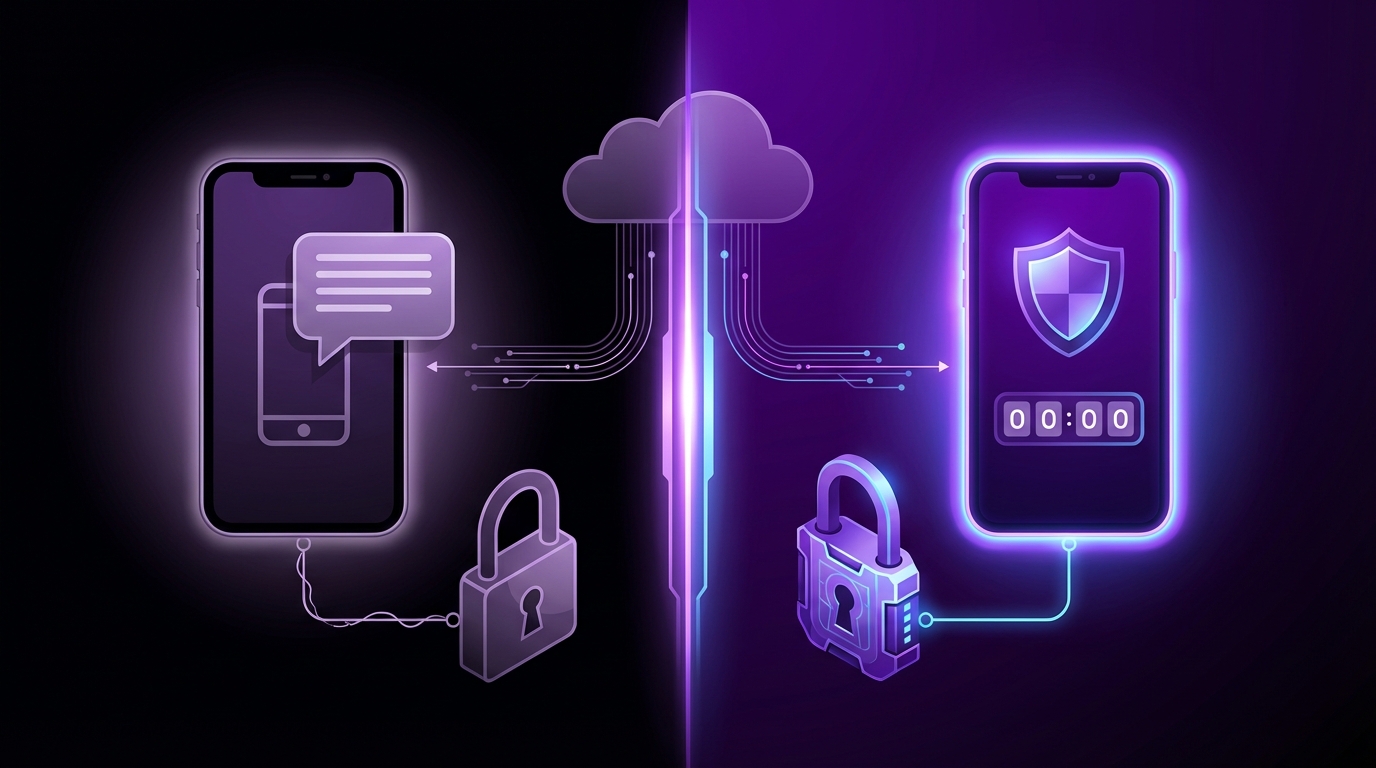
I used to think a strong password was enough. Then I watched one of my own accounts get hit with a login attempt from a country I have never even visited, and that idea disappeared very quickly.
Here is the short version: if you care about account security, use two‑factor authentication, and between SMS and authenticator apps, choose an authenticator app whenever you can. SMS is better than nothing, but it has real weaknesses that attackers already know how to exploit. Authenticator apps are harder to break, more reliable across borders and carriers, and give you more control over your own security.
What two‑factor authentication actually does (and what it does not)
Two‑factor authentication (2FA) adds a second check on top of your password. Your password is “something you know.” 2FA adds “something you have” or “something you are.”
For most online services, that second factor is either:
- An SMS text message with a 6‑digit code
- A code from an authenticator app like Google Authenticator, Microsoft Authenticator, Authy, 1Password, or Bitwarden
The goal is simple: even if an attacker steals your password, they still cannot sign in without that extra code.
But here is the part people sometimes ignore: not all second factors are equal. Some are much easier to attack than others.
2FA is not just “on or off.” The method you pick matters almost as much as turning it on in the first place.
If you are only using SMS codes, your security is tied to your phone number and your mobile carrier. That might sound fine, until you look at how many things in your life already depend on that same number.
Quick refresher: how SMS 2FA and authenticator apps work
Let us get very practical for a second.
| Method | How it works | What you “have” |
|---|---|---|
| SMS 2FA | Service texts you a one‑time code when you log in | Your phone number (controlled through your SIM and carrier) |
| Authenticator app | App generates time‑based codes nonstop on your device | A secret key stored inside your app/device |
On the surface, both give you a 6‑digit code. You open your phone, read the code, type it in, and you are in.
The difference lives under the hood, in how that code is created and who controls the system around it.
SMS 2FA: what it is good at, and where it fails
Let me be fair to SMS first. For a lot of people, SMS 2FA is their first real step beyond passwords, and that step already blocks a lot of low‑level attacks.
- It is built‑in: every smartphone can receive texts, with no extra app.
- It is simple to explain: “We send you a code, you type it in.”
- It raises the bar: a password alone is no longer enough for an attacker.
If your choice right now is “no 2FA” or “SMS 2FA,” pick SMS. You are still harder to hack than the majority of users who only rely on passwords.
But let us not pretend SMS is strong enough for serious threats.
The real weaknesses of SMS 2FA
The problem is not only that SMS messages can be intercepted. The bigger weakness is that your mobile number itself is easy to attack through people and process, not only through technology.
Here are the main risks:
-
SIM swap attacks
This is the big one.An attacker convinces your mobile carrier to move your number to a SIM card they control. Sometimes this happens through social engineering on customer support. Sometimes through a corrupt insider.
Once they control your number, they receive your 2FA codes. If they already stole your password through a data breach or phishing, they can now log in as you.
-
Text message interception and forwarding
SMS was not designed to be secure. Texts can sometimes be intercepted at the network level or forwarded if someone has access to your phone or your cloud backups. -
Phone number recovery chains
Many services use your phone number for account recovery. That means:- Attackers target your number to reset passwords.
- Once they control your number, they can “Forgot password” their way into multiple services.
-
Travel and coverage problems
If you:- Travel abroad with no roaming,
- Switch carriers,
- Lose signal in a building,
your SMS codes might never arrive. That is not only annoying. It can lock you out when you need access urgently, like when a suspicious login alert shows up.
-
Phone number recycling
Carriers often recycle numbers. If you lose a number and forget to update 2FA settings, the new owner might receive security codes for your accounts.
When your security depends on a phone number, it also depends on every employee, policy, and process at your mobile carrier.
That is a lot of trust in companies that mainly focus on billing and coverage, not security.
When SMS 2FA is still acceptable
This might sound odd after that list, but SMS 2FA is not useless. It fits some scenarios, if you understand the tradeoffs.
SMS is still reasonable when:
- You are protecting low‑risk accounts (a forum login, a newsletter tool, a test account).
- The service does not support any better method.
- You have no smartphone that can run authenticator apps.
- You are in a region where feature phones are still common and SMS is the only option.
What I do not recommend is using SMS 2FA for:
- Your main email account (Gmail, Outlook, corporate email).
- Banking and financial apps.
- Crypto exchanges or wallets.
- Domain registrars and web hosting accounts.
If you lose any of those, you are not only changing a password. You are repairing actual damage.
Authenticator apps: why most security teams prefer them
Authenticator apps look simple on the outside, but they are built on a standard approach called TOTP (Time‑based One‑Time Passwords). The idea is surprisingly elegant.
Here is what happens when you set one up:
- You enable 2FA in an account (say, your Google account).
- The site shows you a QR code.
- Your authenticator app scans the QR code and stores a secret key.
- Both the site and your app now share that secret.
From then on, both sides use the same math:
- They take the secret key.
- They combine it with the current time.
- They turn that into a 6‑digit code that changes every 30 seconds.
| Aspect | SMS 2FA | Authenticator app (TOTP) |
|---|---|---|
| Where code is generated | On provider/carrier side, sent as text | On your device, inside the app |
| Requires network coverage | Yes, you need to receive SMS | No, works offline |
| Depends on phone number | Yes | No |
| Exposed to SIM swaps | Yes | No |
| Standardized protocol | No | Yes (TOTP / HOTP) |
Notice the shift here:
With authenticator apps, your second factor is your device and the secret stored on it, not your phone number.
This is why security professionals push authenticator apps for personal and business accounts.
Real strengths of authenticator apps
Let us map this to daily life, not only theory.
-
Stronger protection against remote attacks
An attacker cannot just convince a carrier to “move” your codes. The secret key lives on your device or inside your password manager. To get it, they need physical access or a serious compromise of that device. -
Works without network access
Airport Wi‑Fi not working? Roaming turned off? On a flight?
Your authenticator app still gives you valid codes, because it only needs the current time. -
No dependence on your phone number
You can:- Change carriers.
- Switch SIM cards.
- Use a data‑only plan.
Your codes keep working. No 2FA resets. No support calls.
-
Standardized and app‑independent
Most sites that support 2FA through QR codes are actually supporting TOTP. That means:- You can pick from many authenticator apps.
- You can move keys between them with backups or exports.
- You are not locked into one vendor forever.
-
Better for high‑value accounts
For anything that can cost you real money or access to your audience or business systems, authenticator apps are the minimum I would feel comfortable with.
The awkward parts of authenticator apps
To be honest, they are not perfect. There are tradeoffs that users feel right away.
-
Setup takes more mental effort
You need to:- Install an app.
- Scan QR codes.
- Store backup codes somewhere safe.
For many people, this alone is enough friction to delay doing it. I still run into marketers and founders who say, “I will set that up this weekend,” and never do.
-
Migrating to a new phone can be painful if you skip backups
If your phone dies and you did not:- Save recovery codes, or
- Back up the authenticator app (where possible),
you might be locked out and stuck with support teams and identity checks.
-
Single device risk
If your phone is:- Lost,
- Stolen,
- Wiped,
you lose your codes unless you had a backup plan. The security is stronger, but the recovery can be harsher.
Strong security always asks for something in return: a bit more effort, more planning, or more backups.
This is where good habits matter more than which app you pick.
SMS vs authenticator apps: where each one wins
Let me put them side‑by‑side in practical terms.
| Criteria | SMS 2FA | Authenticator app |
|---|---|---|
| Security strength | Medium | High (for most consumer use) |
| Ease of setup | Simpler | Moderately simple, but more steps |
| Resistant to SIM swap | No | Yes |
| Works offline | No | Yes |
| Recovery if you lose phone | Carrier support can restore number | Depends on backups and recovery codes |
| Good for high‑value accounts | Not recommended | Recommended |
| User friction | Low | Medium |
My personal rule is simple:
If an account can hurt your finances, reputation, traffic, or business if compromised, use an authenticator app, not SMS.
For everything else, SMS 2FA is a useful step up from nothing, as long as you understand it is the weaker choice.
Choosing an authenticator app: what actually matters
This is where people tend to get stuck. There are many apps, and they all look roughly the same:
- Google Authenticator
- Microsoft Authenticator
- Authy
- Duo Mobile
- 1Password, Bitwarden, and other password managers with built‑in OTP
So which one should you use?
I will not pretend there is one perfect answer. Different setups fit different people. But you can look at a few key points.
Things to look for in an authenticator app
-
Backup and restore options
Ask one question first: “If I lose my phone, how do I get these codes back?”Some apps:
- Support cloud backup and multi‑device sync (Authy, some password managers).
- Rely on you exporting or transferring codes manually (Google Authenticator, Microsoft Authenticator).
There is a tradeoff here: more backup convenience can increase the attack surface if your backup account is weak.
-
Lock and protection for the app
The app should support:- PIN, fingerprint, or face unlock.
- Not showing codes in clear text on system screenshots (nice to have).
-
Cross‑platform support
If you might switch between iOS and Android, avoid apps that trap you in one platform. -
Vendor risk and trust
Ask yourself:- What happens if this company shuts down or changes policy?
- Do they have a clear export path or at least a transfer method?
The best authenticator app is the one you will actually use, set up backups for, and keep locked behind a strong device passcode.
I know that sounds obvious, but I have seen too many people “pick the best app,” then forget the basics.
Should you keep 2FA codes inside your password manager?
Many password managers let you store TOTP secrets and auto‑fill codes when you log in. On paper, this is incredibly convenient:
- You unlock the password manager once.
- It fills username, password, and 2FA code in one flow.
There is a security tradeoff:
-
Pros
- Easier to back up and restore.
- Less friction, so you will probably enable 2FA on more accounts.
- Fewer “locked out” situations when changing devices.
-
Cons
- Your password and second factor sit in the same system.
- If the password manager is compromised, an attacker might get both.
I know some security experts who hate this idea. I know others who accept it for lower‑risk accounts because the alternative is users skipping 2FA entirely.
My own stance is slightly mixed:
- For banking, primary email, domain registrars, and anything that can knock your business offline, keep 2FA in a separate authenticator app.
- For lower‑risk accounts or tools, using 2FA within a password manager is still better than not using 2FA at all.
It is not perfect, but people are human. They accept security that fits their daily routine.
How to move from SMS 2FA to an authenticator app safely
If you already have SMS 2FA turned on, the goal is not to rip everything out in one afternoon and hope for the best.
A safer, more controlled approach looks like this.
Step 1: Prioritize your high‑value accounts
Start with a short list. Usually:
- Main email account (or accounts if you have personal and business).
- Bank and payment accounts (PayPal, Stripe, etc.).
- Domain registrar and DNS provider.
- Web hosting and cloud infrastructure (AWS, GCP, Azure, etc.).
- Social accounts that matter to your traffic (YouTube, Instagram, X, LinkedIn, Facebook).
Those are the accounts attackers love to target because they unlock more things.
Step 2: Install and secure your authenticator app
Pick an app, then:
- Install it on your phone.
- Turn on app lock (PIN, fingerprint, or face unlock).
- Check what backup options it offers and decide how you want to handle them.
If you do not want any cloud backup at all, that is fine. Just understand this increases your need to store backup codes and recovery paths carefully.
Step 3: Move one account at a time
For each account:
- Log in using your current method.
- Go to the security or login settings.
- Find “Two‑Factor Authentication” or “2‑Step Verification.”
- Look for an option like “Authenticator app,” “Authentication app,” or “Time‑based one‑time password.”
- Start the setup, and scan the QR code with your authenticator app.
- Confirm the code works.
- Before you disable SMS:
- Download or write down backup codes.
- Check if there are backup methods like security keys or an extra email.
- Only then, disable SMS 2FA if you really want to remove it.
In some cases, you can keep SMS as a backup channel without relying on it as your main factor. That is not ideal from a pure security perspective, but it can save you during a lost‑phone situation.
Treat each 2FA change like a tiny migration project: test, back up, then switch.
Step 4: Store recovery info carefully
Most services give you one or more of these:
- Single‑use backup codes.
- Backup email addresses.
- Backup phone numbers.
- Support for hardware security keys.
Do not ignore them.
Good storage options:
- A physical notebook in a private, safe place.
- A secure note inside a reputable password manager.
- Printed backup codes stored with other important documents.
Bad storage options:
- Random text files on your desktop.
- Photos of backup codes in your gallery synced to the cloud with weak security.
- Sharing them on email without encryption.
You do not need a perfect solution. You just need something you remember and can stick with.
Where SMS still plays a role in a strong setup
After all this, it might sound like SMS should vanish entirely. I do not think that is realistic yet.
SMS still shows up in a few ways:
-
Account recovery
Many services still use SMS as one recovery option. Removing it entirely can make recovery harder if you lose everything else. -
Low‑risk notifications
Some apps send alerts by SMS for logins, profile changes, or transfers. Even if the 2FA itself uses an authenticator app, SMS alerts can still help you spot suspicious activity. -
Short‑term or temporary use
When helping a family member or a colleague secure their accounts, starting with SMS 2FA can be a small first step before moving them to an authenticator app later.
You do not need to erase SMS from your life. You just should not rely on it as the main lock on your most valuable accounts.
The key is context. SMS works as a fallback or a notification layer, not as the primary wall against attackers who know what they are doing.
Extra step up: hardware security keys vs 2FA apps
Since we are comparing 2FA methods, it is hard for me not to mention hardware security keys like YubiKey, Titan Security Key, or similar devices.
They add another option:
- You plug in or tap a physical key.
- Your browser or phone completes a cryptographic check with the site.
- No 6‑digit code to type, and strong protection against phishing.
They are stronger than both SMS and authenticator apps for many attack types, especially sophisticated phishing and targeted attacks.
But there is a catch:
- You must buy hardware keys.
- You must carry them, and not lose all of them.
- Not every service supports them.
For most people, the realistic path looks like:
- Move from no 2FA to SMS 2FA.
- Move from SMS 2FA to authenticator apps on critical accounts.
- Later, add hardware keys on the top few accounts that matter most.
I mention this mainly so you know the ladder: SMS is better than nothing, authenticator apps are a strong improvement, and hardware keys are a further step, not a replacement for everything.
Practical checklist: what to do this week
If you want a simple plan you can actually follow, not just theory, here is how I would approach this over the next few days.
Day 1: Map your most important accounts
Write down:
- Your main personal email.
- Your business email and team accounts.
- Financial apps and payment platforms.
- Hosting, domains, DNS, and cloud infrastructure.
- Top social accounts that matter for reach and traffic.
You do not need every login you ever created. Focus on the ones that unlock other things or have direct monetary impact.
Day 2: Choose and set up your authenticator app
- Pick one app and commit to it for at least a year.
- Turn on an app lock and strong device security (PIN or passcode that is not trivial).
- Read the backup section of the app once, even if it feels boring.
This small bit of reading pays off the first time your phone battery dies at a conference.
Day 3 to 5: Migrate 2FA on 1-2 accounts per day
For each target account:
- Turn on authenticator‑based 2FA.
- Store backup codes in your chosen safe place.
- Decide whether to keep SMS as a backup or remove it entirely.
Doing this in small batches is better than trying to “fix security” in one long, exhausting session and making mistakes.
Day 6+: Revisit once every few months
Every quarter or so:
- Review which accounts use SMS and which use authenticator apps.
- Add 2FA to any new tools you started using.
- Confirm your backup methods still make sense to you.
Security is not a one‑time project. It is closer to brushing your teeth. Small, regular actions that prevent problems you do not want to deal with later.
If all you do after reading this is move your main email and banking logins from SMS 2FA to an authenticator app, you have already made yourself a much harder target.
That shift, from phone number based security to device based security through authenticator apps, is one of the simplest, highest‑impact changes most people can make to protect their tech life.