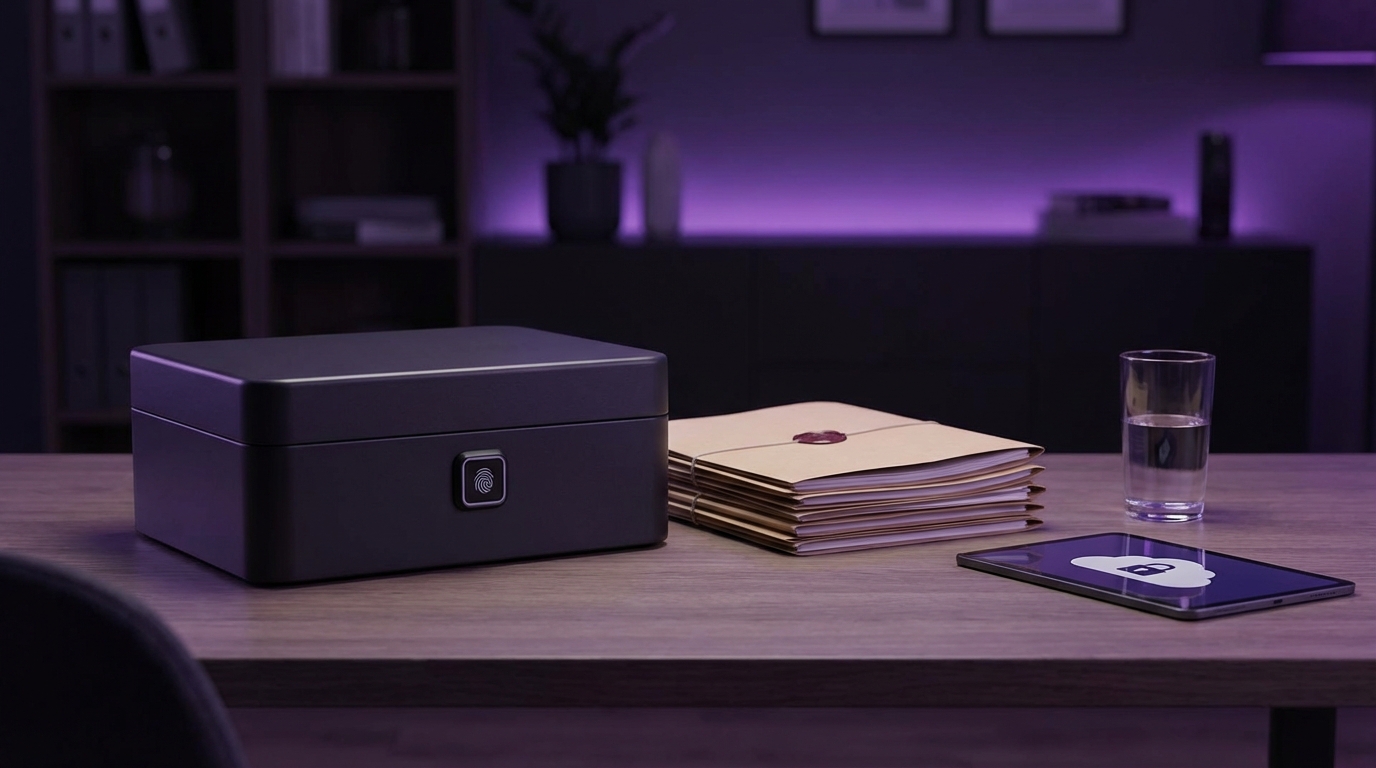
I used to think I was pretty careful with my files online. Then I found a tax return PDF from five years ago sitting in a random email folder I had forgotten about, with my full SSN in plain sight and a download link that still worked. That was a wake-up call, and it pushed me to rethink how I treat everything “sensitive” on my devices and in the cloud, and even how I organize what I publish on my own site at Tech World Expert.
If you just want the short version: storing sensitive documents “with ease” means you need one simple, repeatable system that covers three things at the same time: encrypt everything sensitive by default, keep it organized in as few trusted places as possible, and control who can access what (including your future self). If you can get those three pieces right, the tools almost do not matter as much as people think.
What counts as a “sensitive document” anyway?
This is where many people go wrong. They think of only the “obvious” stuff: passports, IDs, tax returns. That is part of it, but the risk usually comes from much smaller, quieter files.
A useful way to think about it is to ask two questions for any document:
If someone hostile got this file, what could they do with it within 10 minutes?
If I lost this file forever, would I feel panic, frustration, or nothing much at all?
If the answer to the first question is “they could impersonate me, get into my accounts, or hurt my business,” you are dealing with sensitive data.
If the answer to the second is “panic,” then you are also dealing with something that must be protected from loss, not just from leaks.
You can sort most documents into four broad groups:
| Category | Examples | Main risk |
|---|---|---|
| Identity & legal | Passports, ID scans, visas, contracts, NDAs | Impersonation, legal trouble, fraud |
| Financial | Bank statements, tax returns, payroll, invoices | Fraud, targeted scams, account takeover |
| Business & client data | Project docs, client lists, strategy, internal notes | Reputation damage, lost trust, legal risk |
| Personal private data | Medical records, journals, family info, photos | Emotional harm, blackmail, harassment |
Some files hit all four categories at once. For example, a small company payroll sheet sits right at the intersection of identity, financial, and business data. A medical insurance claim can mix all of them.
So before worrying about where to put your files, you need to be very clear about what you are protecting. This helps you decide how strict you need to be.
A quick way to label your files mentally
You do not need a complex framework. A simple scale works:
- Level 0: Public. You would publish it on the web without worry.
- Level 1: Internal / casual. You would share it with coworkers or friends, but not the world.
- Level 2: Private. Only you (or a very small set of trusted people) should see this.
- Level 3: Critical. Leak or loss would be a serious problem.
Most “sensitive documents” are Level 2 or Level 3.
If it is Level 2 or Level 3, you encrypt it, you keep track of where it lives, and you limit how many copies exist.
That simple.
Principles for storing sensitive documents with less stress
Before naming specific tools, you need a few ground rules. These are like small rules of thumb that quietly run in the background whenever you handle a file.
- Minimize where things live
- Encrypt by default
- Separate “keys” from “locks”
- Make access easy for you, hard for others
- Plan for future you (and maybe your family)
Let me walk through each one and connect them to real habits.
1. Minimize where things live
Most breaches at a personal level do not come from advanced malware. They come from scattered files.
Same PDF stored:
- On your laptop desktop
- Inside “Downloads”
- In email attachments (sent and received)
- On a random USB stick from three years ago
- Inside two different cloud drives
Each extra copy is a new chance to leak.
A better pattern:
Have one “home” for sensitive documents and treat other locations as temporary or backup only.
Your “home” can be:
- An encrypted folder on your laptop that is backed up securely
- A zero-knowledge cloud storage provider
- A self-hosted encrypted vault if you enjoy running your own tools
Whatever you pick, train yourself like this:
- Download sensitive files directly into that vault, not into random folders.
- When someone emails you something sensitive, store it in the vault, then delete the email attachment or the whole email if you can.
- When you scan paper documents with your phone or scanner, send them straight to the vault, not to “Photos” or generic gallery apps.
Is this a bit more work at first? Yes. After a few weeks, it will feel normal.
2. Encrypt by default
Encryption sounds technical, but the simple idea is:
If someone gets a copy of the file, it should still look like noise without your key or password.
You have two main levels:
- Full disk encryption: Your whole device storage is encrypted.
- File or folder encryption: A specific folder or archive is locked.
You want both.
Full disk encryption on common devices
If you store anything sensitive on a device, the storage should be encrypted. That way if your laptop or phone is stolen, the data is far less exposed.
On most modern devices:
| Platform | Feature | Where to check |
|---|---|---|
| Windows (Pro editions) | BitLocker | Settings → Privacy & security → Device encryption / BitLocker |
| Windows (Home) | Device Encryption (limited) | Settings → Privacy & security → Device encryption |
| macOS | FileVault | System Settings → Privacy & Security → FileVault |
| Android | Device encryption | Usually enabled by default when a screen lock is set |
| iOS / iPadOS | Hardware-backed encryption | Enabled when you set a passcode |
If you turn this on and use a strong login password or passcode, a thief who steals your device has a much harder time getting to your files.
But this still does not cover cloud copies or shared folders, which is where folder-level encryption comes in.
Folder-level encryption
You can think of an encrypted folder (or vault) as a safe that lives inside your computer or cloud storage.
Options include:
- VeraCrypt: Good for creating encrypted containers or full partitions.
- Cryptomator: Designed to work nicely with cloud storage like Google Drive, Dropbox, OneDrive.
- Native encrypted folders: Some systems and password managers offer secure file storage.
The exact tool is less critical than the habit:
Anything Level 2 or Level 3 goes into an encrypted vault by default, not into regular folders.
Once you choose a vault:
- Create a clear folder structure inside it (more on organization later).
- Pin or bookmark the vault so it is two clicks away.
- Do not leave it unlocked all day; unlock when needed, then lock it when you are done.
3. Separate “keys” from “locks”
Your encryption is only as good as your keys and passwords.
If you store:
- Encrypted tax returns
- And the passwords for those archives
…in the same email account, an attacker who gets that email account still gets everything.
It is like leaving the key taped to the front of the safe.
Better pattern:
Passwords and recovery keys live in a dedicated password manager, with its own strong master password and, ideally, hardware-based protection.
Use a reputable password manager that supports:
- Strong password generation
- Secure notes (for recovery codes or small secrets)
- Cross-device sync
- Two-factor authentication support
Then:
- Store your vault passwords and backup recovery phrases in secure notes.
- Do not keep them in plain text documents, screenshots, or PDFs.
- Print a recovery sheet for your password manager master password and keep it in a physical safe if the data is critical.
This separation of “keys” from “locks” makes a breach of one system less likely to cascade into a total compromise.
4. Make access easy for you, hard for others
If your security setup is annoying, you will start to bypass it. You will email yourself files. You will leave things sitting on your desktop. That is normal behavior when systems fight you.
So you want simplicity where possible.
Some practical examples:
- Use auto-unlock on trusted devices: If your encrypted vault tool supports automatic unlock on a device that already has full disk encryption and strong login, enable it.
- Use biometric login where supported: Face ID, Touch ID, Windows Hello, or Android biometrics can help you access encrypted apps quickly while still protecting data if the device is off.
- Use a consistent folder layout: For example, inside your vault: “ID”, “Taxes”, “Business”, “Health”, so you do not waste time guessing where things are.
At the same time, you want friction for anything outside your control:
- Turn off file sharing from your sensitive folders.
- Disable automatic upload of scanned documents to generic galleries, especially on mobile.
- Use app-level locks for document scanner apps that access sensitive PDFs.
Security that supports your workflows will stick; security that fights your workflows will quietly die.
If something feels awkward, refine the system instead of abandoning it.
5. Plan for future you (and maybe your family)
The last principle is the one people skip most often.
Fast forward 3, 5, or 10 years. Will you:
- Remember which encrypted app you used?
- Still have access to that old email address?
- Know which of the three different “backup” drives is actually up to date?
Also, if something happens to you, would a trusted person be able to access important documents that they really need?
There is a balance here. You do not want to share everything by default. But for critical documents:
Have a clear, documented path for future access that does not rely on your memory.
This can look like:
- A written “digital instructions” page in your physical safe that explains your vaults, devices, and where critical files live.
- Shared vaults inside your password manager for some family documents.
- A separate emergency-only encrypted archive for legal and financial basics, with access instructions held by a lawyer or trusted person.
The key is not perfection. It is reducing the chances that your own system locks you out later.
Concrete storage setups that work in real life
Concepts are nice, but you probably want to see how this looks in practice. Let me outline three typical setups and where they make sense.
- Cloud-first with encrypted vault
- Local-first with external backup
- Hybrid with self-hosting for advanced users
1. Cloud-first with encrypted vault
This is probably the easiest setup for most people.
The idea:
- Use a mainstream cloud storage provider for convenience and sync.
- Create an encrypted vault inside that provider for sensitive documents.
- Store non-sensitive files normally, and sensitive ones only inside the vault.
Example stack:
- Google Drive, OneDrive, or Dropbox for general storage.
- Cryptomator for an encrypted vault inside that storage.
- A password manager for all keys and vault passwords.
Workflow:
- Scan or download a sensitive file.
- Save directly into “Cryptomator Vault” which syncs to your cloud.
- Access the same vault from multiple devices with Cryptomator installed.
Pros:
- Automatic off-site backup.
- Easy multi-device access.
- Encryption controlled by you, not by the cloud provider.
Cons:
- Depends on a third-party cloud provider being trustworthy and available.
- Requires some setup and learning at the start.
This setup works well for freelancers, small business owners, and families.
2. Local-first with external backup
If you are not comfortable putting sensitive documents in the cloud at all, you can keep everything local.
The idea:
- Use full disk encryption on your computer.
- Create an encrypted vault on your local drive.
- Back up that vault to one or two external drives, which are also encrypted.
Example stack:
- FileVault or BitLocker for the main system.
- VeraCrypt encrypted container for sensitive files.
- Two external SSDs, each with VeraCrypt or hardware encryption.
Workflow:
- Work inside the VeraCrypt container on your main device.
- On a schedule (weekly or monthly), copy the vault to both external drives.
- Store one drive at home, one off-site (a safe deposit box, trusted relative, office safe).
Pros:
- You keep full control; nothing critical leaves your devices and drives.
- Simple mental model: one main vault, two backups.
Cons:
- No automatic sync across devices.
- Backup discipline matters more; if you forget, you lose protection.
This pattern suits people with strong privacy preferences or unreliable internet connectivity.
3. Hybrid with self-hosted storage (for more advanced users)
If you already run servers or use NAS devices, you might want something hybrid.
The idea:
- Store sensitive files on your own NAS or server with encryption.
- Access them securely from your devices using VPN or secure apps.
- Keep an independent cloud or offline backup for disaster recovery.
Example stack:
- Synology or QNAP NAS with encrypted shared folders.
- Cryptomator or built-in Synology Drive encryption for extra protection.
- A separate backup to a cloud provider or external drives.
This route gives more control but demands more maintenance: software updates, monitoring, threat awareness. I only recommend it if you are comfortable managing your own infrastructure.
Organizing sensitive documents so you can actually find them
Storage is not only about security. It is also about retrieval.
A heavily encrypted, perfectly safe vault that you can never navigate is not helpful. You need a simple structure.
Good organization is boring: a small number of top-level folders, clear naming, and consistent dates.
A simple folder structure that works for most people
Consider something like:
- 01_ID (passports, IDs, licenses, birth certificates)
- 02_Taxes (by year)
- 03_Financial (bank, investments, insurance)
- 04_Health (medical records, insurance cards)
- 05_Home (leases, mortgages, utilities)
- 06_Work or 06_Business
- 07_Legal (contracts, wills)
- 08_Other
You do not need to overthink it. Prefixing with numbers keeps the order stable.
Inside each folder, sort further by:
- Year (for recurring documents)
- Organization name (for banking, employers, etc.)
File naming that helps search
Try a pattern that captures:
- Date
- Type
- Source or other key info
For example:
- 2025-03-15_Passport_USA_JohnDoe.pdf
- 2024_TaxReturn_Federal_JohnDoe.pdf
- 2024-11-01_Insurance_HealthRenewal_ProviderName.pdf
This helps you search by year, type, or organization easily.
Avoid names like:
- “scan0001.pdf”
- “document_new.pdf”
- “tax-final-FINAL-really-final.pdf”
Those feel quick but cost you time later.
Handling specific document types safely
Some types of documents need a bit more care.
Identity documents (passports, IDs, licenses)
Risk: Identity theft, account recovery abuse.
Good practices:
- Keep full scans in your main encrypted vault only.
- For sharing, create temporary, watermarked copies if possible, or redact unneeded info.
- Avoid emailing full, unencrypted scans; if you must email, password-protect the file and share the password through a different channel (like a phone call or SMS).
If a site or service asks for ID:
Ask yourself whether the full document is really needed, and whether they accept redacted versions.
Some services accept:
- Masked ID numbers.
- Covered photo except face and name.
- Partial screenshots instead of complete scans.
The less you share, the less you need to track.
Financial records
Bank statements, investment reports, and tax documents are attractive targets.
Storage tips:
- Collect all statements into your vault instead of relying on bank portals only.
- Organize by year, then by institution.
- Export to PDF and save locally; do not rely on email links that may break later.
Sharing:
- When sharing with accountants or advisors, use their secure portal if they have one.
- If they do not, send encrypted archives with separate password communication.
Health records
Health data can be sensitive both emotionally and in terms of discrimination risk in some contexts.
Many providers have their own portals. Those are convenient, but I still suggest keeping your own archive:
- Download any important lab results, diagnoses, and treatment plans as PDFs.
- Store them inside your vault in a “Health” folder, grouped by provider.
This gives you continuity if providers switch systems or portals.
Business and client documents
If you run a business or freelance, there is another dimension: trust.
You hold other people’s data, not just your own. That changes the responsibility.
Basic practices:
- Separate personal and business vaults.
- Use access controls so only the right people in your team can see certain folders.
- Keep a simple data retention rule: do not keep sensitive client files longer than necessary.
For contracts and legal agreements, consider a separate “Legal” vault that has stricter access rules.
Dealing with email, messaging, and accidental copies
One of the biggest leaks of sensitive documents happens through convenience channels: email and messaging apps.
If you send a PDF over email:
- It may sit on multiple servers, indexed and backed up.
- It may sync to devices you forgot you logged into.
If you send it through a messaging app:
- It may auto-download into photo galleries.
- It may sync to cloud backups without clear control.
So what can you do?
Safer sharing patterns
Better options than raw attachments:
- Secure portals that your bank, accountant, or lawyer provides.
- End-to-end encrypted messaging apps that do not auto-backup media unencrypted.
- Encrypted files (ZIP with strong encryption, or dedicated tools) with out-of-band password sharing.
If you must use email:
- Send a link to an encrypted file stored in your controlled vault, with limited-time access.
- Or send an encrypted attachment and share the password over a different channel.
After you share, remember:
Clean up your own side: delete unneeded attachments, clear “Downloads” folders, and confirm that your messaging app is not auto-saving everything to galleries.
Backups: protecting sensitive documents from loss
So far, I have focused mostly on confidentiality. The other side is availability: not losing access.
A solid backup plan for sensitive documents has three ingredients:
- Redundancy
- Separation
- Testing
Redundancy: more than one copy
A single vault on a single drive is fragile. Drives fail. Laptops get lost.
Aim for at least three copies of your vault:
- One primary (where you work daily).
- One local backup (external drive at home or office).
- One off-site backup (cloud or drive in another location).
Separation: different “types” of storage
All three copies should not be on the same shelf, in the same room, or under the same account. Problems that affect one should not affect all.
For example:
- Primary: Encrypted vault on your laptop.
- Local backup: External encrypted SSD you plug in weekly.
- Off-site backup: Same vault synced (in encrypted form) to a cloud provider or stored on a drive at another location.
Testing: pretend it failed
At least once or twice a year, pretend something broke:
- Try to restore your vault from a backup on a different machine.
- Check that you remember your vault password.
- Confirm that your password manager still holds all the keys.
A backup you have not tested is just a theory.
A brief test can reveal problems like corrupted drives, forgotten passwords, or incomplete archives before you really need the data.
Small habits that greatly reduce risk
Storage systems matter, but your daily habits matter more than people want to admit. A few simple practices can shrink your risk significantly.
1. Empty your “Downloads” and “Desktop” regularly
Treat these as temporary spaces.
Once a week:
- Move any sensitive files from “Downloads” into your vault.
- Delete leftover copies from “Downloads” and “Desktop”.
This cuts down on stray, unencrypted copies.
2. Use device locks everywhere
If your phone app stores or displays sensitive documents:
- Use a strong passcode (not 4 digits).
- Enable biometric unlock.
- Enable remote wipe if the device is lost.
On laptops and desktops:
- Use passwords that are not trivial.
- Set screen lock timeouts to a reasonable window.
3. Be selective with scanning apps
Many scanner apps:
- Upload documents automatically to their own cloud.
- Sync to “Photos” or third-party services.
Check settings and:
- Disable auto-upload where possible.
- Disable saving to “Photo gallery” for sensitive scans.
- Set the default save directory to your encrypted vault.
4. Limit who can access your main devices
Shared family computers can be complicated. But for devices that hold sensitive documents:
- Avoid shared user accounts when possible.
- Give each person their own profile with separate logins.
- Keep your vaults under your profile only.
Where ease and safety meet
When I talk with people about storing sensitive documents, I often see two extremes:
- “I store everything in plain folders and trust that nothing bad will happen.”
- “I encrypt so heavily that I cannot remember where anything is or how to open it.”
Both are stressful in different ways.
The goal is a middle ground where:
Your most important documents live in one or two predictable places, protected by strong but manageable encryption, backed up in at least two other places, and organized in a way that you can navigate without thinking too hard.
If you feel slightly overwhelmed reading this, that is normal. You do not need to implement everything at once.
A simple starting path could be:
- Turn on full disk encryption on your main devices if it is not already on.
- Pick one encrypted vault solution (Cryptomator, VeraCrypt, or something similar).
- Create a basic folder structure inside that vault.
- Move the highest-risk documents first: ID scans, tax returns, financial statements.
- Set up one backup copy of that vault on an external, encrypted drive.
Once that is done, you already have a far safer setup than most people.
Then, over time, you can:
- Refine your naming and organization.
- Adjust how you share documents with others.
- Clarify your future access plans for critical files.
Storing sensitive documents with ease is less about a perfect tool and more about a calm, repeatable routine. You give your important files a clear, safe home, you do not scatter them everywhere, and you give yourself a way back to them if something breaks. That is enough to turn anxiety into something much closer to quiet confidence.