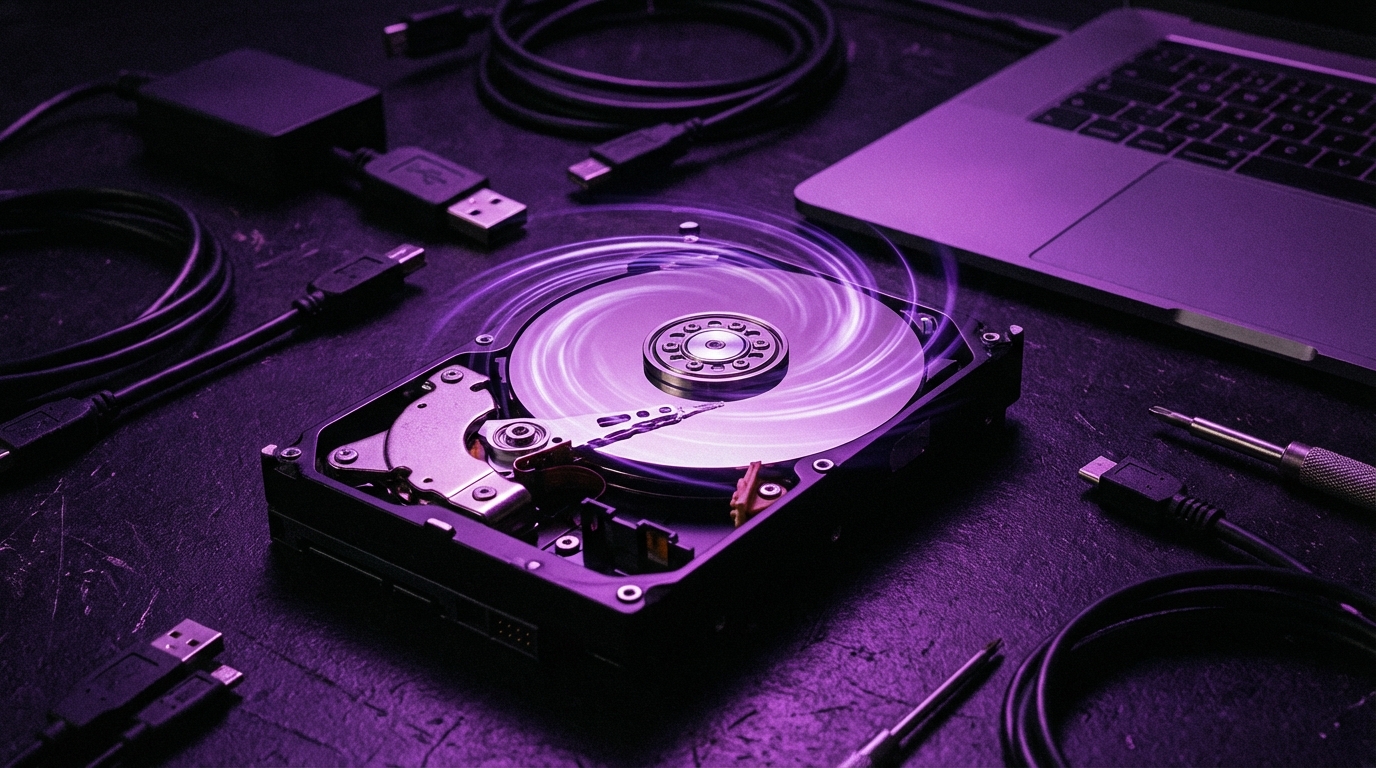
I used to think that deleting files and emptying the Recycle Bin meant my computer was “clean”. Then I ran a free recovery tool on an old drive and saw hundreds of deleted files come back like ghosts.
If you are selling, gifting, or recycling a computer, you need more than a quick delete. The short answer is: back up your data, sign out of your accounts, then use built-in tools (like Windows “Reset this PC” with “Remove everything” and “Clean data”, or macOS Recovery with “Erase” in Disk Utility) to wipe the drive securely. For older drives or extra safety, use a dedicated wipe tool or physically destroy the drive, especially if it has very sensitive data.
Why “delete” does not really delete anything
When you delete a file or even format a drive, the operating system usually just marks that space as “free”. The actual data often stays there until something else overwrites it.
That means:
– Someone with basic software can scan the drive and pull back old documents, photos, browser data, maybe even passwords stored in files.
– A wiped “looking” drive can still reveal years of your life.
If your drive is not encrypted and you only delete files, you should assume they can be recovered by someone who knows what they are doing.
This is why you need a proper wipe before selling a computer.
There is a second factor that changes the picture a bit: modern drives and modern operating systems use encryption more often than people think.
Let us break the problem into clear steps:
– What kind of drive do you have?
– Is it already encrypted?
– Which system are you on (Windows, macOS, Linux, Chromebook)?
– How much do you care if someone digs very hard to recover anything?
Once you answer those, the right wipe method becomes much clearer.
Step 1: Figure out your drive type and encryption status
You do not need to open your computer. You just need to know two things:
– Is it an HDD (spinning disk) or SSD (solid-state)?
– Is the disk encrypted (BitLocker, FileVault, LUKS, etc.)?
How to tell if you have HDD or SSD
If the computer is:
– Very old (over 8-9 years) and was never upgraded, it is probably an HDD.
– Thin and light, or a fairly recent laptop, it is probably an SSD.
– A desktop could have either or both.
You can check in software.
On Windows:
1. Press `Ctrl + Shift + Esc` to open Task Manager.
2. Click the “Performance” tab.
3. Click “Disk 0” (and Disk 1 if you have more).
4. Look near the top; it usually says “SSD” or “HDD”.
On macOS:
1. Click the Apple menu.
2. Choose “About This Mac”.
3. Click “System Report”.
4. In the sidebar go to “Storage” or “SATA / NVMe” and check the drive type.
On Linux (quick way):
Open a terminal and run:
“`bash
lsblk -d -o name,rota
“`
– `ROTA` = 1 usually means HDD (spinning).
– `ROTA` = 0 usually means SSD.
Check if your drive is encrypted
This matters a lot. If your drive is strongly encrypted already and you remove the keys, a simple erase is usually enough.
On Windows (BitLocker or Device Encryption):
1. Press `Windows key + I` to open Settings.
2. Go to “Privacy & security” (or “Update & Security” on older versions).
3. Look for:
– “Device encryption”, or
– “BitLocker Drive Encryption” in Control Panel.
If BitLocker or Device Encryption is “On” for your system drive, that means the contents have been scrambled and tied to your account and hardware.
On macOS (FileVault):
1. Open “System Settings” (or “System Preferences” on older macOS).
2. Go to “Privacy & Security”.
3. Scroll to “FileVault” (or see the “Security & Privacy” panel).
4. If FileVault is “On”, your disk is encrypted.
On Linux:
Often the installer asks “Encrypt the new Ubuntu installation” or similar. To check:
1. Run:
“`bash
lsblk
“`
2. Look for “crypt” in the “TYPE” column.
If you see something like `sda3` with a `TYPE` of `crypt`, you are probably using LUKS full disk encryption.
On Chromebooks:
Newer Chromebooks use encryption by default for user data. When you “Powerwash”, the keys that encrypt your data are removed.
If your system uses strong full-disk encryption and you fully reset it, your old data is effectively unreadable without your keys.
Still, I would not count on that alone if you stored very private material on a device you are handing to a stranger.
Step 2: Back up what you actually need
I have seen people wipe a drive, ship the laptop, and then remember the one folder they needed was on the desktop. That is a bad day.
Before you wipe, copy your data somewhere safe:
- Cloud storage (Google Drive, OneDrive, Dropbox, iCloud)
- An external USB hard drive or SSD
- A NAS or another computer
What you should remember to back up
Use this like a checklist:
- Documents: Word files, PDFs, spreadsheets, presentations
- Photos and videos: personal folders, “Pictures”, “Camera Uploads”, etc.
- Desktop: many people keep work-in-progress files here
- Downloads: sometimes contains tax forms, invoices, installers
- Email archives: if you use Outlook, Thunderbird, or a local mail client
- Browser data: bookmarks, saved passwords (export if needed), extensions list
- Application data: project folders for tools like VS Code, Photoshop, Lightroom, IDEs
- Game saves that are local (some sync to the cloud, some do not)
- Licenses: serial numbers, license keys for purchased software
Treat this as a one-way operation. Once you wipe, assume there is no going back.
Test that your backup drive or cloud sync actually contains what you need before moving on.
Step 3: Sign out, deauthorize, and unlink accounts
This step does not wipe the drive, but it prevents headaches later.
What to disconnect
- Microsoft account on Windows devices
- Apple ID on Macs and iPhones connected to that Mac
- Adobe, Spotify, iTunes, Steam, Origin, and other apps with limited device activations
- Cloud backup tools (Backblaze, CrashPlan, etc.)
- Messaging apps like WhatsApp Desktop, Signal Desktop, or Telegram Desktop
On Windows, if you use “Find my device” or have the PC registered under your Microsoft account, you can later remove that device from your account page after you wipe it, but signing out on the machine helps.
On macOS, also turn off:
– iCloud
– iMessage
– FaceTime
and consider removing the Mac from “Find My” devices list.
Some software vendors limit how many computers can be activated. Deactivating before wiping avoids support tickets later.
Step 4: Wipe or reset by operating system
Now comes the actual cleaning. The method depends on what the device runs.
We will go through:
– Windows 10 / 11
– macOS
– Linux
– Chromebooks
Wiping Windows 10 / 11 before selling
Modern Windows has a reset tool that can remove your files and, if you select the right options, scrub the drive.
Method 1: “Reset this PC” with full clean
1. Click Start, then Settings.
2. Go to “System” > “Recovery”.
3. Under “Reset this PC”, click “Reset PC”.
4. Choose “Remove everything”.
5. Choose “Local reinstall” (or “Cloud download” if your system files are damaged, but local is often fine).
6. When asked how to clean the drive:
– Pick “Change settings” if needed.
– Turn on “Clean data”.
7. Confirm and start.
The “Clean data” option tells Windows to overwrite the drive in a more secure way. On an HDD this might do multiple passes. On an SSD, Windows uses an approach that is safer for solid-state drives.
On HDDs, Windows “Clean data” makes casual recovery difficult. On SSDs, combined with BitLocker encryption, it is usually enough for selling a machine.
This process can take an hour or several, depending on drive size and speed.
BitLocker note:
If BitLocker was enabled, your data is already encrypted. During reset, your encryption keys are removed. That makes your old files unreadable to the next owner.
Method 2: Using a dedicated wipe tool (DBAN, etc.)
If you have a traditional HDD and this computer stored tax documents, contracts, client data, or anything you really care about, you might want something stricter than the built-in reset.
One common option is “DBAN” (Darik’s Boot and Nuke) for spinning drives.
Basic idea:
1. Download a wipe tool ISO like DBAN to another computer.
2. Create a bootable USB drive with something like Rufus.
3. Boot the old PC from the USB.
4. Carefully select the right drive.
5. Choose a wiping method (even a single pass overwrite is usually fine for home users).
6. Let it run. It may take hours.
After that, there is no Windows on the machine anymore. If you plan to sell the computer, you might need to reinstall Windows from scratch or state clearly that there is no system installed.
For SSDs, traditional multi-pass overwrites are not very helpful and can wear the drive. You want something closer to a built-in “secure erase”.
Secure erase for SSDs on Windows
SSDs handle data differently. Data often moves around inside the drive, and overwriting every block directly is not as straightforward.
Many SSD vendors offer their own tools:
– Samsung Magician (for Samsung SSDs)
– Crucial Storage Executive
– Intel SSD Toolbox (older drives)
– Western Digital Dashboard
These tools often have a “Secure Erase” or “Sanitize” feature. It usually:
– Sends a special command to the SSD controller.
– The drive then internally marks all cells as empty and discards the keys that map or encrypt data.
Workflow usually looks like this:
1. Install the vendor’s tool on another PC (or on the same one before you move the drive).
2. Boot from a special environment or run the tool under Windows (depending on the brand).
3. Select the SSD.
4. Run “Secure Erase” / “Sanitize”.
For an SSD with hardware encryption, a proper secure erase often just throws away the encryption keys, making all old data unreadable almost instantly.
If that feels a bit abstract, think of it like burning the only dictionary that translates the gibberish into real text.
For most people selling a consumer laptop that came with an SSD, using Windows “Reset this PC” with “Remove everything” and “Clean data”, especially if BitLocker was on, gives good protection. For high sensitivity data, the vendor secure erase is a good extra step.
Wiping macOS before selling a Mac
On a Mac, the reset process is slightly different depending on whether it has Apple silicon (M1, M2, M3) or Intel.
Step 1: Turn off Find My and sign out of Apple ID
1. Open System Settings.
2. Click your name at the top, go to iCloud, and turn off “Find My Mac”.
3. Click “Sign Out” of iCloud.
4. Also sign out of iMessage and FaceTime.
This removes Activation Lock so the buyer can actually use the device.
Apple silicon (M1 and later) or T2 Macs:
On these, the internal storage is hardware encrypted by default. That is important. When you erase the drive and reinstall macOS, the keys are destroyed and recreated, which protects old data.
Steps:
1. Turn off the Mac.
2. Press and hold the power button until you see “Loading startup options”.
3. Click “Options”, then “Continue”.
4. Enter your admin password if requested.
5. In macOS Recovery, choose “Disk Utility”.
6. Select your internal disk (top level, often named “Macintosh HD” or similar).
7. Click “Erase”.
8. For format, choose “APFS” (for newer macOS) or “Mac OS Extended (Journaled)” for older.
9. Confirm erase.
After the erase finishes:
1. Quit Disk Utility.
2. In Recovery, choose “Reinstall macOS”.
3. Follow the prompts and let it install.
When it finishes, you will see the setup screen for a new user. At that point, you can shut down and leave the rest to the buyer.
On modern Macs with FileVault and hardware encryption, erasing the disk and reinstalling macOS is usually strong enough protection even for sensitive personal data.
Older Intel Macs without T2 chip:
These rely on FileVault for full disk encryption.
If FileVault was on:
– Erase through Disk Utility as above.
– Reinstall macOS.
– Your old encrypted data is gone with the keys.
If FileVault was off, recovery tools have more chance to find old data on the drive. On very old spinning drives, you can:
1. Erase the disk in Disk Utility.
2. Then, if you want extra safety, use Disk Utility “Security Options” (on older macOS) to choose a multi-pass erase on an HDD.
That option usually is not available for SSDs, for the same reasons mentioned earlier.
Wiping Linux before handing over a machine
Linux users have more control, which means you have more ways to wipe things.
Case 1: LUKS encrypted system
If your Linux system uses LUKS full disk encryption:
– Removing or overwriting the LUKS header, or
– Erasing the partition that holds it,
is enough to make the contents unreadable.
One practical route if you are selling:
1. Boot from a Linux live USB (Ubuntu, Fedora, etc.).
2. Open “Disks” or “GParted”.
3. Select the internal drive.
4. Delete all partitions.
5. Create a single new partition and format it (ext4, NTFS, etc.).
Then either:
– Install a fresh Linux or Windows for the buyer, or
– Leave it blank and let the new owner install what they want.
Case 2: Unencrypted HDD
For a classic spinning HDD with no encryption, a wipe is more necessary.
From a live Linux USB:
“`bash
sudo dd if=/dev/zero of=/dev/sdX bs=1M status=progress
“`
Replace `/dev/sdX` with the correct drive, like `/dev/sda`. This writes zeros across the entire drive.
Or use a tool like `shred`:
“`bash
sudo shred -vzn 1 /dev/sdX
“`
`-n 1` does 1 pass of random data, `-z` writes zeros at the end. More passes are not usually needed for modern drives in real world cases.
Case 3: SSD on Linux
Again, do not use repeated overwrite passes. Use secure erase:
1. From a live USB, run:
“`bash
sudo hdparm -I /dev/sdX | grep frozen
“`
If the drive is “frozen”, you might need to suspend and resume, or power cycle the drive.
2. Then run:
“`bash
sudo hdparm –user-master u –security-set-pass p /dev/sdX
sudo hdparm –user-master u –security-erase p /dev/sdX
“`
This sends the secure erase command.
Secure erase commands can be risky if you pick the wrong drive. Double-check the device name before you press Enter.
Wiping a Chromebook
Chromebooks are simpler because they are built around cloud accounts.
User data is already encrypted per user with keys tied to that account. When you “Powerwash”, those keys are removed.
Steps:
1. Sign out of your Google account on the Chromebook.
2. At the login screen, press `Ctrl + Alt + Shift + R`.
3. Click “Restart”.
4. When prompted, select “Powerwash”.
5. Confirm.
After this, the device reboots to a clean state where the next owner can log in with their own Google account.
If the Chromebook is managed by a school or company, that is a different situation and often you should not sell it at all.
Physical destruction vs digital wiping
Sometimes the honest answer is: do not sell the drive at all.
If you are dealing with:
– Medical records
– Client legal files
– Confidential business documents
– Very personal material you do not want anyone to ever see
then you may decide to keep or destroy the drive rather than hand it to a stranger for a small resale price.
Here is how the options compare:
| Method | Drive type | Protection level | Notes |
|---|---|---|---|
| OS reset (Windows/macOS/ChromeOS) | HDD / SSD | Good for normal resale | Fast, convenient, fine for most home users |
| HDD multi-pass wipe (DBAN, dd, shred) | HDD | High | Slow, but strong protection for spinning disks |
| SSD secure erase (vendor tools, hdparm) | SSD | High | Resets drive internally, better than manual overwrites |
| Encryption + key destruction | HDD / SSD | Very high | Modern BitLocker, FileVault, LUKS setups work this way |
| Physical destruction | HDD / SSD | Maximum | No resale value, but no recovery either |
If you choose physical destruction
If you decide the drive should never leave your control:
– Remove the drive from the computer (many guides online for each model).
– For HDDs:
– You can drill multiple holes straight through the platters.
– Or take off the cover and scratch/break the platters.
– For SSDs:
– Physically break the circuit board.
– Cut or crush the flash chips.
Physical destruction is overkill for most home use, but for highly sensitive data it is still the most straightforward method.
Then you can sell the computer without a drive, or with a new blank one you install yourself.
Extra precautions and small details people forget
There are a few corners a lot of people miss.
Do not forget external drives and SD cards
If you used:
– External USB drives
– SD cards from cameras
– Secondary internal drives in desktops
treat them as separate devices. Wiping your main system drive does nothing to them.
Apply the same process:
– Backup what you need.
– Run a secure erase or multi-pass wipe based on whether it is HDD or SSD/flash.
– Or physically destroy if required.
Printers, routers, and “smart” devices
They are not hard drives in the same sense, but they often store:
– Wi-Fi passwords
– Address books
– Print history and scanned documents (on larger office printers)
Before selling or disposing:
– Factory reset routers, mesh Wi-Fi units, and smart speakers.
– Clear address books and scan history on office printers or use the built-in data wipe.
It is surprising what these devices quietly remember.
Check for hidden recovery partitions
On some Windows PCs, there is a factory recovery partition that can restore the system to how it was shipped. This rarely holds personal files, but if you are doing a complete wipe for repurposing the drive:
– Use a partition manager to remove all partitions, not only the visible C: drive.
If your goal is just to sell the PC, keeping the factory recovery is actually useful for the buyer, so I would usually leave it unless you are replacing the system entirely.
Different risk levels, different wipe levels
Not everyone needs a military level wipe. Matching your approach to your risk saves time and stress.
Here is a rough guide you can adapt.
If you are a typical home user
Use this if the drive has:
– Personal photos
– Casual documents
– Regular web browsing history
Recommended:
- Windows: “Reset this PC” > “Remove everything” > “Clean data”. If BitLocker was on, that is a bonus.
- macOS: Sign out of Apple ID, erase through Disk Utility, reinstall macOS.
- Chromebook: Powerwash.
This is enough for most resale situations.
If you handle professional or financial documents
For example:
– Freelancers with client contracts and invoices
– Small business owners
– People doing tax or accounting work on the machine
Recommended:
- Make sure full disk encryption is on before the wipe if it was not already (BitLocker / FileVault / LUKS), then reset the system.
- On HDDs, consider an extra one-pass wipe with DBAN or `dd` if you are comfortable with that level of control.
- On SSDs, use the vendor secure erase tools if available.
If you handle very sensitive or regulated data
This includes:
– Medical records
– Client legal files under strict privacy rules
– Classified or internal company data
Recommended:
- Consult your company or organization security policy first. Many have clear rules about disposal.
- Use strong encryption from the start on all devices.
- When retiring hardware, use a combination of secure erase plus physical destruction of the drives.
Once you move from “personal privacy” to “legal or regulated obligations”, informal advice is not enough. Follow formal policy.
Common mistakes when wiping a hard drive
I have seen the same errors over and over. Avoiding these puts you ahead of most people.
Mistake 1: Only deleting user folders
Dragging “Documents” and “Pictures” to the Recycle Bin, then emptying it, is not a wipe. It is more like hiding files in a different drawer.
Recovery tools can see those files until they are overwritten. And that might not happen for a long time.
Mistake 2: Forgetting saved browser data
Your browser knows a lot:
– Saved passwords
– Credit card auto-fill details
– Browsing history
– Cookies with session tokens
A full system reset will clear these. A partial cleanup might not. This is another reason I prefer a proper reinstall before selling.
Mistake 3: Not checking for multiple drives
On some desktops and gaming laptops:
– The OS is on a small SSD.
– Games, photos, or large files are on a separate HDD.
If you only wipe the SSD, the HDD might still hold years of personal content. A quick look in “Disk Management” (Windows) or “Disks” (Linux) can reveal extra drives.
Mistake 4: Trusting quick format on unencrypted HDDs
Quick format mainly clears the index. It does not thoroughly erase the data on an old unencrypted HDD.
It is fine as part of an encrypted setup where you are already relying on encryption, but not as the only layer of defense on a bare HDD going to an unknown buyer.
Mistake 5: Not verifying the wipe finished
Interrupting a wipe halfway can leave a drive in a weird state:
– Some partitions missing
– File systems corrupted
– Or worse, someone might still recover parts of old data
For long wipes:
– Make sure you have the PC on stable power.
– Let the process end naturally and check for completion messages.
Practical recipes you can follow right now
To keep this less abstract, here are some direct step-by-step recipes.
Recipe 1: Selling a Windows 11 laptop with an SSD
1. Confirm that BitLocker or Device Encryption is on for the system drive.
2. Back up your files to an external drive or cloud.
3. Sign out of Microsoft account, deauthorize third-party apps if needed.
4. Go to Settings > System > Recovery > Reset this PC.
5. Choose “Remove everything”.
6. Choose “Local reinstall”.
7. Under additional settings, turn on “Clean data”.
8. Start the reset and wait.
After it restarts and shows the “Let us set things up for your region” style screen, shut it down and it is ready to sell.
Recipe 2: Selling a MacBook with Apple silicon
1. Back up using Time Machine or another tool.
2. Turn off Find My and sign out of iCloud, iMessage, and FaceTime.
3. Shut down the Mac.
4. Press and hold the power button until “Loading startup options” appears.
5. Choose “Options” > “Continue”.
6. In Recovery, open Disk Utility.
7. Select the internal disk, click “Erase”, use APFS.
8. After erasing, quit Disk Utility.
9. In Recovery, select “Reinstall macOS” and complete the process.
Once the welcome or setup screen appears, stop there and power off. The next person can set it up from scratch.
Recipe 3: Donating an old HDD-based desktop
1. Back up any needed data.
2. Boot from a DBAN USB or a Linux live USB.
3. Confirm which drive is the actual system disk (`/dev/sda`, etc.).
4. Run a simple one-pass overwrite for the HDD.
5. Optionally install a fresh OS so it is usable.
If the desktop is truly old and the drive is small, consider replacing the drive with a cheap SSD so the person receiving it has a better experience, and you keep or destroy the old HDD.
Recipe 4: Disposing of a dead or unbootable drive
If the drive is failing badly:
– Some wipe tools may not run to completion.
– Data could still be partially readable.
In that case, physical destruction is often the realistic choice:
1. Remove the drive from the system.
2. Drill several holes through the label side of an HDD.
3. For an SSD, smash or cut the chips on the board.
You can then recycle the metal and electronic waste according to local rules.
When you should not wipe, but keep the drive
There is one more angle. Sometimes the correct move is not to wipe and sell at all, but to keep the device intact for a period of time.
You might want to keep the drive if:
– You filed a tax return or business accounts on that machine and your local rules say you must keep digital records for a number of years.
– You are in the middle of legal matters and some documents may be required later.
– You think you might need to recover something you forgot to back up.
In those cases:
– Remove the drive.
– Label it clearly with the date and machine it came from.
– Store it in a safe, cool, dry place.
Then put a new drive in the machine for resale, or sell the computer without any drive at all.
Wiping is permanent. If there is any doubt that you might need the old data, store the drive instead of erasing or selling it.
When you finally decide you no longer need the data, you can then wipe or destroy it following the steps above.
That is the core of wiping a hard drive before selling your computer: know your drive, know your system, match the wipe to your real risk, and do not skip the boring parts like backups and account sign-outs.