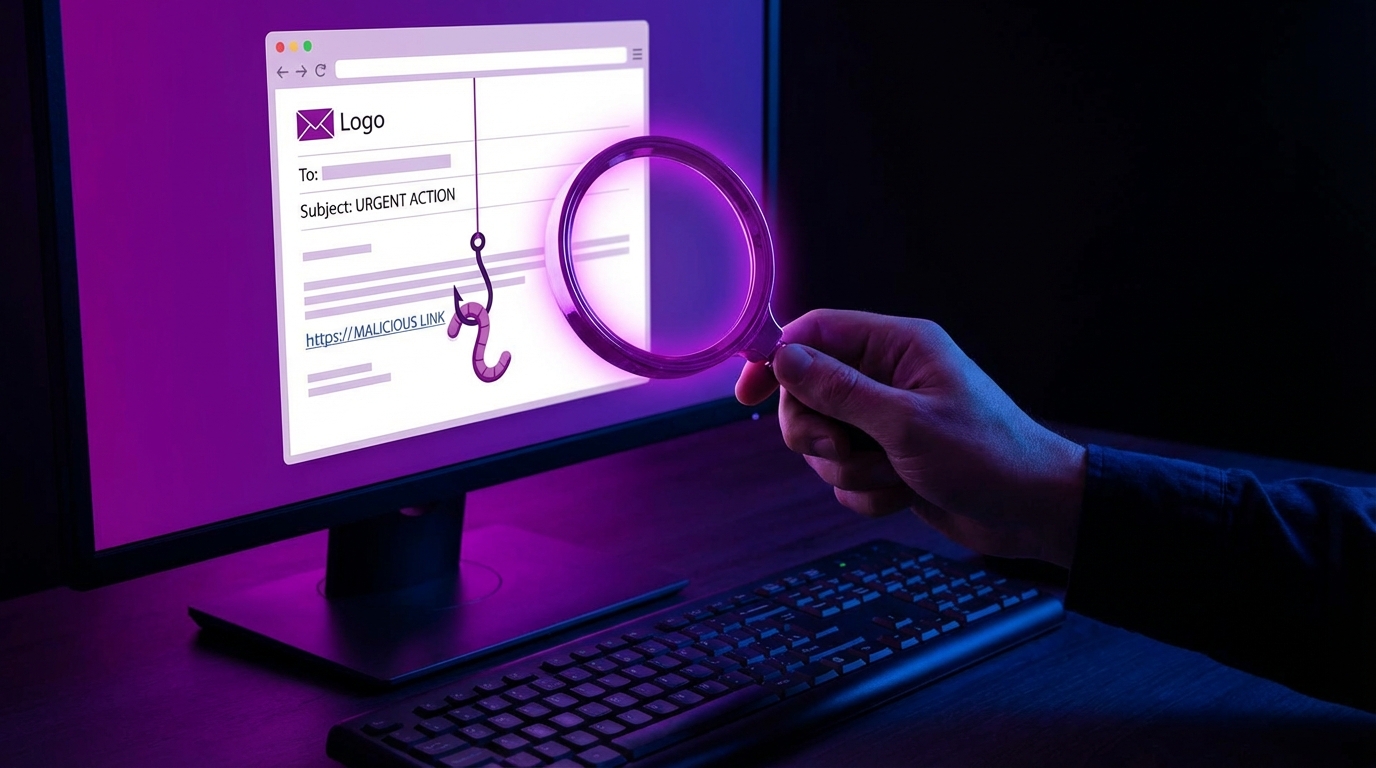
I used to think I was too careful to fall for a phishing email. Then one night, half distracted, I almost typed my real bank password into a fake login page that looked perfect.
So here is the direct answer: you spot a phishing email by slowing down and looking for small signals that do not fit: the sender address is slightly wrong, the tone is urgent, the link points somewhere odd when you hover, the email asks for passwords or payment info, or it just “feels off” compared to how that company or person normally writes. If something in your gut feels strange, you stop and verify through a different channel before clicking anything.
Why phishing emails work on smart people
I want to start with this, because many guides jump straight to checklists and miss the real problem.
Phishing works because it attacks attention, not intelligence. You are tired. You are in a rush. You are on your phone. You get an email that looks like it came from your bank or your boss, and your brain takes a shortcut: “This looks normal, let me fix this quickly.”
Phishers understand that tiny window really well.
Phishing emails are not trying to win a debate with you. They are trying to catch you in the wrong mental state for five seconds.
So yes, the technical signs matter. But your real defense is a habit: pausing for a few seconds before you click anything in an email that asks you to log in, pay, or share private data.
Once you accept that you are not immune, you can actually protect yourself.
Common types of phishing emails you will see
Before we talk about how to spot them, it helps to know the patterns. These repeat over and over with minor changes.
- “Your account has been locked” emails
- “Unusual login activity” alerts
- Fake invoices and payment requests
- Fake package delivery notifications
- Fake password reset emails
- Messages pretending to be your boss or HR
- Fake security or antivirus warnings
- Giveaway, raffle, or “you won” emails
Most phishing attacks mix three things:
1. A trusted brand or person (bank, PayPal, Amazon, your manager).
2. A problem or opportunity (account locked, invoice due, package stuck, prize waiting).
3. A simple call to action (click this link, open this file, send this payment).
If you remember that pattern, you will start to notice it everywhere.
Here is a simple comparison:
| Theme | Legit email tends to… | Phishing email tends to… |
|---|---|---|
| Account alerts | Match recent actions, calm tone, clear contact info | Feel urgent, vague, and push you to click a button quickly |
| Invoices | Come from known vendors with expected amounts | Come out of nowhere, with large or odd amounts |
| Password resets | Triggered by you, short and factual | Show up when you did not request anything, often alarmist |
| Boss / HR emails | Match their style, context, and schedule | Pressure you, break normal process, ask for secrecy |
Red flag 1: The sender email address does not quite match
This is one of the easiest checks, and many people skip it.
Phishers know you scan the “From” name very quickly. So they set the display name to “PayPal” or “Your Bank” or your boss’s name. But the real address often betrays them.
- Look beyond the display name. Click or hover to see the full email address.
- Look at the part after the “@”. This is the domain.
- Compare that domain to what you know the real one is.
Common tricks:
| What you expect | Phishing version | What is wrong |
|---|---|---|
| support@paypal.com | support@paypa1.com | “l” replaced with “1” |
| security@chase.com | security@chase-secure.com | Extra word to look official |
| no-reply@apple.com | no-reply@apple.com.security-alert.net | Real name buried inside another domain |
| name@yourcompany.com | name@yourcompany-support.com | Fake company domain created for phishing |
If the address looks slightly off and the email is about money or login details, treat it as dangerous until confirmed safe.
Also, watch out for free email providers. A bank will not send serious account issues from a random Gmail or Outlook address.
What about forwarded emails?
Forwarded phishing emails can come from real contacts who were hacked or tricked. In that case, the sender address is “clean” on the surface.
For those:
- Check if the content matches what this person usually sends.
- Ask yourself if the topic makes sense between you.
- If anything feels odd, contact them in a separate email thread, chat, or call.
If they say “I did not send that”, warn them they might be compromised.
Red flag 2: The subject line pushes you to react, not think
Humans have predictable triggers. Phishers write subject lines to hit those triggers.
Common patterns:
- Fear: “Your account will be closed”, “Final warning”, “Legal notice”
- Urgency: “Respond within 24 hours”, “Immediate action required”
- Curiosity: “Invoice attached”, “Payment confirmation”, “Here is what you asked for”
- Greed or reward: “You have won”, “Refund available”, “Exclusive offer”
Legitimate companies do sometimes use strong language, so this alone does not prove anything. But when urgency appears together with other signs, you should slow down.
If a subject line makes you feel stressed, proud, or greedy, pause. That emotion is part of the attack.
I have noticed a pattern in my own inbox: real financial institutions tend to write neutral subjects like “Account alert” or “Your monthly statement is ready”. Phishing emails are more dramatic.
Red flag 3: The greeting and tone feel slightly “off”
Language is hard to fake. Phishers copy logos and templates, but the writing often leaks clues.
Watch for:
- Odd greetings: “Dear customer”, “Dear Sir/Madam” from a service that normally uses your name.
- Missing name where you know the company usually uses it.
- Strange word order or grammar that does not match the brand’s usual style.
- Overly friendly or oddly formal tone for that sender.
Example:
– Real: “Hi Neil, We noticed a new sign-in to your account from Chrome on Windows.”
– Phishing: “Dear user, We are noticed unusual login to your account and you must verify.”
Not every scam has broken grammar. Some are polished. But many still trip over small language details.
If the email claims to come from a brand that spends millions on marketing, read it like it was written by that brand’s copywriter. If it feels cheap or clumsy, be suspicious.
Also, compare with older messages. Search your inbox for past emails from that company and see how they greet you, how they sign off, and how they format content. If this one feels different, trust that signal.
Red flag 4: Links that lead somewhere unexpected
This is probably the most reliable technical check for phishing.
The trick: The visible text can say anything, but the underlying link (URL) is what matters.
How to inspect safely:
- On desktop: hover your mouse over the link or button and look at the status bar or small pop-up showing the real URL.
- On mobile: long-press the link (without releasing) until you see the URL preview. Do not release if you are unsure; just cancel.
What to look for:
| Sign | What you see | Why it is risky |
|---|---|---|
| Wrong domain | http://secure-paypal.com/login | Not the real paypal.com domain |
| Real brand inside a longer domain | http://paypal.com.security-check.io/login | Real name used as a subdomain, not the main site |
| IP address instead of a name | http://192.0.2.4/verify/index.html | Websites that care about trust rarely do this |
| Random strings and tracking junk | http://some-random-site.com/af3f9f9f9f3f9f/ | Not proof by itself, but suspicious with other signs |
Never click a login link in an email if you can instead type the known address directly into your browser.
That one habit closes a large door. If an email claims your bank needs action, open a new tab, type your bank’s address, and check there. If there is a real problem, it will show in your account.
About URL shorteners
Shortened links like bit.ly or tinyurl are popular for marketing, but they are also popular in phishing because they hide the real destination.
If a security or payment related email uses a shortened link, treat that as a serious warning.
To check:
- Use a URL expander service in a separate browser tab to preview where it goes.
- Better: ignore the link and access the service through your usual bookmark or typed address.
Red flag 5: Attachments that you did not expect
Attachments are still a very common way to spread malware. The email asks you to open a document, run a script, or enable macros in a document.
Dangerous patterns:
- Unexpected “invoice”, “payment receipt”, or “shipping label” attachments.
- File extensions like .exe, .bat, .js, .vbs, .scr.
- Office files that ask you to enable macros to view content.
Common bait lines:
– “Invoice attached, please confirm payment.”
– “Details in the attached document.”
– “Scanned document attached.”
If you did not expect an attachment, treat it as hostile until the sender confirms through another channel.
For workplace email, have a simple personal rule: no one sends you urgent, unexpected attachments about money without also giving context in a project tool, chat, or call. If it breaks that rule, double-check.
Red flag 6: Requests for sensitive data or money
Legitimate companies and banks repeat this message constantly: “We will never ask for your password or full card number by email.”
So if an email does that, your response should be simple: delete or escalate.
Common phishing requests:
- Enter your password to “verify your identity”.
- Share your full credit card number, CVV, and expiry.
- Send your one-time code (2FA) back by email or SMS.
- Provide personal ID documents through a link that looks odd.
- Send gift cards or cryptocurrency to a “client” on behalf of your manager.
A pattern I see often in business phishing: criminals pose as executives and ask for urgent transfers or gift card purchases. The message tries to bypass normal finance process with urgency and secrecy.
Any email that asks you to break normal workflow or skip normal approval for money should be treated as suspicious until verbally confirmed.
For personal life, hold to a simple standard:
– Banks, credit cards, tax agencies, and big tech platforms do not need your password by email. They already have systems that verify you on their own sites.
Red flag 7: Visuals that look almost right, but not quite
Design details matter. Phishers often copy logos and colors, but small differences slip through.
Things to watch:
- Low-resolution or blurry logos.
- Color shades that are slightly off compared to previous emails.
- Buttons or menu links that do not act like normal (some dead, some click to odd places).
- Inconsistent fonts and spacing.
Take two minutes and open a genuine email from that brand in another tab. Compare:
| Element | Genuine email | Phishing email |
|---|---|---|
| Logo | Crisp, consistent across all emails | Blurred or oddly stretched |
| Footer | Clear company address, legal text, unsubscribe link | Missing details or generic text |
| Links | All menu and footer links go to official site | Only a main button works; others are dead or go elsewhere |
| Language | Consistent tone over time | Different style, mixed capitalization, odd spacing |
Phishers count on you not checking this. Take advantage of that.
Red flag 8: Technical signals from your email client
Email services have become better at warning users, though they are far from perfect.
You might see:
- Banner warnings like “Be careful with this message” or “This message seems dangerous”.
- Labels like “External sender” for emails coming from outside your company.
- Spam or junk folder placement.
These are not always right. Some phishing emails slip into the inbox cleanly. Some real emails land in spam.
Treat warnings as smoke: there may be fire. Do not ignore them, but do not rely only on them either.
If you use a business email system, pay attention to how your company marks external emails. Criminals often pretend to be internal colleagues; that “external” flag is a clue that the real source is outside.
Red flag 9: The timing and context do not make sense
The most powerful filter you have is context. Does this email make sense in your life right now?
Ask yourself:
- Was I expecting this kind of email from this sender?
- Does this match something I did recently (new login, password reset, purchase)?
- Is this the channel where we usually talk about this topic?
Examples:
– You get a “password reset” email from a service you have not used for months, and you did not click “forgot password”. That is suspicious.
– You get an “invoice” from a vendor you never worked with. Also suspicious.
– You get a “package delivery failed” email while you have zero orders pending. Yes, suspicious.
If the email solves a problem you did not have, there is a reasonable chance it is trying to create one instead.
I have fallen into this trap once with a “Dropbox shared file” email. I was actually expecting a file from someone that week, so my guard was down. That context gave the phishing email extra credibility.
So context is powerful in both directions. Use it, but stay cautious.
Red flag 10: Mobile email makes everything riskier
Most of us check email on phones more than on laptops now. That is great for speed, not so great for security.
On mobile:
- You see less of the sender address.
- Hover preview for links is harder.
- Buttons are easy to tap by mistake.
- Security banners might be hidden until you scroll.
If you receive anything about:
- Bank accounts
- Large payments
- Account security alerts
- ID verification
…and you are on a phone, consider this rule:
Do not act on high-risk emails from a phone. Wait until you are on a larger screen where you can inspect everything calmly.
Yes, this is annoying. I know. But that delay alone can prevent costly mistakes.
Advanced phishing tricks to watch for
Attackers keep adjusting. Some tactics are harder to spot.
Look-alike domains with international characters
Some domains use characters from other alphabets that look the same as normal ones. For example, a non-Latin “a” that looks like a Latin “a”.
So “apple.com” might look normal, but one of the letters is actually from another character set.
To reduce risk:
- Rely on bookmarks for your most sensitive sites.
- Type short domains carefully instead of clicking them from random places.
- Check the browser’s address bar for certificate details if something feels off.
Phishing that uses real-looking login pages
Many phishing attacks copy entire login pages pixel by pixel. The only difference is the address in the bar.
After you click a link (or better, after you type the known address), do another check before you type anything:
- Look at the full URL closely.
- Check for the padlock icon, and click it to inspect the certificate owner.
- Look at the browser bar color or additional trust markers if the site uses them.
The padlock only tells you the connection is encrypted, not that the site is honest. But combined with a correct domain, it gives more trust.
Thread hijacking
Some phishing campaigns break into an email account, then reply inside existing threads. That is dangerous because:
– The sender is real.
– The subject line and history are real.
– The only fake part is the new message content or attachment.
Defenses here are more behavioral:
- Be cautious when a business thread suddenly switches to “urgent payment” or “please open this new document” out of nowhere.
- If the new request does not match the flow of the previous conversation, ask by phone or chat.
Simple mental checklist before you click
You do not need to run through every technical test all the time. A short habit helps more.
Before you click a link or open an attachment in a sensitive email, run this quick checklist in your head:
- Sender: Do I know this sender and does the address match what I expect?
- Context: Was I expecting this email or does it solve a problem I did not have?
- Emotion: Do I feel rushed, scared, or greedy because of this message?
- Content: Is it asking for passwords, payment info, or breaking normal money rules?
- Links: Where do the links actually go when I hover or preview them?
If any one of those feels wrong, pause. Either delete the email or confirm the message by going directly to the site or contacting the sender elsewhere.
Your best protection is not a tool. It is your decision to slow down for ten seconds when an email asks you to do something risky.
Tools and settings that help you spot phishing
You do not have to do all the work alone. Some basic tools and settings can support you.
Turn on two-factor authentication
This does not help you spot phishing directly, but it softens the damage if you slip up. With two-factor authentication (2FA):
– A stolen password alone is not enough to log in.
– The attacker needs the code from your app or device.
Use an authenticator app rather than SMS whenever you can. SMS can be intercepted more easily.
Use password managers
A password manager auto-fills only on the domains it knows. If you land on a phishing page with a look-alike domain, the manager usually will not fill your login.
This is a quiet warning. If your usual login does not pop up on a “Google” or “Bank” login page, double-check the address.
Spam filters and security tools
Most email providers have built-in spam filtering. You can also:
- Report phishing emails using the provider’s “Report phishing” option.
- Install a browser extension from a trusted security vendor that checks pages against known phishing databases.
- Keep your browser and operating system updated so known exploits are patched.
Do not rely only on these tools, but let them act as an extra pair of eyes.
What to do if you suspect a phishing email
Sometimes you are not sure. Deleting is safe, but maybe you worry you might miss something real, like a true bank alert.
Here is a safe workflow:
- Do not click or reply. No links, no attachments, no replies.
- Go directly to the service. Open a new browser tab and type the known address or use a bookmark.
- Check notifications there. For banks, social networks, and big platforms, real alerts often show in your account dashboard.
- If needed, call support. Use a phone number from the official site, not from the email.
- Report the email. Use your email provider’s report function, or forward to the company’s abuse/security address if they have one.
If you confirm it is fake, deleting is enough. If you are in a company, follow any internal policy, like forwarding to the security team.
What to do if you already clicked or entered data
No one likes to admit this part, but it happens. The key is fast, calm response.
If you clicked a link but did not enter any data:
- Close the tab immediately.
- Run a quick malware scan with your security software.
- Keep an eye on your accounts over the next few days.
If you entered a password:
- Change that password right away from the official site, not through the email link.
- If you reused that password on other sites, change it there too.
- Turn on 2FA where available.
If you entered payment data:
- Contact your bank or card provider immediately.
- Explain that you might have given details to a phishing site.
- Ask them to watch for strange transactions, or cancel and reissue the card if needed.
Mistakes happen. The real risk is not the mistake, but the delay in reacting to it.
In a business context, tell your IT or security team right away. Quiet embarrassment causes more damage than the original click.
Building long-term habits against phishing
Everything so far can feel like a lot to remember. Over time, it comes down to habits more than memorizing signs.
Here are a few habits that actually stick:
- Do not act fast on email, act accurate. If something feels urgent, double-check before doing anything.
- Never log in from an email link for important accounts. Banks, email, cloud storage, payments: type their addresses yourself.
- Question any money or gift card request by email. Confirm by phone or in person.
- Treat your phone as higher risk. Save serious actions for your laptop when possible.
- Talk about phishing with family or coworkers. Shared awareness reduces the chance that someone else becomes the entry point.
Over time, spotting phishing becomes almost automatic. You notice the odd domain, the strange tone, the weird rush. You trust that small “this is strange” voice in your head.
That is the real goal: turning your attention into a filter that attackers have trouble slipping through.