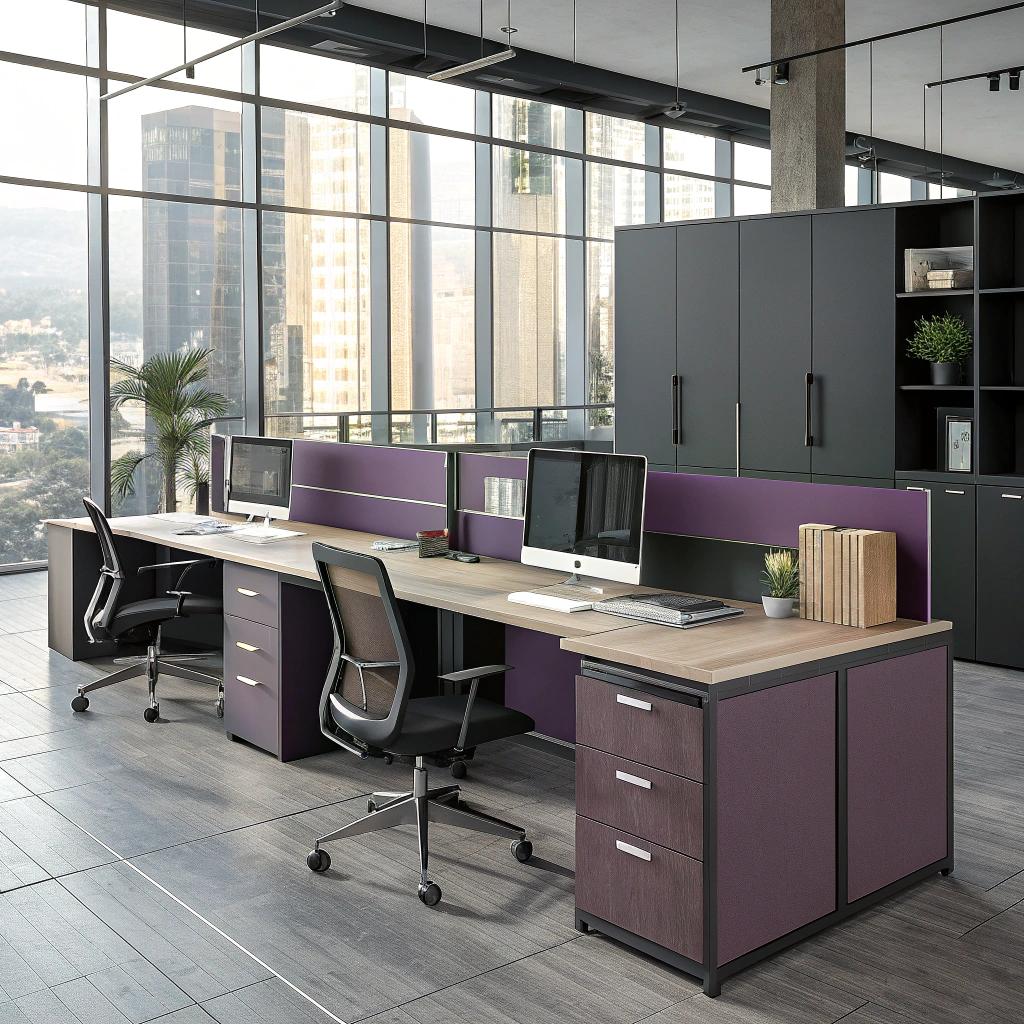
I used to think a smart office just meant lots of screens and a strong Wi-Fi signal. Then I saw a workspace where the furniture did half the thinking, and the laptops were almost the least interesting part of the room.
If you want a high tech workspace, start with smart planning around your office furniture installations. The core idea is simple: choose desks, chairs, storage, and meeting setups that hide cables, support devices, react to how you sit and move, and connect with tools you already use. Furniture will not replace your apps or your hardware, but it can support better focus, easier collaboration, and fewer small annoyances that drain your energy during the week.
Why smart furniture matters in a high tech workspace
Most people start with gadgets: monitors, laptops, sensors, new keyboards. Furniture is often an afterthought. That is backwards.
Your body touches the furniture, not the network diagram.
If your desk is too low, your chair does not support you, or cables are everywhere, it does not matter how advanced your software stack is. You will still feel tired and distracted.
Smart office furniture should quietly remove friction from your day so you can focus on actual work, not on fighting your space.
Here is what smart furniture usually aims to do in a tech focused office:
- Support long hours of deep work without wrecking your back or neck
- Make it easy to move from solo tasks to quick collaboration
- Hide or tame cables and hardware clutter
- Keep power, charging, and connectivity in reach without ugly adapters everywhere
- Adapt fast when the team grows, changes, or goes more remote
If you think about furniture in the same way you think about your tech stack, you get closer to a workspace that actually fits how you work.
Height adjustable desks that do more than go up and down
Sit stand desks are not new. Many are just fine. Some are noisy, some wobble, some end up stuck at one height forever.
So what makes a “smart” sit stand desk for a high tech office?
What to look for in a smart height adjustable desk
- Memory presets: At least 3 or 4 presets for different positions, not just “up” and “down”. That way you can move from writing, to coding, to quick video calls with one tap.
- Soft start and stop: The desk should not jerk when it moves. Jerky motion spills coffee and shakes monitors.
- Cable routing built in: Cutouts, grommets, and trays under the desk so monitor arms, docks, and chargers do not tangle.
- Strength and stability: If your dual monitor setup wobbles when the desk moves, you will stop adjusting it.
- Simple manual override: Smart controls are fine, but if the app or the control panel glitches, you still need to move the desk.
I like desks that do not try to be too clever. Some models connect to phones and track how often you stand. That sounds useful, but in practice many people stop pairing the app after a week. A desk that is simple, quiet, and stable with good presets often wins.
Tech should serve the human, not force the human to serve the settings, apps, and firmware updates.
Desk layouts for different types of tech work
Not every tech team works the same way, so it makes no sense to pick one desk style for everyone.
Here is a simple table that compares different desk layouts often used in high tech spaces:
| Desk layout | Best for | Main pros | Main trade offs |
|---|---|---|---|
| Single sit stand desk | Developers, writers, solo ICs | Good focus, clear personal space, easier cable management | Takes more floor space per person |
| Bench desks with sit stand frames | Product teams, support teams | Easy collaboration, shared power and data channels | Less privacy, noise carries further |
| L shaped or corner desks | Power users with lots of monitors, lab style setups | Tons of surface area, space for gear, testing rigs, samples | Harder to reconfigure, harder to fit in smaller rooms |
| Compact desks on casters | Project rooms, hackathons, lab zones | Very flexible, room can change layout quickly | Less stable, not ideal for heavy monitors |
You do not need to pick just one format. Many strong offices mix layouts: focused single desks for deep work, bench setups for teams that talk a lot, and mobile desks in meeting or lab spaces.
Ergonomic chairs that respect real bodies, not just spec sheets
If you work in tech, your chair might be the piece of hardware your body “runs” on the longest each day. Yet chair selection often ends up in a rushed bulk order.
Smart seating is less about fancy dashboards and more about making it very easy to sit well.
Features that matter more than marketing claims
When you look at ergonomic chairs, try to focus on a few things that actually change how your body feels:
- Independent backrest and seat adjustment: So the back supports you even if you sit a bit forward for typing.
- Armrests that move in several directions: Height, depth, and width. This matters a lot for keyboard and mouse comfort.
- Seat depth adjustment: Shorter and taller people can both sit without leg pressure or slouching.
- Breathable material: Mesh or fabric that does not trap heat around your back.
- Simple, labeled controls: If you need a manual each time you adjust the chair, it is not really smart.
There are “smart” chairs that track posture and send alerts. I have tried a few. Sometimes they help new users. After a while, many people mute the alerts and go back to habits. What lasts is a chair that feels natural to adjust and invites small changes through the day.
The smartest chair is the one people actually adjust three or four times a day, without thinking about it.
Task chairs, stools, and lounge seating
You do not sit the same way for every task, so why should you only have one type of seat?
A balanced tech workspace often includes:
- Main ergonomic task chairs at the primary desk stations.
- Active stools or leaning chairs near high tables for short working sessions or standups.
- Soft lounge chairs or sofas in casual areas for reading, design reviews on a tablet, or 1:1 chats.
Mixing seating types can help you move more during the day without thinking about “exercise” in some formal way.
Smart storage and cable control for a cleaner tech stack
High tech work means chargers, adapters, extra keyboards, headsets, and small hardware. Without a plan, these items spread over every surface.
Good storage and cable control is not glamorous, but it gives you a calmer baseline every day.
Under desk and side storage
Try to give each workstation at least two kinds of storage:
- Personal storage for notebooks, small items, and documents that do not move much.
- Tech storage for extra cables, chargers, dongles, and peripherals.
This might be a small pedestal drawer, a side cabinet, or a shared cabinet per pod of desks.
I like shallow, wide drawers for tech gear because you can see items at a glance. Deep drawers tend to become junk bins.
Cable management that actually survives real use
Cable chaos is one of the quickest ways to make a high tech office look messy and feel stressful.
Here is a simple comparison of common cable control options:
| Cable solution | Where it goes | Good for | Weak side |
|---|---|---|---|
| Cable trays under desks | Mounted to the underside of the work surface | Power strips, long monitor cables, laptop chargers | Harder to adjust if you move desks a lot |
| Cable grommets & cutouts | Holes in desks with covers | Routing cables from monitors to under desk area | Need planning before ordering furniture |
| Cable spines or chains | From desk down to floor | Height adjustable desks, neat vertical routing | Limited capacity if you have many thick cords |
| Floor raceways | On the floor, over cable runs | Crossing walk paths without tripping hazards | Can be ugly if placed carelessly |
A strong simple rule: no loose power bars on the floor where people sit. Mount them under desks or inside cable trays. It takes a bit more time during setup but saves a lot of hassle later.
Meeting rooms that match your video tools
Many tech teams work in hybrid mode now. Some people are remote, some on site. Meeting rooms need furniture that supports this reality.
Half measures, like one giant table with a laptop at one end, rarely feel good for remote people.
Smart tables for better audio and video
When planning meeting tables, think less about how many chairs you can squeeze in and more about lines of sight and sound.
You can ask yourself questions like:
- Can remote people see faces, not just the back of someone sitting near the camera?
- Is there a logical spot for the main screen so people do not twist their necks for an hour?
- Where do mics and small speakers rest so they do not get knocked over?
Tables that help with this tend to have:
- Built in power boxes in the middle or several points along the table.
- Cable channels that run along the underside to keep HDMI, USB, and power organized.
- Rounded corners so people can sit at angles without poking each other.
You do not need expensive “smart tables” with touch screens embedded. In many cases, a solid table with smart routing and well placed monitor walls works better and lasts longer.
Flexible meeting zones instead of fixed boardrooms only
A lot of tech conversations are short and informal. A rigid boardroom with a long table is not always ideal.
Consider mixing in:
- High tables with stools and small wall mounted screens for standups and quick reviews.
- Soft seating circles with a low central table for strategy talks and early stage planning.
- Small “huddle” pods that fit 2 to 4 people with light acoustic panels.
Furniture on lockable casters can help a lot here. You can shift a room from a workshop layout to a presentation layout in a few minutes.
Focus pods, phone booths, and quiet tech corners
Open offices often look modern but can be rough for deep work. Many high tech teams live in tools like code editors, design apps, or databases that need quiet focus.
Acoustic pods and small booths can help balance the noise.
What makes a pod actually useful
Some phone booths look cool but feel like hot, airless boxes. That is worse than taking a call in the hallway.
Try to look for:
- Ventilation with fans that move air quietly.
- Decent lighting that flatters faces for video calls and does not cause eye strain.
- Power outlets and USB ports inside at convenient height.
- A small shelf or table for laptops and notebooks, not just a tiny ledge.
For focus work pods meant for longer use, it helps to have a comfortable stool or compact chair and a bit more legroom.
Think of pods as “performance gear” for your brain. If they feel cramped, noisy, or awkward, people will avoid them, and they just become expensive decor.
Smart lighting tied to how people actually work
Furniture and lighting are tightly linked. Even the best desk feels poor under harsh, flickering lights.
You might already have smart bulbs or a central lighting system. The question is how furniture interacts with it.
Task lighting at desks
Overhead lighting often leaves shadows or glare on screens. Desk lamps with local control give people more control over their comfort.
Look for:
- Adjustable arms so you can direct light where you need it.
- Brightness control to adapt to time of day.
- Color temperature control so people can choose cooler light for alertness or warmer for late sessions.
Mountable lamps that clip to the desk edge free up space and can be shared between a pair of monitors.
Light and furniture placement
Glare on screens is often more about where desks sit relative to windows than about lamp quality.
A simple rule: place screens so windows are to the side, not directly in front or behind the monitor. It is easier on the eyes and less awkward for video calls.
If you move furniture during an office refresh and screens suddenly feel harder to read, light angles might be the reason.
Smart accessories: small things that add up
Once desks and chairs are set, it is tempting to stop. That is usually where small upgrades help most.
Monitor arms, laptop stands, and keyboard trays
These items are not new, but they are still underused in many tech offices.
- Monitor arms let people set screen height and distance correctly, which reduces neck and eye strain.
- Laptop stands turn laptops into “CPUs” with external keyboards and mice, improving posture.
- Keyboard trays can help shorter users reach a neutral arm position without raising chairs too high.
When these are missing, people improvise with books under screens and twisted seating positions.
Power modules at arm’s reach
If you want less wandering around to find outlets, surface or edge mounted power units help a lot.
They can include:
- Standard power outlets for chargers and docks
- USB or USB-C ports for phones and tablets
- Sometimes network ports, if you still run wired connections at desks
Good ones have replaceable modules so you are not locked into one port layout for many years.
Furniture for hybrid work and hot desking
Many tech companies now run some mix of remote and in person work. Hot desking can save space, but it often frustrates people if done poorly.
Furniture choices can make or break this model.
Designing a smart hot desk station
A fair hot desk should not feel clearly worse than a permanent desk. Try to aim for:
- Height adjustable desks so different people can set up quickly.
- Standard monitor arms and screens at each station.
- One cable connection to link laptop to power, display, and any extra USB devices.
- A small personal locker zone nearby for bags, headsets, and keyboards.
The goal is for someone to sit down, plug in, adjust the chair and monitor, and be ready in under two minutes.
Zones for different work modes
Rather than rows of identical hot desks, some offices work better with zones such as:
- Quiet zone: more separation between desks, fewer meeting spots nearby.
- Collab zone: closer desks, whiteboards, soft seating, easy access to meeting rooms.
- Drop in bar: high tables for people who are in for only an hour or two.
Furniture type signals the behavior expected in each area more clearly than rules on a wall.
Thinking about tech integration without overdoing it
There is a risk of overloading furniture with tech. Charging pads, embedded tablets, sensors everywhere. It feels cool at first, but the upkeep can be heavy.
A simple filter can help you decide what is worth it.
Good uses of tech in furniture
In many offices, tech inside furniture works well when it:
- Reduces repeated small annoyances, like searching for outlets or adjusting desks.
- Improves accessibility, like presets for different users or voice controlled lighting for shared rooms.
- Makes shared resources easier to find, like small display panels that show if a room is booked.
For example, sensor based room booking panels mounted next to meeting room doors often pay off because people can see at a glance if a room is free.
Places where low tech usually wins
On the other side, there are spots where simple furniture tends to work better long term:
- Chairs with manual controls instead of app based adjustments.
- Tables that support easy cable routing instead of embedded screens that go outdated.
- Whiteboards and pin boards for many planning sessions, not just giant touch displays.
If you find yourself imagining frequent firmware updates or app maintenance for a piece of furniture, stop and ask if that complexity pays off.
Budget, upgrades, and where to start
Not every office can replace all furniture at once. That is fine. In many cases, a focused upgrade plan beats a total overhaul.
High impact starting points
If you need to choose, most tech teams benefit first from:
- Better chairs with real adjustability.
- Height adjustable desks, at least for heavy screen users.
- Monitor arms and cleaner cable management.
- One or two good focus pods or phone booths.
After that, it makes sense to look at meeting room tables and hybrid work zones.
Iterating like a product, not a one time project
You can treat office changes a bit like product releases:
- Make a small set of changes in one area.
- Watch how people actually use the furniture.
- Ask a few direct questions: “What feels better, what feels worse, what feels unused?”
- Adjust the next batch of updates based on that.
This approach is slower but tends to give you a space that fits your specific culture and workflows, not just a catalog photo.
Common questions about smart office furniture for tech teams
Q: Do we really need smart features, or just good quality basics?
A: Some “smart” labels are just marketing. Many teams get more value from high quality basics: stable sit stand desks, ergonomic chairs, solid meeting tables with good power access, and clean cable routing. Add tech features only when they clearly fix a specific problem, like desk height presets for shared stations or simple room booking displays for busy meeting spaces.
Q: Is it worth paying more for height adjustable desks for everyone?
A: For teams that spend most of the day at screens, yes, in many cases it is worth it over time. The gains are subtle, like less stiffness, easier posture changes, and better comfort during long sessions. If budget is tight, you can start with key roles who sit the most and expand as you refresh older desks.
Q: How do we balance open space and privacy in a high tech office?
A: Use furniture instead of only rules. Lower partitions, soft seating areas, and open zones can support casual chats. Focus pods, quiet desk clusters with more spacing, and clear meeting rooms give people places to retreat when needed. Mark zones with different furniture types so behavior shifts naturally as people move around.
What part of your current workspace annoys you the most, and which single piece of smart furniture do you think would fix that first?