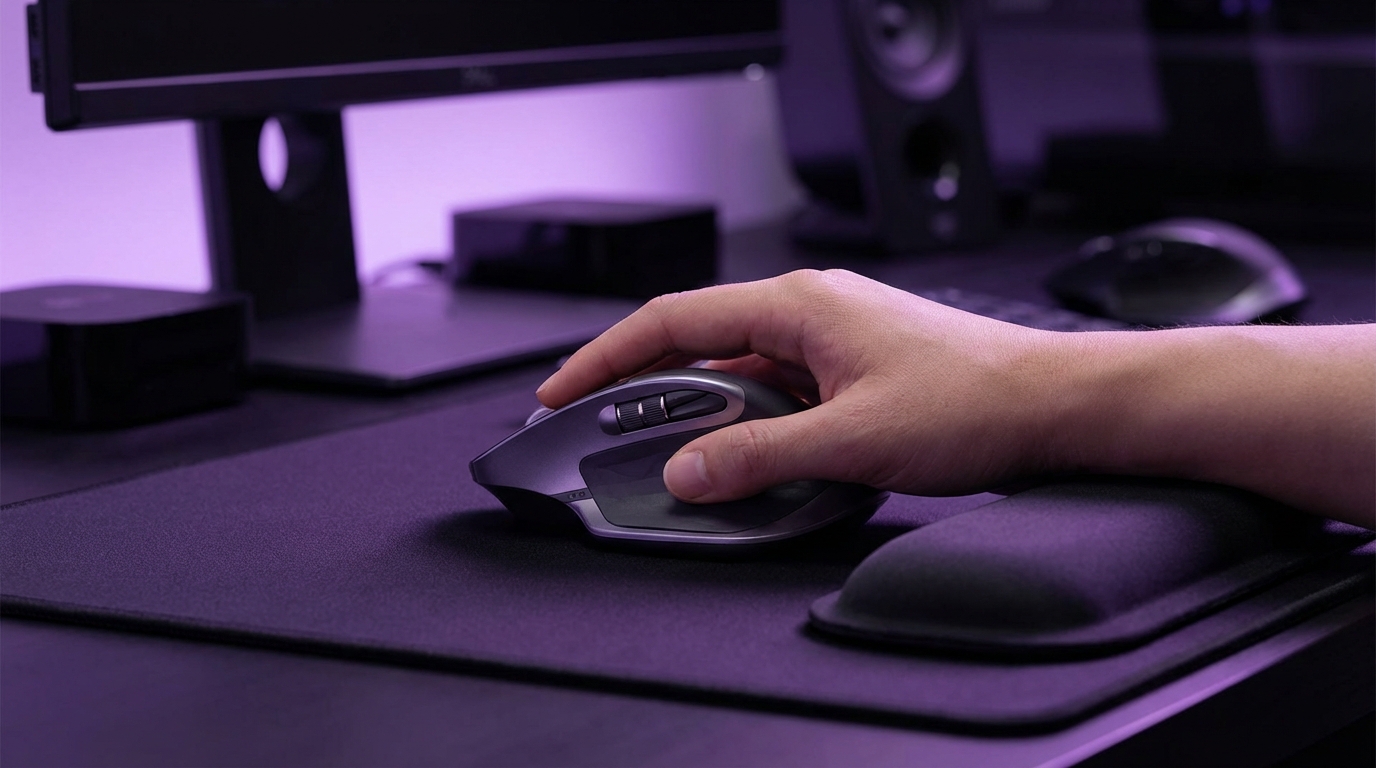
I used to think wrist pain was just part of working with computers. You type, you click, you hurt a little, then you power through it and move on.
Then one day I woke up, grabbed my mouse, and my hand felt like it was buzzing and burning at the same time. That was the day I stopped treating ergonomics like an optional feature and started treating it like a requirement.
The short answer: an ergonomic mouse will not magically cure carpal tunnel syndrome, but it can reduce strain on your wrist, hand, and forearm. By changing your wrist posture, lowering grip tension, and cutting down on repetitive stress, the right mouse can help prevent symptoms from getting worse and, in some cases, help you work longer with less pain. The wrong mouse can push you further toward chronic issues you do not want.
What actually causes wrist pain and carpal tunnel from a mouse
Let me be blunt: most people blame “typing” for their wrist pain. Very often, the mouse is the bigger problem.
You move a mouse less dramatically than you type, but the strain is constant and subtle. Your hand rests there for hours. Your fingers hover. Your wrist twists. And that low level of tension does not stop.
Here is what is usually going on physiologically:
- Carpal tunnel syndrome: The median nerve in your wrist gets compressed in the carpal tunnel (a narrow passage in your wrist). This leads to numbness, tingling, weakness, or pain in the thumb, index, middle, and half of the ring finger.
- Tendon irritation: Repetitive finger clicking and small wrist movements irritate the tendons that move your fingers and hand.
- Static muscle loading: Holding your hand in one position for a long period tenses your muscles without letting them fully relax.
Now, how does a traditional mouse feed into that?
Neutral posture vs twisted posture
Your forearm has two main bones: the radius and the ulna. When your palm faces down flat on the desk, your forearm is “pronated.” When your thumb points up, your forearm is closer to “neutral.”
A standard mouse forces a pronated position: palm flat, elbow rotated inward. That twist might not feel like much, but hold it for six, eight, or ten hours a day and it adds up.
A good ergonomic mouse tries to reduce pronation, reduce wrist extension, and reduce grip tension. Those three things matter more than fancy marketing language.
Small movements, big impact
You do not need dramatic movements to cause problems. These three patterns are common:
- Micro-movements: Tiny cursor corrections and repeated clicks add up to thousands of movements per day.
- Static hover: Keeping fingers constantly “ready” over the buttons keeps muscles engaged the entire time.
- Wrist anchoring: If your wrist is anchored to the desk and you pivot from that point, the force goes straight into a small set of joints and tissues in the wrist.
When people say, “My wrist just suddenly started hurting,” it is usually not sudden. It is accumulated load that finally crosses a threshold.
Why some people get carpal tunnel and others do not
You probably know someone who spends more time at the computer than you do and they never complain about pain. That can make you feel like you are overreacting.
Several factors increase risk:
- Previous wrist injuries
- Diabetes or thyroid conditions
- Fluid retention (pregnancy, some medications)
- Genetic differences in wrist structure
- Higher total daily load (work + gaming + phone use)
So the same mouse that feels “fine” for one person can feel terrible for you. That is not weakness; it is actual physiology.
How ergonomic mice help (and what they cannot do)
Let me manage expectations: an ergonomic mouse is not a medical treatment. It is a hardware change that can lower mechanical stress. That is valuable, but it is only one lever.
Think of an ergonomic mouse as changing the way stress hits your hand and wrist, not removing the stress entirely.
Here is what they usually help with:
- Better wrist posture: Rotating the forearm closer to neutral or reducing wrist extension.
- Lower grip force: Shaping the mouse so your fingers and thumb can relax more.
- Reduced reach: Bringing buttons closer to your natural resting position.
- More movement from the arm: Encouraging you to move from the elbow and shoulder instead of from the wrist only.
And here is what they cannot solve by themselves:
- Pre-existing severe nerve compression
- Systemic medical conditions contributing to nerve problems
- Very long work hours without breaks
- Bad desk height or chair setup
If your symptoms are strong (night-time tingling, dropping objects, clear weakness), you need a medical professional. A mouse alone will not fix that.
Types of ergonomic mice and how they affect your wrist
This is where things get a bit more personal. Different designs shift pressure in different ways. There is no single “best” style for everyone.
Here is a quick table to frame the options:
| Mouse type | Forearm posture | Movement style | Good for | Potential downside |
|---|---|---|---|---|
| Standard horizontal ergonomic | Slightly pronated | Mix of wrist and arm | Most users, easy switch | Still some twist in forearm |
| Vertical mouse | More neutral (thumb up) | More from elbow/shoulder | People with wrist rotation pain | Awkward at first, coarse control |
| Trackball (thumb) | Neutral / low movement | Mostly finger/thumb | Limited desk space | Thumb overuse if not careful |
| Trackball (finger) | Neutral / low movement | Index/middle finger | People with shoulder issues | Learning curve, precision practice |
| Pen-style mouse | Similar to holding a pen | Finger and small wrist | People used to stylus work | Can strain fingers if overused |
Standard ergonomic mice (improved but familiar)
This is the category where you see mice with:
- A more sculpted shape under the palm
- Thumb rests instead of a flat side
- Gentle tilt instead of perfectly flat
The posture is still somewhat pronated, but you usually get:
- Better palm support, so you are not pinching with your fingertips
- Buttons positioned closer to your natural resting fingers
- A shape that encourages arm movement instead of tiny wrist pivots
For many people, this is enough of a change to lower discomfort without feeling strange.
Vertical mice (shake-hands posture)
Vertical mice tilt your hand toward a handshake position. The idea is simple: if you let your arm dangle by your side, your thumb naturally faces forward, not down. That position tends to reduce forearm twist.
Common traits:
- Pronounced tilt, sometimes 57 to 90 degrees
- Large thumb rest with buttons under the fingers on the side
- Scroll wheel in a vertical orientation
Potential benefits:
- Less pressure on the underside of the wrist
- Less rotation of the forearm
- More movement from the elbow and shoulder
Potential tradeoffs:
- Takes time to build precision, especially for gaming or design
- If the mouse is too large or small, you may overreach buttons
- Some people end up shrugging the shoulder a little if the desk height is wrong
Vertical mice help many people with wrist rotation pain, but they can irritate the shoulder if your desk and chair are not set up correctly.
Trackballs (thumb and finger driven)
Trackballs flip the basic idea: the device stays still, the ball moves.
Two common layouts:
- Thumb trackball: Ball near the thumb, buttons under index and middle finger.
- Finger trackball: Large ball moved by index/middle fingers, buttons around the ball.
Benefits:
- No need to move the mouse across the desk
- Lower shoulder and elbow movement
- Can be very gentle on the wrist because the wrist does not glide or pivot
Risks:
- Thumb overuse with thumb trackballs, especially for people who already use their thumbs heavily on phones or controllers
- Index finger strain with finger trackballs if you press too hard on the ball
Trackballs tend to work best when you consciously keep a light touch. People who have a habit of gripping everything tightly might struggle at first.
Pen-style mice
These aim to mimic holding a pen or stylus. If you are used to drawing tablets, this might feel more natural.
Potential positives:
- Less pronation if held correctly
- Fine control for small movements
Potential negatives:
- Finger and small muscle fatigue over long sessions
- Harder to relax your grip if you have a history of writing a lot
I see these more as a niche tool or secondary mouse rather than an all-day primary device for most people.
How to choose an ergonomic mouse for carpal tunnel prevention
There is a risk here: you can easily spend a lot of money trying different designs without a clear plan. Let us structure it a bit.
Start with your symptoms and work backward to the device, not the other way around.
Step 1: Map your pain and symptoms
Ask yourself:
- Where exactly do you feel pain or discomfort? (wrist, thumb, palm, forearm, shoulder, neck)
- Do you get tingling or numbness in specific fingers? Which ones?
- Does it worsen after long mouse sessions, or is it constant?
- Are keyboard sessions as bad as mouse use, or is it clearly mouse-driven?
Rough guide:
- Pain on the palm side of the wrist + numbness in thumb/index/middle fingers can point toward carpal tunnel.
- Pain on the outer elbow (tennis elbow area) often relates to forearm muscle overuse.
- Neck and shoulder tightness can be posture and desk height more than mouse design.
If you have strong night-time symptoms, or your hand feels weak, do not skip medical advice. Hardware alone is not enough at that point.
Step 2: Decide on a direction, not a specific model yet
Based on your symptoms, pick a direction:
- Forearm rotation discomfort or pressure on underside of wrist
Try a vertical mouse or at least a mouse with a higher tilt. - Shoulder and elbow fatigue from large mouse movements
Consider a trackball to reduce large-scale movement. - General wrist ache that feels worse with small pivoting motions
Look at a larger ergonomic mouse that encourages arm movement. - Pain focused around thumb from gripping too hard
Consider a mouse with a more generous thumb rest or a design that reduces pinch.
You are not locked in. You are just prioritizing.
Step 3: Match size and grip style
One of the most overlooked details is size. A “good” ergonomic mouse that is the wrong size can be worse than a simple standard mouse that fits.
Measure:
- Hand length: from wrist crease to tip of middle finger
- Hand width: across the knuckles
Typical grip styles:
- Palm grip: Hand rests fully on the mouse. Good for larger ergonomic shapes.
- Claw grip: Palm slightly lifted, fingers arched. Often used in gaming.
If you have wrist problems, a relaxed palm grip on a larger, supportive shape often works better than a small mouse that forces a fingertip grip.
Step 4: Weight, sensitivity, and friction
A few technical details matter more than most spec sheets suggest:
- Weight: A very heavy mouse increases muscle load. A very light mouse can feel twitchy and may cause overcorrection. Aim for a moderate weight that your hand can move without conscious effort.
- DPI / sensitivity: Higher DPI means you move the mouse less for the same cursor distance. If you raise DPI, combine it with a conscious effort to move more from the arm and less from the wrist.
- Feet and surface: Rough surfaces and worn-out mouse feet increase friction and strain. A smooth mat can reduce effort.
Small hardware details like friction and weight can quietly change how tired your hand feels by the end of the day.
Step 5: Plan a 2 week adaptation period
Your first impressions can be misleading. A more ergonomic posture can feel “weird” before it feels good.
For the first 2 weeks:
- Use the new mouse for a few hours at a time, not 12 hours on day one.
- Note whether the pain pattern changes: location, intensity, and timing.
- Do not turn this into a willpower contest. If pain spikes in a new area, take that seriously.
If a mouse is still clearly aggravating pain after 2 weeks, that is a sign to try a different shape or category.
How to position your mouse to protect your wrist
You can buy the most ergonomic mouse sold anywhere and still hurt your wrist if you place it poorly.
Here is a simple way to think about it: when your hand reaches for the mouse, it should feel like a small extension of your forearm, not a reach or twist.
Desk height and arm angle
General target:
- Elbows around 90 degrees, close to your body
- Shoulders relaxed, not hunched up toward your ears
- Forearms roughly parallel to the floor
If the desk is too high:
- Your shoulders shrug up
- You press your wrists into the table edge
- Wrist extension increases (back of hand higher than forearm)
If you cannot change the desk, consider:
- A lower chair plus a footrest so your legs stay supported
- A keyboard tray that lowers mouse and keyboard relative to the desk
Mouse position relative to your body
Common mistake: mouse too far to the side. That forces shoulder abduction and can trigger neck and shoulder pain.
Better:
- Mouse close to the keyboard, so your upper arm stays near your torso
- Mouse not too far forward; your elbow should not be fully extended
- If you use a full-size keyboard with a number pad, consider a keyboard without a number pad, so you can bring the mouse closer
If your shoulder feels like it is reaching out to the side just to use the mouse, you are trading wrist pain for shoulder pain.
Wrist support: yes or no?
Wrist rests can help or hurt, depending on how you use them.
Helpful when:
- They support the palm and lower forearm, not just the wrist joint
- They keep the wrist in a straight line rather than bent backwards
Harmful when:
- They push directly into the carpal tunnel area with firm pressure
- They encourage you to pivot from the wrist instead of moving from the arm
A soft, long forearm rest can be better than a small, hard “wrist” rest under a single point.
Practical habits that matter as much as the mouse itself
I wish I could say, “Buy mouse X and your problems are solved.” That would be clean and easy. Reality is more layered.
A few small habits compound over months.
Micro breaks and movement
Your tissues need breaks from loading, not just breaks from work.
Simple pattern:
- Every 20 to 30 minutes: 20 to 30 seconds of moving your hands and arms
- Stand up once an hour if possible
- Gently rotate wrists and open/close fingers through a comfortable range
This does not have to become an app or a system. A simple reminder in your task manager or calendar can be enough.
Neutral wrist mindset
Think of your forearm and hand as a straight line.
When you look down:
- Is your wrist bent upward?
- Is it bent toward the thumb or pinky side?
Aim for:
- Back of the hand in line with the forearm
- Minimal side bending
Over time, you start noticing when you drift into unhealthy postures.
Reduce unnecessary clicking and dragging
Tech can either help you or work against you here.
Options:
- Use keyboard shortcuts for frequent actions (copy, paste, close tab, switch windows).
- Turn on features like “tap to click” on trackpads if that feels better.
- For creative work, explore tablet + pen setups for heavy drawing or path editing.
If your current workflow requires constant drag-and-drop, zoom, and scroll, think about how to reduce repeated actions. Sometimes the fix is software, not hardware.
Common mistakes when switching to an ergonomic mouse
There are patterns I see repeated:
1. Choosing a design only because it looks ergonomic
A mouse can look very “ergonomic” in marketing photos and still feel wrong in your hand.
Problems:
- Overly aggressive curves that do not fit your actual grip
- Buttons placed where your fingers do not naturally rest
- Too large or too small for your hand shape
If you can, test or buy from places with good return policies. Your hand is the real judge.
2. Switching everything at once
New chair, new desk, new keyboard, new mouse, new monitor stand, all in the same week. That sounds proactive, but it makes it very hard to know what helps and what hurts.
More controlled approach:
- Change one or two things at a time
- Give each change about 2 weeks of use before deciding
- Keep a few notes on how your body feels; nothing fancy
When you change too many variables at once, you turn your own body into a confusing experiment.
3. Ignoring early warning signs
People tolerate “minor” tingling and pain for months because the work has to get done. I understand that. I have done it myself.
The risk is that nerve irritation can move from reversible to more persistent if you ignore it too long.
Signals you should not ignore:
- Tingling that wakes you up at night
- Numbness that lasts after you stop working
- Weak grip or dropping things without reason
That is the point where you bring in a medical professional. Ergonomic gear becomes part of a recovery plan, not your only strategy.
4. Believing that one perfect mouse exists
There is a temptation to search endlessly for “the one.” The perfect device that makes you forget you ever had pain.
For many people, the better approach is:
- Have a primary mouse that suits most tasks well.
- Keep a secondary device (trackball, pen tablet, or alternate mouse) to rotate in when fatigue appears.
Rotating devices changes the load pattern. You are not hammering the same tissues in the same way all day.
A simple process to protect your wrist long term
Let me pull this together into something you can actually follow without turning it into a full-time project.
1. Audit your current setup
Spend 5 to 10 minutes and write down:
- Current mouse model and how long you use it daily
- Where you feel discomfort (0 to 10 scale)
- Desk height relative to your elbows
- Whether your wrist is resting on the desk edge
Not perfect data, just a snapshot.
2. Make one hardware change and one habit change
For example:
- Hardware: Switch to a vertical mouse sized for your hand.
- Habit: Every 25 minutes, stand and move your hands and shoulders for 30 seconds.
Or:
- Hardware: Change to a larger ergonomic mouse with better palm support.
- Habit: Move the mouse closer to the keyboard and stop resting the wrist on the edge.
3. Reassess after 2 to 4 weeks
Ask yourself:
- Is the pain intensity lower, higher, or unchanged?
- Has the location shifted?
- Is work more comfortable overall, or are you simply adapting mentally?
If you see no improvement or a clear worsening, do not be loyal to the device. Your body wins that argument.
When to talk to a doctor instead of just buying another mouse
This part is easy to skip, but it matters.
You should seek professional advice promptly if:
- You have persistent numbness or tingling in the thumb, index, or middle fingers.
- You feel weakness when gripping objects or pinching.
- Pain wakes you at night, or you need to shake your hand to get relief.
- You notice visible wasting of the muscles at the base of the thumb.
A physician or specialist can suggest:
- Nerve conduction studies to assess median nerve function
- Splinting at night to keep the wrist in neutral
- Exercises or physical therapy
- Medication, injections, or surgery for more severe cases
Ergonomic hardware is a support tool; it is not a diagnosis and not a replacement for medical care when symptoms are strong or persistent.
If you catch problems early, small changes in both your equipment and your habits can sometimes prevent more serious interventions later.
I will admit, I was skeptical at first that a mouse shape could affect something as fundamental as nerve health. Then I changed my setup, shifted my habits, and watched my symptoms back off over a few weeks. It was not magic. It was posture, load, and time.
The technology side here is simple: plastic, sensors, and a shape. The human side is where the real complexity sits. And that is exactly why it is worth treating your mouse as more than a cheap accessory, especially if your wrist is trying to tell you something.