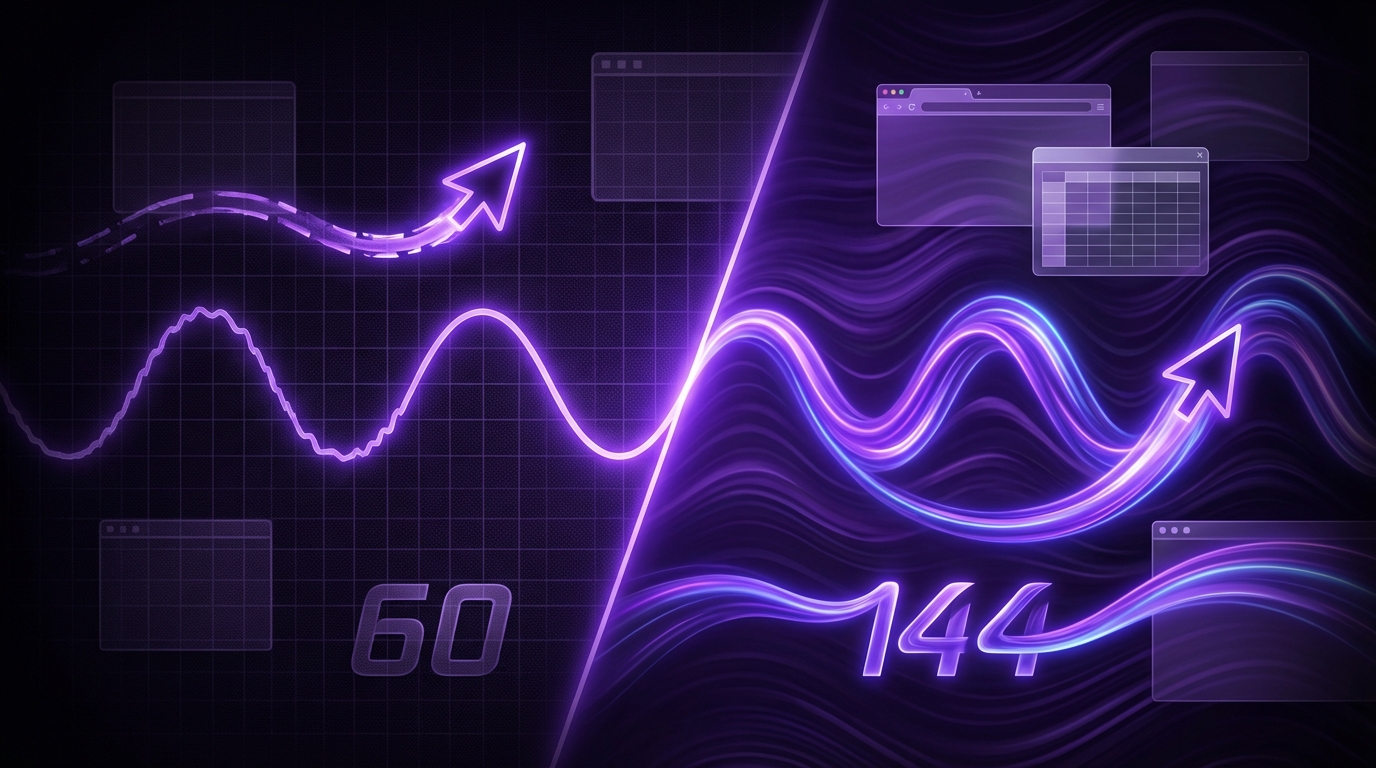
I used to think refresh rates were only something gamers obsessed over, like RGB lights and mechanical keyboards. For years, I told myself: “I just do email, docs, and Chrome… why would I care about 144Hz?”
Here is the short answer: Yes, 144Hz *can* be worth it for non-gamers, but only if you spend a lot of time in front of a screen and value comfort, smoother motion, and a more responsive feel. If you mostly read static text or do occasional computer work, you probably will not notice enough difference to justify the cost. The more you scroll, drag, switch windows, edit video, or work with visuals, the more 144Hz starts to feel like a quiet upgrade that you never want to give up later.
If you use your computer for 6+ hours a day, a good high-refresh monitor is often a more meaningful comfort upgrade than a faster CPU.
What “144Hz” Actually Means (Without The Jargon)
Before deciding if 144Hz is worth it, you need a clear picture of what it actually changes.
At a simple level:
– A 60Hz monitor can show up to 60 new images every second.
– A 144Hz monitor can show up to 144 new images every second.
So the higher the refresh rate, the more “snapshots” of motion you see. This affects:
– How smooth scrolling feels
– How quickly the screen reacts to your mouse and keyboard
– How clear moving objects look (like dragging windows or watching a fast pan in a video)
Here is a quick comparison:
| Refresh rate | Frame time (ms) | How it feels |
|---|---|---|
| 60Hz | 16.67 ms | Standard. Slight blur in fast motion, noticeable stutter when scrolling quickly. |
| 75Hz | 13.33 ms | A bit smoother, still closer to 60Hz than to 144Hz. |
| 120Hz | 8.33 ms | Clearly smoother. Mouse movement starts to feel “light”. |
| 144Hz | 6.94 ms | Very smooth motion, low perceived input delay. |
This is not just about “more frames”. It changes how *connected* your actions feel:
– Move your mouse -> the cursor movement looks more continuous.
– Scroll a page -> text glides instead of jumping line by line.
– Drag a window -> the edges do not smear as much across the screen.
If 60Hz is like watching a slide show, 144Hz is like leafing through the slides twice as fast. Each slide is still a static picture, but your brain experiences the motion differently.
How 144Hz Affects Non-Gaming Tasks
Here is where this gets more interesting for non-gamers. You might think “refresh rate = games”, but your entire operating system is constantly moving and redrawing.
1. Web browsing and scrolling
If you do any of these:
– Scroll long articles
– Use Twitter, LinkedIn, or other feeds
– Spend hours in Gmail or browser-based apps
then refresh rate matters more than you might expect.
On a 60Hz monitor, when you flick the scroll wheel:
- Text moves in larger “steps”
- Your eyes track jumpy motion
- Fast scrolls sometimes feel like stutter
On a 144Hz monitor:
- Each scroll step is broken into more visual “frames”
- Your eyes track smoother motion with less effort
- Fast scrolls through a document feel more like gliding
Is this life-changing? No. But once you get used to it, going back to 60Hz often feels strangely rough.
2. Mouse movement and pointing accuracy
One thing people underestimate is how often they move the mouse every day.
Every time you:
– Select text
– Drag files
– Resize a window
– Move the cursor between multiple monitors
your brain is doing a tiny eye-hand coordination loop.
On a higher refresh rate monitor:
– Mouse movement appears more “continuous”
– Small corrections feel quicker
– Selecting precise UI elements (small buttons, sliders, timeline markers) is slightly easier
If you do design, editing, or any task that needs precise cursor placement, 144Hz feels less like a luxury and more like a subtle productivity tool.
This is not because the mouse is technically more accurate, but because your eyes perceive more intermediate positions between “start” and “end”.
3. Office work: documents, spreadsheets, presentations
A lot of office usage is static:
– Reading documents
– Staring at cells in spreadsheets
– Writing in a text editor
For the static parts, refresh rate does not matter. Where it starts to show:
– Scrolling large spreadsheets horizontally or vertically
– Zooming in and out of complex slides or big Excel models
– Animating PowerPoint transitions during review
If your work is 90 percent reading and 10 percent moving around, 144Hz has a smaller benefit. If your day is more like constant navigation through big files, that 10 percent starts to add up.
4. Creative work: photo, video, and design
Non-gamers who get the most value from 144Hz are usually in creative roles:
– Video editors
– Motion graphics artists
– UI/UX designers
– 3D artists
Why?
Because they interact with moving content constantly:
- Scrubbing video timelines
- Playing short previews again and again
- Moving layers and elements around
- Zooming and panning on large canvases
Here is where it gets a bit subtle:
– Most video content is still 24/30/60 fps, so you might think 144Hz does not help.
– But all the *editing UI* around the video runs at native refresh.
– So dragging playheads, scrolling timelines, opening panels all feel smoother.
If your priority is color accuracy, then panel type and calibration matter more than refresh rate. But if you combine a good IPS panel *with* a higher refresh rate, the workflow feels more fluid.
5. Coding, engineering, and technical work
I see two main types of programmers here:
1. Those who mostly read and write code without much navigation.
2. Those who constantly jump files, search, scroll logs, and use multiple monitors.
For the first group, the gain is modest. For the second group, especially if they:
– Tail logs in real time
– Scroll very long code files
– Flick between terminals, browsers, and editors
144Hz can make the environment feel less heavy. You notice it when you go back to a laptop with a 60Hz panel and everything feels strangely sticky.
Comfort, Eye Strain, and Fatigue
This is where a lot of claims get exaggerated, so I want to be careful.
Some people say “144Hz removes eye strain.” That is not accurate. Eye strain comes from several things:
– Low brightness or glare
– Poor text rendering
– Small fonts
– Poor posture
– Blue light late at night
– And yes, flicker or rough motion
Higher refresh rates *can* reduce a specific type of discomfort related to motion and tracking. For example:
– If you feel mild discomfort when scrolling fast on 60Hz
– Or your eyes feel tired after navigating lots of moving UI
then 144Hz might feel calmer. Not soft or blurry, just less jarring.
Smoother motion does not magically fix eye strain, but it removes a small layer of visual friction that some people are very sensitive to.
An honest way to think about it:
– If you already feel fine on 60Hz, 144Hz is comfort *nice-to-have*.
– If you often feel “dragged” or fatigued when scrolling, 144Hz might be a quiet relief.
One thing to watch: many 144Hz monitors push brightness and saturation as a selling point. That can *worsen* eye strain if you never adjust them. So if comfort is your goal, accurate colors and proper brightness might matter more than refresh rate alone.
Where 144Hz Does Not Help Much
Non-gamers often overestimate what 144Hz will change. Some things stay almost the same:
1. Static reading and writing
If your typical day is:
– Writing in Word or Google Docs
– Reading PDFs
– Answering email
and you scroll slowly, then 144Hz is not going to change your life. You will see small differences in smoothness, but they are not core to your workflow.
2. Watching movies and TV shows
Video content itself rarely runs at more than 60 fps. Often much less.
– Movies: usually 24 fps
– TV shows / streaming: 24-60 fps
– YouTube: up to 60 fps for most content
On a 144Hz monitor, this content is still rendered at its native frame rate. Your system can repeat frames to fit the refresh cycle, but it does not magically add detail.
Where you may notice a difference:
– Navigating menus and playlists
– Moving windows while a video is playing in a corner
– Using picture-in-picture or multiple videos on screen
But the core viewing experience is not transformed.
3. Slow-paced admin tasks
If the bulk of your work is:
– Filling forms in web apps
– Occasional spreadsheet edits
– Periodic document reviews
and you do not feel any frustration with your current monitor, then 144Hz will feel like a small polish, not a meaningful upgrade.
If you treat your monitor like a TV that happens to show work, 144Hz is usually overkill. If you treat it like a tool you live inside all day, the calculus changes.
144Hz vs Other Monitor Upgrades: What Matters More?
Before you spend extra money on refresh rate, it helps to rank monitor features by impact for non-gamers.
Here is a rough priority list:
- Size and resolution
- Panel quality (colors, viewing angles, brightness)
- Ergonomics (height adjustment, tilt, VESA mount)
- Connectivity (USB-C, multiple inputs, hub features)
- Refresh rate (60 vs 75 vs 120/144Hz)
Let us go through these briefly.
1. Size and resolution
If you are deciding between:
– A 24″ 144Hz 1080p monitor, and
– A 27″ 1440p 60Hz monitor
for non-gaming use, the 27″ 1440p often gives more tangible value:
– More space for windows
– Sharper text
– Better multitasking
You can have a 144Hz monitor that is still cramped or low resolution. That feels less meaningful than extra pixels and space.
2. Panel quality
For non-gamers, panel type and tuning often matter more:
| Panel type | Common traits | Good for |
|---|---|---|
| IPS | Good colors, wide viewing angles, decent response times | General productivity, design, photo/video work |
| VA | Better contrast, deeper blacks, slower transitions | Media consumption, dark-themed workflows |
| TN | Fast response, weaker colors and angles | Competitive gaming only |
If you work with visuals:
– A good IPS 60Hz is better than a poor TN 144Hz.
– Color accuracy, contrast, and uniformity affect everything you see all day.
3. Ergonomics and setup
Neck and back pain cost more in productivity than any refresh rate can fix.
If your budget is limited, spending on:
– A height-adjustable stand
– VESA mount and arm
– Better chair and keyboard positioning
will improve your day more than moving from 60Hz to 144Hz.
I realise this is not as fun to buy, but it matters more.
4. Connectivity
For non-gamers on laptops or modern desktops, these ports can be more crucial:
– USB-C with power delivery (single-cable setups)
– DisplayPort for higher resolutions at high refresh rates
– HDMI versions that support your target resolution + refresh
Before you even think about 144Hz, check:
– Can your laptop or computer *output* 144Hz at the monitor’s resolution?
– Do you have the right cable? (Often DisplayPort or a proper USB-C alt-mode connection)
Sometimes people buy a 144Hz monitor, plug it in via an old HDMI cable, and then wonder why they are stuck at 60Hz.
When 144Hz Makes Sense For Non-Gamers
Let us make this practical. There are some clear scenarios where 144Hz is usually worth it for non-gamers.
Scenario 1: You live in your browser and scroll constantly
Profiles that fit this:
– Content writers, researchers, analysts
– Marketing professionals switching between tools and dashboards
– Support or operations roles in web-based systems
You:
– Scroll long pages all day
– Switch tabs constantly
– Use browser-based productivity tools
Here, a higher refresh rate makes the browser feel less choppy. Combined with a decent resolution and panel, it is a nice daily upgrade.
Scenario 2: You do creative or technical work with lots of movement
Profiles:
– Video editors
– Motion designers
– UI designers using tools like Figma, Sketch, XD
– 3D artists rotating models often
You:
– Scrub timelines
– Pan and zoom on large canvases
– Move layers and components around
144Hz helps your *workspace* feel smoother, even if the final output is lower frame rate. You feel the benefit every few seconds while editing.
Scenario 3: You already care about fine-grained responsiveness
Some people are more sensitive to input lag and visual feedback. These are often:
– People who notice keyboard latency
– People who are annoyed by cursor lag at 60Hz on large monitors
– Former gamers who still like fast-feeling systems
If this describes you, then 144Hz will likely feel “right” in a way that is hard to describe but easy to feel.
If you are the kind of person who immediately notices when a display is locked at 30Hz, you are the ideal candidate to benefit from 144Hz even outside gaming.
Scenario 4: You are buying a mid-range or premium monitor anyway
These days, many good productivity monitors in the mid to high range already have 120Hz or 144Hz as part of the package.
If you are already planning to spend on:
– 27″ or 32″ 1440p or 4K
– Good IPS panel
– Height-adjustable stand
and the price difference between 60Hz and 144Hz versions is small, then 144Hz is often worth it “on the way”:
– You are not paying just for refresh rate.
– You are getting it bundled with other quality improvements.
In that case, I would not avoid 144Hz just because you are not a gamer. You will probably enjoy it.
When 144Hz Is Probably Not Worth It For You
Now the opposite side. There are plenty of people who should keep their money in their pocket or reallocate it.
Scenario 1: You are on a tight budget
If your budget is limited and you must choose, these upgrades beat 144Hz for non-gamers:
- Go from 1080p to 1440p on a 27″ display
- Go from a cheap TN panel to a decent IPS panel
- Get a larger screen size for more workspace
- Get an ergonomic stand or monitor arm
A 24″ 1080p 144Hz monitor might feel “snappy”, but a cramped work area with fuzzy text is not a great trade if you work long hours.
Scenario 2: Your computer cannot really drive it
If you have:
– An older laptop with limited graphics capability
– A system that only supports 60Hz over HDMI at your target resolution
you may face these issues:
– Stuck at 60Hz even on a 144Hz monitor
– Forced to lower resolution to achieve 144Hz
– Random flickering or handshake problems between GPU and monitor
Before buying:
– Check your GPU or laptop specs for supported resolutions and refresh rates.
– Confirm which ports support 144Hz at your preferred resolution.
– Make sure you have or can get the right cable.
If all that sounds like a hassle and you just want things to work, you might be better off with a good 60Hz monitor.
Scenario 3: You rarely use the computer for long stretches
If your pattern looks like this:
– 30-60 minutes a day of casual browsing
– Occasional video watching
– Light document work
then the incremental comfort of 144Hz will not have enough time to pay off. Your phone screen probably affects your visual comfort more than your monitor does in that case.
Scenario 4: Your main discomfort comes from other factors
If you already feel:
– Neck pain
– Back pain
– Dry eyes
– Headaches after long sessions
refresh rate is not your main problem.
Better first steps:
– Adjust monitor height and distance
– Reduce brightness to a comfortable level
– Use a larger monitor for readable text at a reasonable distance
– Take regular breaks
144Hz is not a fix for health or ergonomics issues. It is a refinement once basics are covered.
144Hz vs 120Hz vs 75Hz: Is 144Hz Special?
You may also see 75Hz, 100Hz, or 120Hz monitors. For non-gamers, the question is not just “144Hz vs 60Hz”, but “where is the point of diminishing returns?”
Here is a practical view:
| Refresh rate | Over 60Hz? | Non-gaming benefit |
|---|---|---|
| 75Hz | Modest boost | Some smoothness gains, but not a big jump. Feels slightly better. |
| 100/120Hz | Noticeable upgrade | Most of the smoothness benefits; feels clearly “lighter” than 60Hz. |
| 144Hz | Incremental above 120Hz | Great, but gap from 120 to 144 is smaller than 60 to 120. |
If you find a good 120Hz productivity monitor at a better price than a 144Hz one, you are not missing a magic threshold. The major impact is moving beyond 60Hz in general.
For non-gamers, the step from 60Hz to “triple-digit” refresh rates matters more than whether the final number is 120 or 144.
Common Misconceptions About 144Hz For Non-Gamers
Let me push back on a few ideas that circulate a lot.
“I do not game, so 144Hz is useless.”
Not quite. Gaming is where people *notice* refresh rates first, but your operating system and apps still draw frames dozens of times every second. Smoothness has value outside games, especially if you work full time at a computer.
But “has value” does not mean “must have”. It is a comfort and responsiveness upgrade, not a requirement.
“144Hz will fix my eye strain.”
Sometimes people jump to 144Hz because their eyes feel tired, only to find:
– The problem was brightness or contrast
– Or their viewing distance was too short
– Or they were squinting at small text
Refresh rate addresses only one small dimension of visual comfort. It can help with motion-related discomfort, but not with basic ergonomics.
“My laptop supports 144Hz because it has USB-C.”
USB-C is just a connector shape. To drive 144Hz at higher resolutions, your laptop needs:
– DisplayPort alt mode over USB-C or
– HDMI 2.0 or better (and many laptops still limit certain ports)
If your laptop is office-focused with integrated graphics, it might cap out at 60Hz in ways that are not obvious from the marketing language.
How To Decide: A Simple Checklist
Let me distill this into a simple process. You can treat this like a short self-assessment.
Step 1: Rate how “heavy” your computer usage is
Ask yourself:
– Do you use a computer more than 6 hours a day?
– Do you spend more time scrolling and navigating than just staring at one static screen?
– Do you notice small UI performance issues and get annoyed by them?
If you answer “yes” to most of these, 144Hz starts to make more sense.
Step 2: Check whether other upgrades should come first
If any of these are true, prioritize them over refresh rate:
- Your current monitor is under 24 inches.
- Your resolution is 1080p on a 27″+ monitor and text looks rough.
- Your neck or back hurts after working, and your monitor is too low or too high.
- Your panel has poor colors or narrow viewing angles.
Once these are solved, then ask if 144Hz fits within budget.
Step 3: Look at concrete use cases
144Hz is more appropriate if:
- You often think “this scroll feels choppy” on your current monitor.
- You do video, design, or other visually active work.
- You loved how a high-refresh phone screen felt and want that on desktop.
144Hz is less appropriate if:
- Your work is 80-90 percent reading or static writing.
- You never notice refresh rate on your phone or laptop.
- Your computer already feels “fast enough” and you are not very sensitive to UI smoothness.
Step 4: Budget and availability
If the price difference between a good 60Hz IPS and a similar 120/144Hz IPS is small, then it is usually worth going for the higher refresh.
If the 144Hz option forces you into:
– Lower resolution
– Worse colors
– Smaller size
then it starts to look like a poor trade for non-gaming usage.
Practical Buying Tips For Non-Gamers Considering 144Hz
Assuming you are leaning toward a high-refresh monitor, here are a few practical points.
1. Aim for a balanced spec sheet
For non-gaming use, a strong general-purpose spec looks like:
- Size: 27″ (common sweet spot) or 32″ for more space
- Resolution: 1440p on 27″, or 4K if you handle a lot of detail
- Panel: IPS preferred for color and angles
- Refresh: 120Hz or 144Hz
- Stand: Height adjustment, tilt, swivel if possible
- Ports: DisplayPort + HDMI + maybe USB-C
If a monitor looks like it is trying too hard to be a “gaming” product (aggressive design, only 1080p, no height adjustment) and you are not a gamer, you might want to be cautious.
2. Check real-world reviews, not only specs
On paper, many monitors look similar. Reviewers often point out things that specs hide:
– Text clarity
– Factory color accuracy
– Backlight bleed
– Flicker characteristics
– Real measured response times
For non-gaming work, clarity and color matter more than the last 24Hz of refresh.
3. Verify cable and port support
To run 1440p at 144Hz, you typically need:
– DisplayPort 1.2 or newer, or
– HDMI 2.0 (sometimes higher, depending on chroma subsampling), or
– USB-C with DisplayPort alt mode at enough bandwidth
Before buying:
- Check what ports your computer has.
- Check the monitor manual for which ports support which modes.
- Budget for a proper cable if the box does not include the right one.
4. Remember to change settings after setup
Many people connect a 144Hz monitor and then use it for months at 60Hz.
After setup:
- On Windows: Right-click desktop → Display settings → Advanced display → Set refresh to 120/144Hz.
- On macOS (with supported hardware): System Settings → Displays → Show all resolutions and refresh rates.
- On Linux: Use display settings tools or xrandr, depending on your environment.
Also consider:
– Turning off aggressive “sharpness” settings for better text.
– Using a comfortable brightness, not the factory maximum.
So, Is 144Hz Worth It For Non-Gamers?
Here is the honest, condensed takeaway.
144Hz is worth it for non-gamers if:
- You spend many hours per day at your computer.
- Your work involves lots of motion: scrolling, switching, editing, dragging.
- You already have, or plan to have, a decent size and resolution screen.
- You are sensitive to visual smoothness and responsiveness.
144Hz is *not* a priority if:
- Your usage is light or mostly static reading.
- Your current monitor is small, low resolution, or poorly positioned.
- Your budget is limited and you must choose between size/resolution/panel quality and refresh rate.
Treat 144Hz as a quality-of-life upgrade for heavy computer users, not as a requirement. It does not turn work into play, but it can quietly make long hours at a screen feel gentler and more responsive.