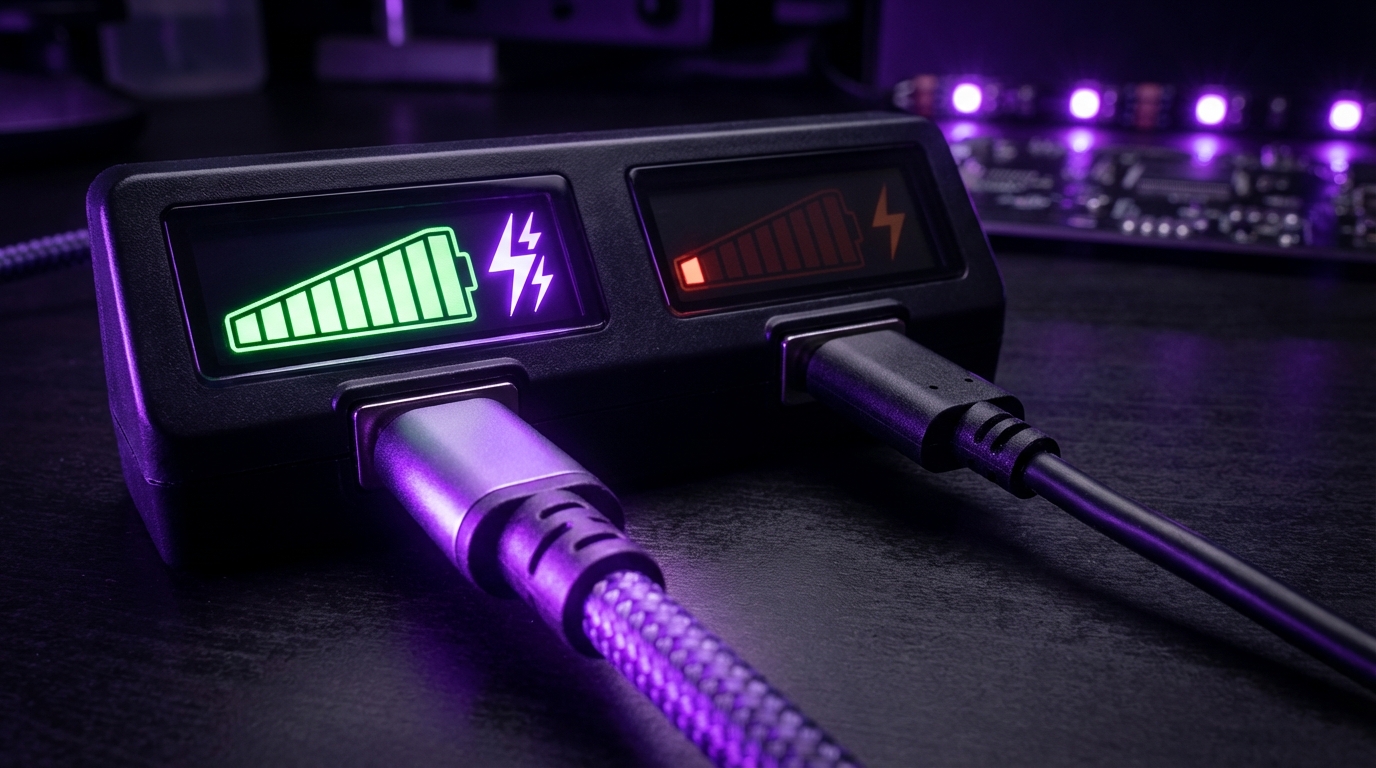
I used to think a USB-C cable was just… a cable. As long as both ends fit, it had to be fine, right? Then one cheap cord almost fried my laptop and I stopped treating them like throwaway accessories.
Here is the short answer: USB-C is only the shape of the connector. What a cable can actually do depends on its internal wiring, supported standards, and build quality. Two cables that look identical can differ in charging speed, data speed, video support, and even safety. If you care about fast charging, 4K/8K monitors, backing up data quickly, or not damaging your devices, you need to match the cable to the job, not just the port.
Why “USB-C” Does Not Mean “Same Cable”
At first glance, USB-C feels simple: reversible plug, works on phones, laptops, tablets. One connector to rule them all.
Then you plug a new monitor into your laptop with a random USB-C cable, and:
- The screen does not show anything, or only at low resolution.
- Your laptop charges, but only slowly.
- Your external SSD transfers files at a crawl.
Same port, same shape, totally different results.
That is not a bug. It is how the standard is designed.
“USB-C” only tells you the connector type. It does not tell you data speed, charging power, or video support.
Think of “USB-C” like “HDMI-shaped plug” without telling you if it is HDMI 1.4 or HDMI 2.1. The real story lives behind the label.
The Three Big Jobs a USB-C Cable Might Do
A USB-C cable usually ends up doing some mix of these:
- Power delivery: charging your phone, tablet, laptop, or accessories.
- Data transfer: moving files, backing up storage, connecting peripherals.
- Video output: powering displays, docks, or adapters.
A cable can be:
- Great at power, bad at data.
- Great at data, useless for video.
- Fine for your phone, but unsafe or limiting for a 16-inch laptop.
And that is where most confusion starts.
Most USB-C problems people complain about are not device problems. They are cable problems.
The Key Specs That Make USB-C Cables Different
Let us break down what really matters. When you buy or pick a USB-C cable, these are the four main factors:
- Power rating (watts, voltage, current)
- Data speed (USB version)
- Video support (DisplayPort/Alt Mode, Thunderbolt)
- Build quality and safety (chips, shielding, materials)
Now, instead of memorizing every logo and icon, think in terms of “jobs” you want the cable to handle.
1. Power: Charging Speed and Safety
USB-C power is not just about “fast charge” or “not fast.” There is a whole power story behind it.
| Feature | What to look for | Why it matters |
|---|---|---|
| Max watts (W) | Up to 60W, 100W, or 240W (USB PD 3.1) | Decides how fast laptops and tablets can charge. |
| Voltage (V) | 5V, 9V, 12V, 15V, 20V, 28V, 36V, 48V | Higher wattage often uses higher voltage (for notebooks). |
| Current (A) | 3A or 5A | 5A cables need an e-marker chip. |
Most “basic” USB-C cables are:
- Up to 3A current
- Up to 60W charging
That is fine for:
- Phones
- Small tablets
- Light laptops (often 13-inch, but not always)
Larger laptops or high performance models often want 87W, 96W, 100W, or up to 140W, 180W, 240W with new chargers. For that you need:
- A 5A cable with an e-marker chip
- Support for USB Power Delivery (PD) up to 100W or 240W
If a cable does not have an e-marker, it should never carry more than 60W. Pushing more power through a non e-marked cable can be unsafe.
So two cables might charge your phone equally well, but only one is trained for a 100W or 240W laptop charger.
2. Data Speed: USB 2.0 vs USB 3.x vs USB4
This is where it gets messy. Many USB-C cables are physically wired only for USB 2.0 speeds.
Let us map basic data speeds:
| Standard | Nominal speed | Common label |
|---|---|---|
| USB 2.0 | 480 Mbps | Often no label |
| USB 3.2 Gen 1 | 5 Gbps | Sometimes just “5 Gbps” |
| USB 3.2 Gen 2 | 10 Gbps | Often “10 Gbps” |
| USB 3.2 Gen 2×2 | 20 Gbps | “20 Gbps” (less common on cables) |
| USB4 (Gen 2/3) | 20 / 40 Gbps | “USB4”, often 20 or 40 on packaging |
| Thunderbolt 3 / 4 | 40 Gbps | Lightning bolt icon |
Here is the gotcha: a huge number of USB-C cables support only USB 2.0 (480 Mbps) for data, even if they support 60W or 100W charging.
So you might think:
“I have a thick USB-C cable that charges my laptop. It must be fast for data too.”
Often it is not.
If the cable does not list a data speed, assume it is USB 2.0 (480 Mbps), which is slow for storage.
For tasks like:
- Using external SSDs or NVMe enclosures
- Backing up large video files
- Connecting 10 Gbps docks
You want:
- USB 3.2 Gen 1 (5 Gbps) at minimum
- 10 Gbps or 20 Gbps for faster drives or heavy workflows
And for high end setups:
- USB4 or Thunderbolt 3/4 (40 Gbps)
So two USB-C cables might both:
- Charge a laptop at 100W
- Look identical
But one gives you 40 Gbps, and the other crawls along at 480 Mbps. That is a big difference in real use.
3. Video Support: Why Some USB-C Cables Fail With Monitors
USB-C can carry DisplayPort video through something called “DisplayPort Alternate Mode” (often shortened to DP Alt Mode). Some cables are wired to handle that signal well. Some are not.
Key things that affect video:
- Data lanes used for DisplayPort
- USB standard (USB 2.0 vs 3.x vs USB4)
- Signal quality and cable length
Typical experiences:
- Cable A: Outputs 4K at 60 Hz without any issue.
- Cable B: Only manages 4K at 30 Hz or 1080p.
- Cable C: Works only when very short; fails at 2 meters.
Video is more sensitive to cable quality than charging. Small imperfections in copper, shielding, or connectors can show up as flickering, black screens, or random disconnects.
If you want 4K at 60 Hz or higher, or multiple monitors over USB-C, you cannot treat the cable as generic. It has to be rated for video at that resolution and refresh rate.
For more advanced setups like:
- USB-C docks with multiple displays
- USB4 or Thunderbolt displays
- 8K monitors
You usually want:
- USB4 or Thunderbolt certified cables
- Good shielding and proper certification
Again, same shape, totally different internal wiring.
4. Build Quality and Safety
This part is less visible, but it is where cheap cables can do real damage.
Inside a good USB-C cable you get:
- Proper gauge copper for power and data lines
- Shielding to reduce interference
- A tiny e-marker chip (for 5A cables and some higher spec cables)
- Secure connectors with strain relief
Bad cables might have:
- Undersized power wires (overheating risk)
- Poor connections in the plug (intermittent failures)
- No e-marker even when claiming 100W+ support
There have been real cases where badly designed USB-C cables damaged ports on laptops or chargers by sending incorrect signals or pulling more current than the hardware expected.
A $5 cable can cause a $1500 problem if it shorts, overheats, or misreports its capabilities to your charger or laptop.
You do not need to buy the most expensive cable every time. But you should avoid brands that do not list clear specs or any certifications.
How To Match a USB-C Cable to What You Are Doing
Let us translate all that into practical choices. This is where most people need clarity: “What kind of cable do I need for X?”
Use Case 1: Charging a Phone
Most modern phones:
- Support fast charging over USB Power Delivery or proprietary standards.
- Do not need more than 60W; many stay under 30W.
What to look for:
- Power rating: Up to 60W is usually enough.
- Data speed: USB 2.0 is often acceptable if you transfer media over Wi-Fi or cloud.
If you want a safer bet:
- USB-C cable rated “60W PD” or “100W PD”.
- Brand that states support for your phone brand’s fast charging (for example, PD + PPS for many Android phones).
Anything more (like 40 Gbps) is nice but not required for basic phone use.
Use Case 2: Charging a Laptop
Here is where cables diverge fast.
Questions to ask:
- What is the laptop’s rated charger wattage?
- Does it charge over USB-C at full speed, or only partial?
Rough guide:
| Laptop charger wattage | Cable recommendation |
|---|---|
| 45W to 65W | Good quality 60W USB-C cable (3A, PD capable) |
| 87W to 100W | 5A USB-C cable with e-marker, rated 100W |
| Above 100W (for example 140W, 180W, 240W) | USB-C cable marked 240W (USB PD 3.1), 5A with e-marker |
If a laptop charger is 100W or more, assume you need a 5A e-marked cable. Anything less is a guess that can limit charging or create heat.
Do not assume the free cable from a random gadget is safe for a 140W or 240W charger. Check the printed rating or the product page.
Use Case 3: External SSDs and Storage
Storage is where data speed actually matters day to day.
If you are using an external SSD or NVMe enclosure:
- USB 2.0 speeds will bottleneck the drive badly.
- You want at least 5 Gbps, and preferably 10 Gbps or more.
To keep it simple:
- Look for cables labeled “USB 3.2 Gen 1” (5 Gbps) or “10 Gbps”.
- For top-tier NVMe enclosures, aim for 20 Gbps, USB4, or Thunderbolt 3/4 at 40 Gbps.
If your SSD enclosure is rated for 10 Gbps and your cable is only USB 2.0, you lose most of that performance, no matter how nice the drive itself is.
Use Case 4: Monitors, Docks, and Video Over USB-C
This is one of the most confusing areas for users.
There are three separate questions:
- Does the laptop/phone port support USB-C video output (DP Alt Mode or Thunderbolt)?
- Does the monitor/dock expect USB-C video, or only HDMI/DisplayPort via an adapter?
- Can the cable handle the required bandwidth?
For a single 1080p monitor:
- Many decent USB-C cables work fine.
For a single 4K monitor at 60 Hz:
- You want a cable rated for high-speed data (USB 3.x, USB4, or Thunderbolt).
- Shorter cables (1 meter) are safer for signal quality.
For high refresh or multi-monitor setups:
- Use certified USB4 or Thunderbolt cables.
- Avoid random multi-meter USB-C cables without clear video ratings.
If your USB-C monitor flickers, goes black randomly, or does not wake properly, the cable is one of the first things to suspect.
I have seen users swap docks and monitors for days before trying a different cable and solving the problem in 30 seconds.
Use Case 5: Thunderbolt and USB4 Devices
Thunderbolt and USB4 push things further:
- Data up to 40 Gbps.
- Multiple 4K monitors on a single cable (depending on the device).
- High speed daisy chaining of devices.
For this, you want:
- Certified Thunderbolt 3 or 4 cable with the lightning bolt logo, or
- Certified USB4 cable that clearly lists 20 or 40 Gbps.
Not every USB-C cable works as a Thunderbolt cable. Using a non-certified cable usually means:
- Reduced speeds.
- Fewer displays.
- Less stable connections.
Here, paying for the correct spec matters more, because you are stacking bandwidth heavy devices on one line.
How To Read USB-C Cable Labels and Packaging
Most confusion starts at the shelf. Packaging is often vague or overloaded with tiny logos.
Here is a simple reading guide.
What You Want To See On the Box (Or Product Page)
Look for these four areas:
- Power: “60W”, “100W”, or “240W” and mention of USB PD (Power Delivery).
- Data: “480 Mbps”, “5 Gbps”, “10 Gbps”, “20 Gbps”, “40 Gbps”.
- Video: “Supports 4K/60”, “DP Alt Mode”, or mention of video support.
- Standard: USB 2.0, USB 3.2 Gen X, USB4, Thunderbolt 3/4.
If a cable box says only:
- “USB-C charging cable”
No wattage, no speed, no standard mentioned, I treat it as:
- USB 2.0
- Up to 60W
- No clear promise for video
If a brand will not tell you what speeds or wattage the cable handles, they are telling you something anyway.
Logos You Might See
Some common ones:
- USB “trident” logo with “10” or “20”: often 10 Gbps or 20 Gbps support.
- Thunderbolt lightning bolt icon: certified Thunderbolt cable.
- W numbers like 60W, 100W, 240W: power support.
- Sometimes a 40 inside a circle for 40 Gbps on USB4/Thunderbolt cables.
But many cables still ignore good labeling, so the product page description becomes more important than the physical logo.
Common Myths About USB-C Cables
Let me push back on a few assumptions that I hear a lot.
Myth 1: “If it fits, it works the same”
No. This is probably the biggest mistake.
Two cables can look and feel identical and still differ in:
- Max charging power by more than 100W.
- Data speed by 80x (480 Mbps vs 40 Gbps).
- Video capability from “no image” to “dual 4K at 60 Hz”.
The connector shape is just the outer shell.
Myth 2: “Thicker cables are always better”
Thicker can mean:
- Better or thicker copper for power.
- Stronger shielding.
- Or just more rubber and plastic with the same weak internals.
Gauge and build matter more than thickness alone. I have seen slim Thunderbolt cables that outperform thick cheap chargers by a long distance.
Myth 3: “If my phone charges fast, the cable must be high quality”
Fast phone charging just proves:
- The cable can handle the power level your phone wants.
- The charger and phone agree on a protocol.
It does not prove:
- High data speed.
- Video support.
- Safety under higher loads from a laptop.
You can have a cable that charges a phone very quickly but would be a poor choice for a 100W charger or a 40 Gbps drive.
Myth 4: “Brand X is always safe” or “all cheap cables are bad”
Brand helps, but it is not a perfect filter.
You can get:
- Reasonably priced, well specified cables from lesser known brands.
- Overpriced, poorly labeled cables from popular brands.
The better habit is:
- Read the specs, not just the logo.
- Avoid cables with no stated ratings.
Sometimes the cheap cable is fine for a travel phone charger, but not for your main workstation.
How Many Types of USB-C Cables Do You Really Need?
If you are like me, you eventually end up with a box full of random cables. Most of them do not do what you think.
Instead of treating them as one big pile, it helps to standardize on 3 or 4 “tiers” for your own setup.
Tier 1: Simple Charging Cables
Use these for:
- Phones
- Earbuds
- Small tablets
Specs:
- Up to 60W
- USB 2.0 data (480 Mbps)
You do not use these for laptops, external drives, or monitors. Label them physically if needed.
Tier 2: High Power, Moderate Data Cables
Use these for:
- Laptop charging up to 100W
- Single drive backups
Specs:
- 100W (5A with e-marker)
- At least USB 3.2 Gen 1 (5 Gbps)
These are your “safe” general cables for work bags and travel if you care about both solid charging and decent data.
Tier 3: High Bandwidth / Video / Thunderbolt Cables
Use these for:
- USB-C monitors
- Docks and hubs
- External NVMe drives at 10 Gbps or above
- Thunderbolt devices
Specs:
- Thunderbolt 3 or 4, or USB4 40 Gbps
- At least 100W if you are powering laptops through them
These cost more, so I usually keep just a few of them:
- On the desk for the main dock
- In a labeled bag for travel
It is better to have a small number of known, high quality cables than a drawer full of mystery cords that you do not trust.
Practical Tips To Avoid USB-C Cable Problems
Let me give you a simple checklist that I use.
1. Label Your Cables
Old school, but helpful.
Use:
- Small pieces of masking tape
- Label tags
- Color coded ties
And write things like:
- “100W + 10G”
- “TB4 40G”
- “60W only”
When you have ten black cables in a drawer, those tiny notes save real time.
2. Keep High End Cables Short
For high speeds and video, shorter is safer. Under 1 meter is a good target for:
- Thunderbolt 40 Gbps
- USB4 40 Gbps
- 4K/60 or multiple monitor setups
Longer cables tend to be:
- More expensive when built well
- More fragile for signal integrity
So if you are chaining big monitors or docks, do not cheap out on a long mystery cable.
3. Test New Cables With Non Critical Devices First
If you buy a new high power cable from a brand you do not fully trust yet:
- Test it on a phone or tablet first.
- Check if the connectors get warm or the cable feels hot.
- Monitor for flaky connections or disconnects.
Only then move it into your laptop or desktop workflow.
4. Do Not Mix Up Charger Bricks and Cables Blindly
Problem scenario:
- You plug a non e-marked 60W cable into a 140W or 240W charger.
Most decent chargers will negotiate down or have protection. But not all hardware in the wild is perfect.
Better routine:
- Dedicate one known 100W+ cable to your high wattage chargers.
- Store them together in the same pouch.
That way you do not end up using a weak cable by mistake.
5. Keep Original High Spec Cables When You Buy Devices
When you buy:
- Thunderbolt docks
- High end external SSDs
- USB-C monitors
They often include a certified cable tuned to that device. Do not just throw it into a random cable pile.
Either:
- Keep it attached to the device on the desk.
- Label it clearly as “dock cable” or “monitor cable”.
Those are usually better quality than generic replacements.
Why The USB-C Situation Feels So Confusing (And Why It Probably Will Stay That Way)
I wish I could say that this will all be perfectly clear in a year or two. Realistically, USB-C is flexible by design, and that flexibility means tradeoffs.
Manufacturers want:
- Low cost options (USB 2.0, 60W, no video).
- Premium options (40 Gbps, 240W, multi display).
Users want:
- One connector for everything.
- Low cost and high performance.
These goals do not always match. So we end up with:
- Same shape, different capabilities.
- Marketing that glosses over details.
USB-C is not broken. It is just flexible enough that you have to treat cables like real components, not afterthoughts.
Once you accept that, your approach shifts. You stop asking “Why is USB-C so unreliable?” and start asking “Is this the right cable for this job?”
That mindset change sounds small, but it reduces frustration in daily tech use a lot.