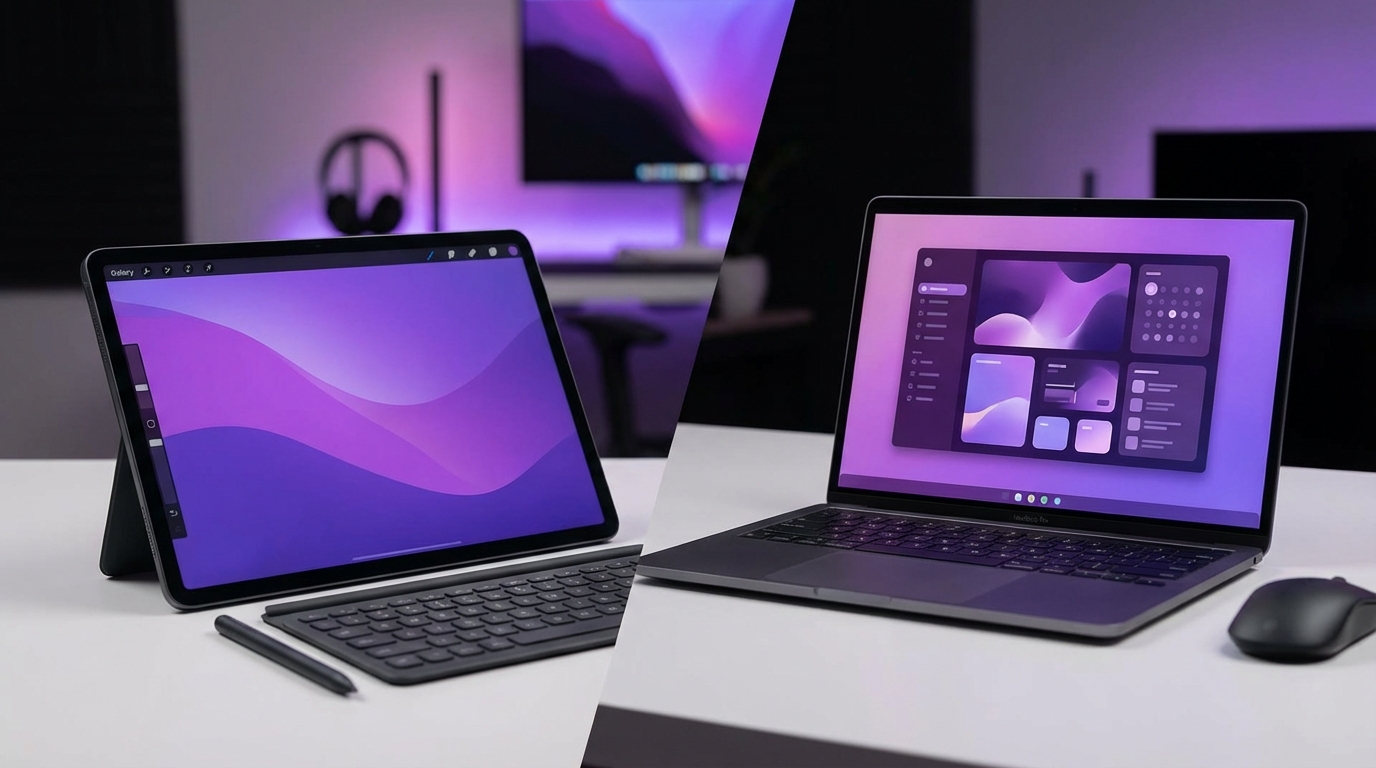
I used to think my laptop was non‑negotiable. Then I spent a month trying to work only from an iPad, and I was surprised by how much I could do… and how much still felt awkward.
If you need a general-purpose machine for work and personal use, an iPad can replace your laptop for light to moderate tasks like browsing, email, video calls, note taking, and media. For heavy typing, complex spreadsheets, software development, advanced design, and serious multitasking, a traditional laptop still works better and usually feels easier to live with long term.
Where an iPad actually works well as a “computer”
Here is where most people get it slightly wrong. They compare an iPad to a laptop feature by feature, instead of asking: “What do I actually do every day?”
If your daily list looks like this:
- Web browsing and research
- Email and messaging
- Documents, basic spreadsheets, and presentations
- Zoom/Teams/Meet calls
- Streaming video and podcasts
- Note taking and reading
- Light photo edits or social media content
Then yes, an iPad can feel like a full computer for you. Especially paired with a keyboard case and maybe a mouse or trackpad.
Let me break down the main “computer jobs” and where an iPad holds its own.
General browsing and daily communication
For web and communication, iPads are actually very strong.
If most of your “work” happens in a browser and a couple of communication apps, an iPad will feel fast, responsive, and pleasant to use.
You get:
- Full Safari browser with desktop-class features on newer iPadOS versions
- Most major services available as both web and native apps (Gmail, Slack, Teams, Zoom, WhatsApp, etc.)
- Great cameras and microphones for video calls compared to many cheap laptops
This is especially true for:
- Students doing research and writing assignments
- Consultants or freelancers who mostly live in email, chat, and cloud tools
- Sales or field workers who move a lot and need a light device
Some friction still shows up:
- Certain sites still force mobile layouts that waste screen space
- Browser extensions are more limited than on a full desktop browser
- Multiple file uploads or complex web apps can feel clunkier
For many people, these are mild annoyances, not deal breakers. But if your browser habits lean toward 30 tabs and three online dashboards at once, a laptop still feels more natural.
Office work: documents, spreadsheets, and presentations
This is where people either love the iPad or give up quickly.
On the positive side:
- Microsoft Office and Google Workspace apps on iPad are mature and stable
- Typing on a good keyboard case feels close to a laptop experience
- Cloud sync with OneDrive, Google Drive, Dropbox, and iCloud works smoothly in most normal cases
Where frustration creeps in:
- Heavy Excel sheets with many formulas, pivot tables, or macros are slower and sometimes limited
- Fine-grained formatting in Word or PowerPoint can be fiddly with touch controls
- Switching between multiple documents and windows is less flexible compared to a laptop
If your work is mostly standard documents and simple sheets, an iPad can absolutely replace a laptop; if you live in giant spreadsheets, it usually cannot.
I know accountants and financial analysts who tried living on an iPad and went back to a laptop within a week. Not because the iPad is “bad,” but because they pushed it beyond what it is designed for right now.
Note taking, reading, and research
This is one area where an iPad can actually beat a laptop by a wide margin.
With an Apple Pencil:
- Handwritten notes feel natural in apps like GoodNotes, Notability, or OneNote
- You can annotate PDFs directly, highlight, draw diagrams, and search handwritten notes
- Reading research papers or long PDFs in portrait mode is much easier than on most laptops
For students and researchers, this blend of tablet and notebook can replace:
- Physical notebooks
- Printed handouts
- Chunky textbooks
If your “computer” is mostly a reading and note taking machine, then an iPad is not just a replacement, it is an upgrade.
The only catch is discipline with file organization. Files can end up split between iCloud, app-specific storage, Google Drive, and email attachments. A laptop with a traditional file system feels more straightforward if you are used to folders on a desktop.
Media, entertainment, and casual use
For video and audio, an iPad is excellent:
- Better screens than many low-priced laptops
- Good speakers on midrange and pro models
- Very easy to hold or prop up anywhere in the house
If your “computer” is mainly Netflix, YouTube, web browsing, and light email, a laptop can feel big and clunky compared to an iPad. This is one area where a tablet makes a laptop feel like overkill.
Where a laptop still wins by a wide margin
Now, let me push back on the common idea that “iPads are the future and laptops are old.” That claim ignores a lot of real-world tasks.
There are workloads where a laptop is not just slightly better. It is the only sane choice right now.
Heavy typing and long writing sessions
You can definitely write on an iPad. This article could easily be written on one.
The question is less “Can it be done?” and more “How does it feel after three hours?”
Laptops still win for long-form work when:
- You type for many hours a day
- You depend on keyboard shortcuts and quick switching
- You run a couple of companion apps side by side (note app, browser, chat, etc.)
Some reasons:
| Aspect | iPad with keyboard | Laptop |
|---|---|---|
| Typing feel | Good on higher-end keyboard cases, worse on cheap ones | Consistent and usually better on midrange or higher laptops |
| Lap use | Often wobbly on the lap, better on a table | Stable on lap or desk |
| Windowing | Limited split view and Stage Manager; extra steps to arrange | Multiple resizable windows on multiple desktops |
| Keyboard shortcuts | Improving, but not consistent across all apps | Rich, consistent across most desktop apps |
If your job title could include “writer” in any sense, a laptop is still the safer, less irritating long-term choice.
You can force yourself to love an iPad for writing, and some people do, but I have seen more people drift back to laptops after the honeymoon period.
Programming and technical work
This part is simple.
If you are a software developer, data engineer, or do any serious coding, an iPad cannot fully replace a laptop right now.
There are some partial workarounds:
- SSH clients and remote desktop apps to connect to a server or development machine
- Cloud IDEs in the browser
- iPad code editors that sync to GitHub
These can handle:
- Quick code edits on the go
- Reviewing pull requests
- Deploy monitoring or log checks
But for daily development, you probably need:
- Local runtime environments
- Docker or containers
- Complex debugging tools
- Running multiple services locally
An iPad cannot do that in a comfortable, native way.
So if your work involves serious coding, treat an iPad as a supplement, not as a replacement.
Design, photo, and video work
This area is a bit more nuanced.
On the one hand, iPads are very strong for creative work:
- Apple Pencil is excellent for drawing, sketching, and note taking
- Apps like Procreate, Affinity Designer, Affinity Photo, and Lightroom Mobile are powerful
- Certain workflows, like sketching UI or concept art, can feel faster on a tablet
On the other hand:
- File management for large projects is still tricky
- Color-critical work is better with calibrated external monitors
- Complex, multi-tool workflows across Adobe apps or 3D tools still favor a desktop or laptop
For video, the gap is bigger.
iPads now support apps like Final Cut Pro and LumaFusion, and they are genuinely strong for:
- Short-form video editing for social content
- Quick travel edits
- Simple multi-clip projects
But long-form or professional video work often needs:
- Large external storage with fast transfer
- Multiple external displays
- More advanced plugins and color workflows
If you are a hobby photographer or casual creator, an iPad might be enough; if your income depends on complex production workflows, keep the laptop or desktop.
Serious multitasking and complex workflows
Every year, iPadOS adds more multitasking features. Split screen. Slide over. Stage Manager. External display support.
It all helps, but it still feels like a tablet first, computer second.
Laptops give you:
- Real overlapping windows
- Menu bars with more exposed options
- Easy drag and drop between any apps
- Third-party tools for window management and automation
On an iPad, you often:
- Tap more to reveal hidden menus
- Juggle between “spaces” and modes
- Depend on each app developer to support advanced multitasking properly
If your workdays are simple and linear, this might not bother you. If your brain works with three apps open, two browsers, and constant context switching, you will feel the limits.
Ports, peripherals, and “real computer” expectations
The physical side of the device matters more than people think. Ports and accessories usually do not show up in spec sheets as the main story, but they affect daily life.
Connections and ports
Recent iPads:
- Use USB-C or Thunderbolt on the higher-end models
- Connect to external displays (with some software constraints)
- Support external drives, card readers, and some hubs
Laptops:
- Usually give you multiple USB ports
- Often add HDMI, SD card reader, and headphone jack
- Handle multiple simultaneous devices more gracefully
If you:
- Regularly plug in external storage, cameras, or audio gear
- Run external monitors daily
- Use wired network connections in offices or studios
Then juggling dongles on an iPad can feel fragile. Not impossible, just fussy.
The more accessories and cables your work demands, the more a laptop feels like the natural center of your setup.
Keyboard, mouse, and ergonomics
You can pair:
- Keyboard cases (Magic Keyboard, Logitech, etc.)
- Bluetooth or USB keyboards
- Mice and trackpads
The iPad then behaves quite close to a laptop in many apps.
But there are two practical issues:
| Issue | iPad | Laptop |
|---|---|---|
| Ergonomics | Screen and keyboard are fixed angles with most keyboard cases; on a stand you need a separate keyboard | Designed as an all-in-one clamshell; more stable on the lap |
| Cost | High-quality keyboard cases are often expensive add-ons | Keyboard and trackpad are included in the price |
If you type a lot and care about neck and back comfort, a laptop often offers a better middle ground between mobility and posture.
Software availability and limitations
One reason people keep asking “Can an iPad replace my computer?” is that the software story is confusing.
Some apps on iPad are incredibly powerful. Others are stripped-down versions of their desktop siblings.
Desktop-class vs mobile-style apps
On the strong side:
- Many productivity apps are almost as capable as desktop: Notion, Trello, Todoist, Office, Google Docs, etc.
- Creative apps like Procreate are tablet-first and feel natural with touch and Pencil
- Media apps, reading apps, and meeting apps are usually excellent
On the weaker side:
- Certain professional tools are missing completely (industry-specific software)
- Some apps provide only partial functionality compared to their Mac or Windows versions
- Browser-based tools can break or behave oddly if they expect a full desktop browser
Your personal app list matters more than any general review. If two key apps you rely on each day are not on iPad, that is your answer.
Before deciding, it helps to:
- Make a real list of all the apps and web tools you use in a normal week
- Check if each has an iPad version or a solid web experience
- Test the critical ones on an iPad in person if you can
Skipping this step leads to regret later.
File system and “computer-like” tasks
iPadOS has improved the Files app a lot, but it still feels different from macOS or Windows.
Common friction points:
- Some apps keep files in their own internal storage, not visible in Files
- Batch renaming, complex folder structures, and local archives are less convenient
- Advanced workflows using scripts or automation are still limited
People who manage:
- Large sets of project files
- Multiple client folders
- Archives of media and documents
Usually feel more comfortable with a laptop file system. On the other hand, if you live mostly in cloud apps and do not think deeply about folders, the iPad approach might feel fine.
Performance, battery, and longevity
Performance used to be a clear laptop win. That has shifted.
Processing power
Modern iPads, especially the ones with Apple Silicon (M-series chips), are very fast.
In raw benchmarks, higher-end iPads compete with many laptops in their price range. For common tasks, you rarely feel lag.
The question is less about speed and more about “what can that speed actually do?” Because the operating system and app model limit some heavy workloads, the extra performance headroom often sits unused if your apps are mobile-first.
Laptops, in contrast, use their performance for:
- More simultaneous heavy tasks
- Desktop-class software
- Complex local workloads
So an iPad might be fast in theory, but a laptop can still feel more capable in practice for pro users.
Battery and mobility
This is one clear iPad strength.
- Excellent battery life for mixed use
- Instant-on behavior like a phone
- Lighter and easier to carry than most laptops
For people who travel a lot or move around classrooms, offices, or coffee shops, this matters.
Laptops have improved here too, especially with modern chips, but they still feel more “computer-like” in their startup and sleep behavior. Tablets feel more casual and ready.
Longevity and support
Both iPads and laptops from Apple tend to get many years of software updates. Windows laptops vary depending on vendor, but modern models can also have long support windows.
One subtle element with iPads:
- Storage is not upgradeable
- Keyboard and accessories might not carry over perfectly across generations
So buying too little storage to save money can hurt you later. With laptops, especially non-Apple ones, you sometimes get options for storage upgrades and easier accessory reuse.
Cost comparison: is an iPad setup really cheaper?
People often say, “I will just get an iPad, it is cheaper than a laptop.”
Sometimes that is true. Sometimes it is not.
Let us outline a common setup, using approximate relative pricing, not exact numbers, since they change:
| Component | Midrange iPad setup | Midrange laptop |
|---|---|---|
| Main device | iPad Air or base iPad | MacBook Air or mainstream Windows laptop |
| Keyboard | Keyboard case or Bluetooth keyboard (added cost) | Included |
| Pointing device | Optional external mouse/trackpad (added cost) | Trackpad included, optional mouse |
| Stylus | Apple Pencil if needed (added cost) | Usually not applicable |
| Ports / hubs | Often need a USB-C hub (added cost) | Often have more ports built-in |
When you add a quality keyboard, Pencil, and a hub, a “cheap” iPad setup can end up in the same price range as a decent laptop.
So, cost alone should not drive your choice. You have to map the price to the actual work you need the device to do.
Who can replace a laptop with an iPad, and who should not
By this point, you probably see a pattern. Instead of “Can an iPad replace a laptop?” the better question is “For which type of user does an iPad cover 90 percent of what a laptop does, with less friction?”
Good candidates for an iPad as main computer
You are a good match if:
- You do mostly web-based work, email, and messaging
- Your documents and spreadsheets are moderate in complexity
- You value mobility, battery life, and light weight more than ports
- You like handwriting notes or sketching with a stylus
- You do not depend on specialized desktop software
Typical examples:
- Students (especially in humanities, business, or many social sciences)
- Writers who prefer minimal setups and distraction-free environments
- People who use their “computer” mostly for personal tasks and light work
- Professionals whose core tools are cloud-based and available through apps
If that sounds like you, an iPad with a good keyboard can absolutely be your main computer. You might still want access to a shared desktop for rare cases, but not as a daily driver.
People who should keep a laptop
You probably should not switch fully to an iPad if:
- You develop software or work in data science
- You manage complex spreadsheets daily
- You depend on industry-specific software that has no iPad version
- You use multiple monitors and heavy multitasking
- You do professional-grade photo, audio, 3D, or video work
In these cases, an iPad can be a very useful second device. For:
- Sketching and ideation
- Reviewing content on the go
- Meetings, notes, and presentations
But I would not tell you it will replace your main computer. It probably will not, and you will feel constrained.
How to test if you can live on an iPad before committing
If you are on the fence, there is a practical approach that removes the guesswork.
Run a “trial week” with constraints
If you already have an iPad, or can borrow one, try this:
- Pick 5 normal workdays, not holidays or special trips
- Commit to using only the iPad for your regular tasks during working hours
- Allow yourself to touch your laptop only if something is completely impossible
Keep a simple log:
- Every time you feel slow or blocked, note the task and the reason
- Every time the iPad feels smoother or more pleasant, note that too
At the end of the week, look at the list. You will likely see a clear pattern:
- If the “blocked” list is short and trivial, you can probably move to an iPad
- If the list has core tasks you do daily, a laptop is still your main machine
One focused trial week tells you more than reading ten online opinions, including mine.
Be honest about your habits, not your ideals
A common trap is to imagine a future “better” version of yourself who does not multitask and does not rely on niche tools. Then you buy devices for that imaginary person.
I have done this too.
Ask instead:
- How many apps do I really use at once?
- Do I often plug in external drives or peripherals?
- Do I depend on legacy tools or file formats?
Design your setup for the way you actually work today, not the way you wish you worked.
So, can an iPad replace your computer?
Let me give you a clear, practical answer.
If you use tech mostly for general work and personal tasks
Your iPad can probably become your main computer if:
- You add a good keyboard (non-negotiable for real work)
- You accept that a few rare tasks might still need a borrowed or shared laptop
- You take some time to learn iPadOS multitasking and file handling
You get:
- A lighter device
- Better battery life
- Great note taking and media
If your work is more specialized or technical
Treat the iPad as a complementary tool.
- Use it for meetings, notes, reading, and casual tasks
- Keep your laptop or desktop for heavy-duty work
- Share files between them through cloud storage
The combined setup can be stronger than either device alone.
The question is not whether the iPad is “better” than a laptop, but whether it is better for your specific mix of tasks, constraints, and preferences.
If you want, I can help you map your exact weekly tasks and give a concrete “yes, no, or hybrid” answer based on your own workload rather than generic advice.