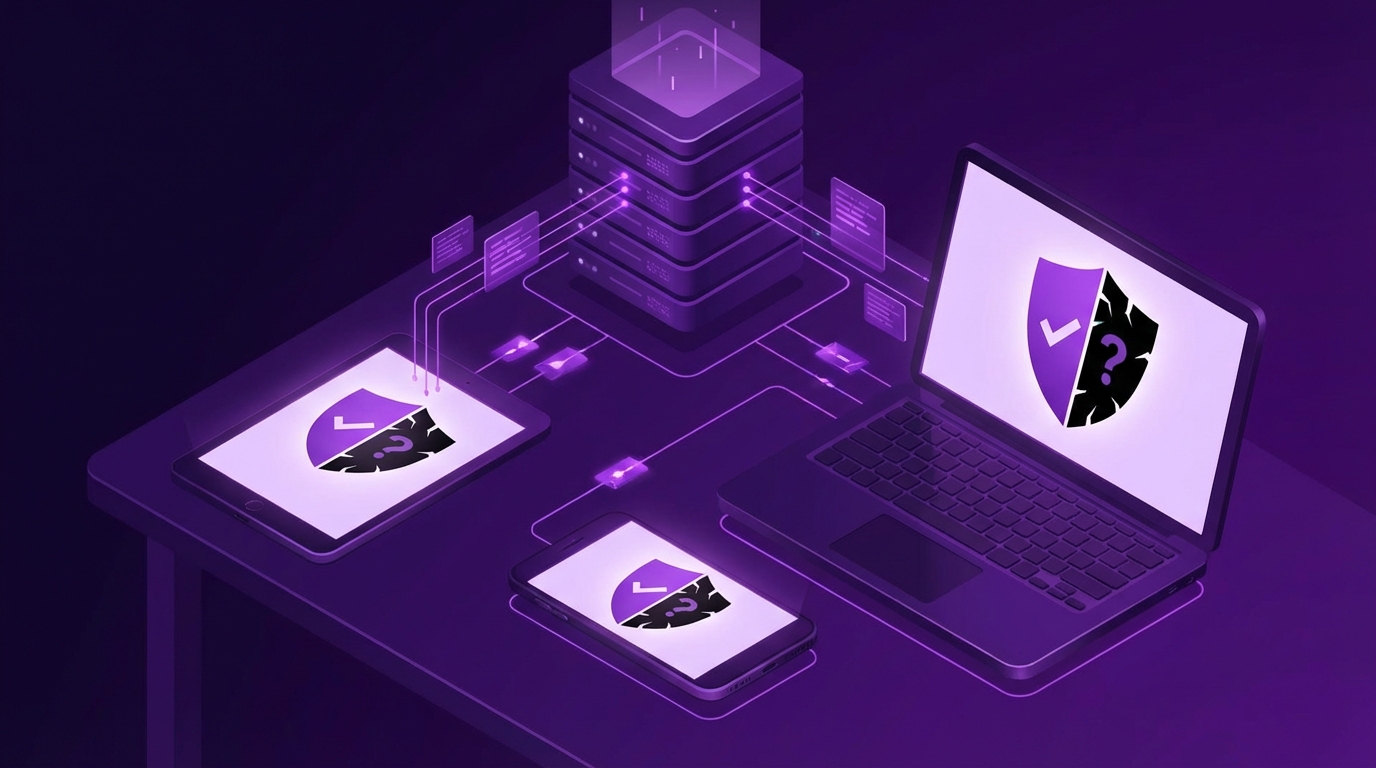
I used to think BYOD was just a clever way for companies to cut hardware costs and push the bill onto employees. Then I started seeing how messy the security side gets when your personal photos live on the same phone that has company email and confidential files.
Here is the short version: BYOD can boost productivity, reduce hardware spending, and make employees happier, but it also opens the door to data leaks, weak device security, legal headaches, and messy offboarding. You need a clear written policy, technical controls (like MDM, strong authentication, and containerization), and hard limits on what data can touch personal devices. Otherwise the “savings” come back as incident response and legal costs.
What a BYOD Policy Actually Is (Not Just a Buzzword)
Before we talk about pros and cons, we should be clear what we mean by BYOD.
At its core, BYOD is simple: employees use their own phones, laptops, or tablets to access company resources.
That can include:
- Email and calendars
- Chat tools (Slack, Teams, etc.)
- VPN access to internal apps
- Cloud apps like Google Workspace or Microsoft 365
- CRM, project management, or code repositories
A BYOD policy is the written rulebook that covers:
- What kinds of devices are allowed
- What data and apps can be used on those devices
- What security controls are required
- What the company can see or manage on an employee device
- What happens when someone leaves or loses a device
A BYOD policy is not a tech tool. It is a contract-like agreement between the organization and the employee about risk, privacy, and responsibility.
If your “policy” is just: “You can check work email on your phone,” that is not a policy. That is a security incident waiting to happen.
The Business Case: Why Companies Love BYOD
I understand why leaders keep coming back to BYOD. On paper, it looks clean and logical.
1. Lower Hardware and Support Costs
This is the headline benefit most executives focus on.
Instead of buying:
- Company smartphones for everyone
- Extra laptops for remote work
- Mobile data plans and accessories
…you let employees bring the devices they already own.
BYOD is not “free,” but it shifts a chunk of hardware and lifecycle cost from the company budget to the employee.
Where the savings usually show up:
| Cost Area | Traditional Corporate Devices | BYOD Model |
|---|---|---|
| Device purchase | Company pays 100% | Employee pays most / all |
| Device refresh | Every 3-4 years, company funded | Employee-driven, less predictable but off your books |
| Accessories | Chargers, cases, docks funded by IT | Often employee-funded or stipend-based |
| Mobile plans | Corporate contracts | Employee plans, sometimes partial reimbursement |
Now, here is the catch: you save on hardware, but you pay more in:
- Security tools (MDM, identity, monitoring)
- Policy writing and legal review
- Support time for varied devices
If you do not plan for that, the “saving” is fake.
2. Employee Comfort and Productivity
People know their own phones and laptops. They have their preferred settings, shortcuts, and apps. That familiarity can matter.
When someone uses a device they like, they are more likely to respond faster, work flexibly, and keep work apps close at hand.
Practical gains you tend to see:
- Faster onboarding: staff log in from a device they already understand.
- More flexible hours: a quick reply from the couch instead of waiting for a work laptop.
- Less friction around travel: no need to carry two phones, two laptops, two chargers.
Still, there is a tradeoff hiding here. The same comfort that helps productivity can blur personal and work boundaries. That becomes a human problem and a legal one in some countries.
3. Talent Expectations and Remote Work
This part has changed a lot. Many people now expect to access work apps on their own devices.
Candidates ask questions like:
- “Can I use my MacBook or do I have to use your Windows laptop?”
- “Can I get email and Teams on my personal phone?”
BYOD can feel like a perk: fewer gadgets to carry and more choice in tools.
So on the surface, BYOD looks like a smart, flexible move. But once you connect those personal devices to your network and data, security becomes the elephant in the room.
Security Pros: Where BYOD Can Help You
Most people jump straight to the risks. I want to be fair and look at where BYOD can support security goals, if you do it carefully.
1. More People Have Access to Stronger Devices
You probably have employees with newer, more capable hardware than what your IT budget would provide.
For example:
- A sales rep who buys the latest iPhone each year.
- A developer with a high-end personal laptop for side projects.
Modern devices often include:
- Secure enclaves / hardware security modules for encryption keys
- Built-in biometric authentication (Face ID, fingerprint)
- Regular OS security updates pushed directly by vendors
If your policy sets minimum OS versions and security settings, you can piggyback on the vendor’s security investment.
That does not remove your responsibility, but it gives you a stronger baseline than an old, underpowered corporate device that never gets replaced.
2. Security Awareness Becomes Personal
When someone uses their own phone for work, they care more about:
- The risk of malware
- Phishing links that compromise accounts
- Backups and loss of data
Training does not feel purely “for the company.” It has a direct impact on their personal photos, passwords, financial apps, and messages.
This gives you an opening:
You can design security training that helps employees protect both their personal and work data at the same time.
For example, a session on password managers benefits both sides. Same for multi-factor authentication and spotting phishing.
3. Faster Incident Communication
When there is an incident, you want to reach people quickly:
- To warn them of ongoing phishing campaigns
- To prompt password changes
- To share urgent security instructions
With BYOD, you can get security alerts into:
- Mobile email
- Teams or Slack push notifications
- MDM notifications on personal devices
That can shave minutes or hours off response times. In a real incident, that time matters.
Just be careful: spamming personal devices with low-value alerts will train people to ignore the messages that actually matter.
Security Cons: Where BYOD Bites Back
This is where most organizations underestimate the complexity. The security cons are not small. They are structural.
1. Loss of Control Over the Device
This is the core problem: you do not own the device.
You cannot:
- Fully dictate what apps are installed
- Physically inspect devices whenever you want
- Force every patch or configuration you would on a corporate device
Your security posture now depends on user choices about their own property.
Some typical issues:
- Rooted or jailbroken phones with weakened protections.
- Outdated OS versions that no longer get security patches.
- Random apps from untrusted stores that bring malware.
If your policy does not clearly ban or block those conditions, you accept that risk by default.
2. Data Leakage and Shadow Copies
Company data does not live in one place anymore. With BYOD, it spreads across:
- Email caches
- Messaging app chat histories
- Cloud storage apps
- Local document folders
- Third-party note-taking apps
Even if you lock down your core apps, people often find workarounds:
- Forwarding work emails to personal accounts.
- Saving documents to personal Google Drive or Dropbox.
- Taking screenshots of sensitive dashboards.
On personal devices, “copy, paste, forward, screenshot” can quietly bypass most policy documents.
Technical controls like containerization and data loss prevention (DLP) help, but they must be set up early. Retroactive control is much harder.
3. Weak or Inconsistent Authentication
If you let people access work apps from personal phones without extra security, you will see:
- Simple 4-digit unlock codes shared with family members.
- No screen lock at all in some cases.
- Shared devices where partners or children use the same tablet.
Think about what that means:
Anyone who casually picks up that device might have a path into company email, chat, or even VPN.
You need stronger controls:
- Mandatory screen lock with strong PIN or biometric.
- App-level authentication for sensitive tools.
- Modern multi-factor authentication across all work apps.
If your policy allows personal devices without those requirements, you are trading convenience for serious exposure.
4. Lost or Stolen Device Risk
Personal devices go everywhere:
- Bars and restaurants
- Public transport
- Vacations
- Shared family spaces
That means:
- More chance of theft.
- More chance of being left behind.
- More chance of “shared” use without the owner nearby.
Now connect that with work access:
If a lost phone has an unlocked email app or VPN profile, you may have just handed an attacker a starting point inside your environment.
The response plan must be precise:
- How quickly must an employee report a lost device?
- Who triggers remote wipe or access revocation?
- What exactly gets wiped: all data or only work data?
Without clarity, people delay reporting because they fear losing personal photos or messages. That delay is where attackers win.
5. Privacy, Legal, and HR Complications
This is where many BYOD initiatives run into resistance.
From the employee side, people worry that:
- IT can see their photos, location, personal messages, and browsing history.
- The company can wipe their entire phone without warning.
- Monitoring tools will log personal activity.
From the company side, legal teams worry about:
- Accidental collection of personal data you are not allowed to hold.
- Compliance with GDPR or other privacy regulations when personal and work data mix.
- E-discovery: needing to search devices in legal cases.
If your BYOD policy does not clearly describe what you can and cannot access on a personal device, you invite both mistrust and legal risk.
This is not just a technical issue. It requires:
- Legal review across jurisdictions.
- HR input on fairness, reimbursement, and working hours.
- Clear user communication in plain language, not just legal text.
6. Offboarding and “Zombie” Access
When someone leaves the company, what happens to:
- Their cached emails on a personal phone?
- Offline files in a synced folder?
- Saved VPN credentials in an app?
If you have no technical kill controls, you rely on goodwill. That is not a security strategy.
A clean offboarding process must remove work access without wiping the entire personal device.
This usually means:
- Centralized identity (SSO) so you can revoke company accounts.
- Containerization or managed work profiles you can remove.
- MDM enrollment as a condition of BYOD participation.
Without those, people keep fragments of access for months or years after they leave.
Key Components of a Secure BYOD Policy
A BYOD policy is only as strong as the details. Vague rules like “Be careful” do not help.
Let us break it down piece by piece.
1. Scope: Who and What is Covered
Your policy must answer:
- Which roles can use BYOD at all?
- Which devices are allowed (phones, tablets, laptops)?
- Which operating systems and versions are supported?
Simple table to structure your thinking:
| Category | Allowed | Not Allowed |
|---|---|---|
| Devices | Smartphones, tablets, laptops | Shared family PCs, rooted/jailbroken devices |
| OS | Current and previous major versions of iOS, Android, macOS, Windows | Unsupported OS versions, vendor-abandoned systems |
| User roles | Sales, marketing, light back-office roles | High-risk roles such as finance admins, security admins (or with stricter rules) |
Not every role needs BYOD. Start with lower-risk groups and grow carefully, if it still makes sense.
2. Security Baseline for Devices
You cannot secure what you do not define. Your policy should set a clear baseline.
Typical requirements:
- Device lock:
- Mandatory PIN, password, or biometric.
- Auto-lock after a short idle time.
- Encryption:
- Full-disk encryption required where available.
- Updates:
- OS and critical app updates applied within a defined window (for example, 30 days).
- Malware protection:
- Approved security software where relevant, especially on laptops.
Treat the personal device like a shared space: you cannot fully control it, but you can set minimum hygiene rules to enter.
3. Identity and Access Controls
To keep this practical and realistic, focus on three pillars: who, from where, and to what.
- Strong authentication
- Single sign-on (SSO) to centralize logins.
- Multi-factor authentication for all external access.
- Context-aware access
- Block logins from jailbroken or rooted devices.
- Restrict access from unknown or high-risk locations.
- Least privilege
- Not every app or dataset needs to be reachable from a personal device.
A clean identity layer does more for BYOD security than any single device control.
If your access model still relies on many separate usernames and passwords, BYOD will magnify that complexity and increase the chance of weak, reused passwords.
4. Data Segmentation: Work vs Personal
You must keep work data separate from personal data as much as possible. Without that, every privacy and legal concern becomes harder.
Practical techniques:
- Containerization / Work Profiles
- On mobile, use managed work profiles that isolate work apps and data.
- On desktops, use separate user accounts or virtual desktops for work.
- App control
- Only allow access through approved, managed apps.
- Disable “open in…” and uncontrolled file sharing from work apps.
- Remote wipe
- Support selective wipe of work data without touching personal data.
The goal is simple: you should be able to remove the “work bubble” from a personal device with one action.
If that is not possible with your current tooling, your BYOD scope should be very limited.
5. Acceptable Use and Employee Responsibilities
This is where plain language matters. Employees need to understand:
- What they are allowed to do with work data on their personal device.
- What they must not do under any circumstance.
- What to do when something goes wrong.
Typical rules:
- No sharing of work accounts with family members.
- No rooting or jailbreaking devices that access work systems.
- No storing of work files in unapproved personal cloud apps.
- Immediate reporting of lost or stolen devices used for work.
The policy should read like instructions for a real person, not a legal exercise that no one will finish.
And yes, enforcement has to be real. If violations have no consequence, the policy is just text on a page.
6. Privacy and Monitoring Transparency
If you skip this part, adoption will suffer and trust will drop.
Spell out in clear terms:
- What IT can see:
- Device type, OS version, security status, installed work apps.
- What IT cannot see:
- Personal photos, personal texts, personal email contents.
- What might be logged:
- Access times to work apps.
- Security events such as failed logins.
If you need capabilities that feel intrusive, consider issuing corporate devices instead of stretching BYOD beyond what employees will accept.
This is where I tend to push back when companies want “full control” over personal devices for sensitive roles. In those cases, BYOD may be the wrong model.
Technical Controls That Make BYOD Less Risky
Writing the policy is only half of the work. You then need tools that actually enforce the rules.
1. Mobile Device Management (MDM) and Endpoint Management
MDM or modern endpoint management tools are your main levers.
They help you:
- Enforce screen lock and encryption.
- Deploy and configure work apps.
- Separate personal and work profiles.
- Trigger selective wipes for work data.
Without some kind of management layer, BYOD is mostly based on trust and manual checks, which does not scale.
Explain clearly during onboarding:
- What enrollment means.
- What data the MDM can reach.
- What actions IT can and cannot take.
That level of transparency lowers resistance and avoids misunderstandings like “IT can read my photos.”
2. Secure Access: VPN, ZTNA, and SSO
Your network and access strategy must match the BYOD world.
Key pieces:
- Single Sign-On (SSO)
- Central identity provider for company apps.
- Easy deprovisioning during offboarding.
- Modern remote access
- VPN or zero-trust access tools that verify device security posture.
- Conditional access rules
- Block access if device is not encrypted, outdated, or jailbroken.
Do not give a personal device full network access just because it knows a VPN password.
Fine-grained access control is your friend here. If your remote access is still “all or nothing,” BYOD will magnify that risk.
3. Application Security and DLP
Applications are where users actually touch data.
Focus on:
- Official mobile apps for email, chat, and storage with management hooks.
- Policies that block copy/paste from work containers into unmanaged apps.
- DLP rules that detect when sensitive data tries to leave approved paths.
You cannot stop every screenshot, but you can significantly slow and detect large, casual leaks of data.
Review your most sensitive apps and decide:
- Are they allowed on personal devices at all?
- If yes, under what technical controls?
If you are not comfortable with the answer, restrict those apps to controlled corporate devices.
4. Logging, Detection, and Response
BYOD does not remove the need for detection. It shifts what you can realistically observe.
You will likely log:
- Authentication events (who logged in, from which device, from where).
- Device security posture (compliant / non-compliant).
- Critical actions (file sharing, external downloads) inside managed apps.
Those logs should feed:
- Your security operations or monitoring team.
- Automated alerts for suspicious behavior.
- Reports to refine the BYOD policy itself.
A spike in non-compliant personal devices is not just a metric; it is feedback that your requirements may be unclear, too strict, or not well communicated.
When BYOD Makes Sense (And When It Does Not)
I do not think BYOD is always good or always bad. It depends on context, but I will not hide behind that phrase. Let us be concrete.
Better candidates for BYOD
You are more likely to see value with:
- Organizations with strong cloud adoption and SSO in place.
- Teams with low to moderate data sensitivity.
- Roles where mobility matters more than deep system access.
Examples:
- Sales teams accessing CRM and email on the road.
- Marketing teams checking analytics and collaboration tools.
- Support staff responding to tickets and chat.
If you have these layers:
- Good identity and access control.
- Solid MDM or endpoint management.
- Clear training and communication.
…then BYOD can give you flexibility without unacceptable risk.
Risky or poor candidates for BYOD
Areas where I get more cautious:
- Roles with access to financial systems, payroll, or large payment flows.
- System administrators with keys to production environments.
- Teams handling regulated data (health, financial, government secrets).
If an account can cause serious damage if misused, ask whether the extra comfort of BYOD is worth the exposure.
For those roles, corporate-issued, tightly managed devices may be the saner choice.
Practical Steps to Roll Out BYOD Safely
If you are already set on BYOD, or you are running an informal version and want to mature it, a phased approach helps.
Step 1: Audit the Reality on the Ground
Before you write anything new, find out:
- How many people already access work systems from personal devices?
- Which apps and data are already in use outside corporate hardware?
- Where your current policy is being ignored or bypassed.
Policy should describe reality plus improvements, not fantasy.
Many companies discover that “shadow BYOD” is already happening. That is a signal that demand is there, not a reason to panic. Use it as data.
Step 2: Define Scope and Risk Boundaries
Decide:
- Which user groups get BYOD access.
- Which apps and data are allowed on personal devices.
- Which combinations you will explicitly block.
Map this into a matrix:
| User Group | Allowed on BYOD | Corporate Device Required |
|---|---|---|
| Sales | Email, calendar, CRM, chat | Accounting system |
| Marketing | Analytics dashboards, social tools, docs | Raw customer PII exports |
| Finance admins | Email, calendar | ERP, payment processing, bank portals |
This prevents quiet creep where sensitive tools slowly migrate to unmanaged devices.
Step 3: Choose Your Tools and Minimum Standards
With the scope set, pick:
- MDM / endpoint management platform.
- Identity provider and MFA solution.
- Secure mobile apps for email, storage, and chat.
Then define:
- Minimum OS versions.
- Required security settings on devices.
- What happens automatically if a device falls out of compliance.
Automate enforcement where you can; manual exceptions should be rare and documented.
Step 4: Write the Policy in Human Language
Your policy can have a legal appendix, but the main body should feel understandable for a non-technical employee.
Cover:
- What BYOD is in your company context.
- What employees gain and what they give up.
- Exact security requirements and behaviors you expect.
- Privacy boundaries, in plain words.
- Incident response steps for lost devices or suspected compromise.
Have representatives from different roles read it and give feedback. If people cannot explain it back to you, it is not clear enough.
Step 5: Pilot With a Small Group
Instead of turning on BYOD for everyone, select:
- A limited number of departments.
- Willing participants who understand they are part of a trial.
Measure:
- How long enrollment takes.
- How many support tickets come in.
- Where people get confused or frustrated.
BYOD is not just a security project; it is a change in daily habits for your staff.
Use what you learn to refine both your policy and your tooling setup.
Step 6: Train, Communicate, and Revisit
Once you roll out wider:
- Run short, focused training on how BYOD works.
- Publish a FAQ that answers the most common worries.
- Explain clearly how to get help and how to report issues.
Then, set a review cadence:
- Annual policy review with security, IT, legal, and HR.
- Quarterly checks on device compliance and incident trends.
Treat BYOD as something you adjust, not a set-and-forget decision.
Balancing BYOD Pros and Cons: A Realistic View
BYOD is attractive because it seems simple: “Let people work on the devices they already have.” In practice, you trade a clean hardware budget line for a complex mix of:
- Security controls.
- Legal obligations.
- Human behavior.
If you want a straightforward way to think about it, use this:
| Area | BYOD Advantage | BYOD Risk |
|---|---|---|
| Cost | Lower device and plan spend | Higher tooling and policy costs if done correctly |
| Productivity | Comfort, flexibility, faster responses | Work-life boundary erosion, burnout concerns |
| Security | Newer devices, wider MFA usage | Data leakage, weak device hygiene, stolen devices |
| Compliance & legal | Can be managed with strong policy and tools | Privacy complaints, e-discovery complexity |
| Culture & trust | Employee choice over tools | Mistrust if monitoring and wiping are not transparent |
If you are willing to invest in policy, tooling, and training, BYOD can work. If you are looking for a shortcut to save money without that investment, BYOD will probably cost you more in the long run.
The trick is to be honest about your current maturity. Some organizations are ready to handle the complexity. Others are better served by a simpler model with corporate-owned, well-managed devices.
Both paths are valid. The risky move is trying to get the benefits of BYOD while pretending the security and legal tradeoffs are minor. They are not.